

- What Does It Mean to Compress a Video?
- The Real Reasons People Need to Compress Videos
- How to Compress a Video (Step-by-Step Guide)
- Common Mistakes When You Try to Compress a Video
- Why Use VideoCompress for How to Compress a Video
- Tips to Get Better Results When You Compress a Video
- Frequently Asked Questions about VideoCompress
- Conclusion: How to Compress a Video Easily with VideoCompress
How to Compress a Video: A Beginner Step-by-Step Guide
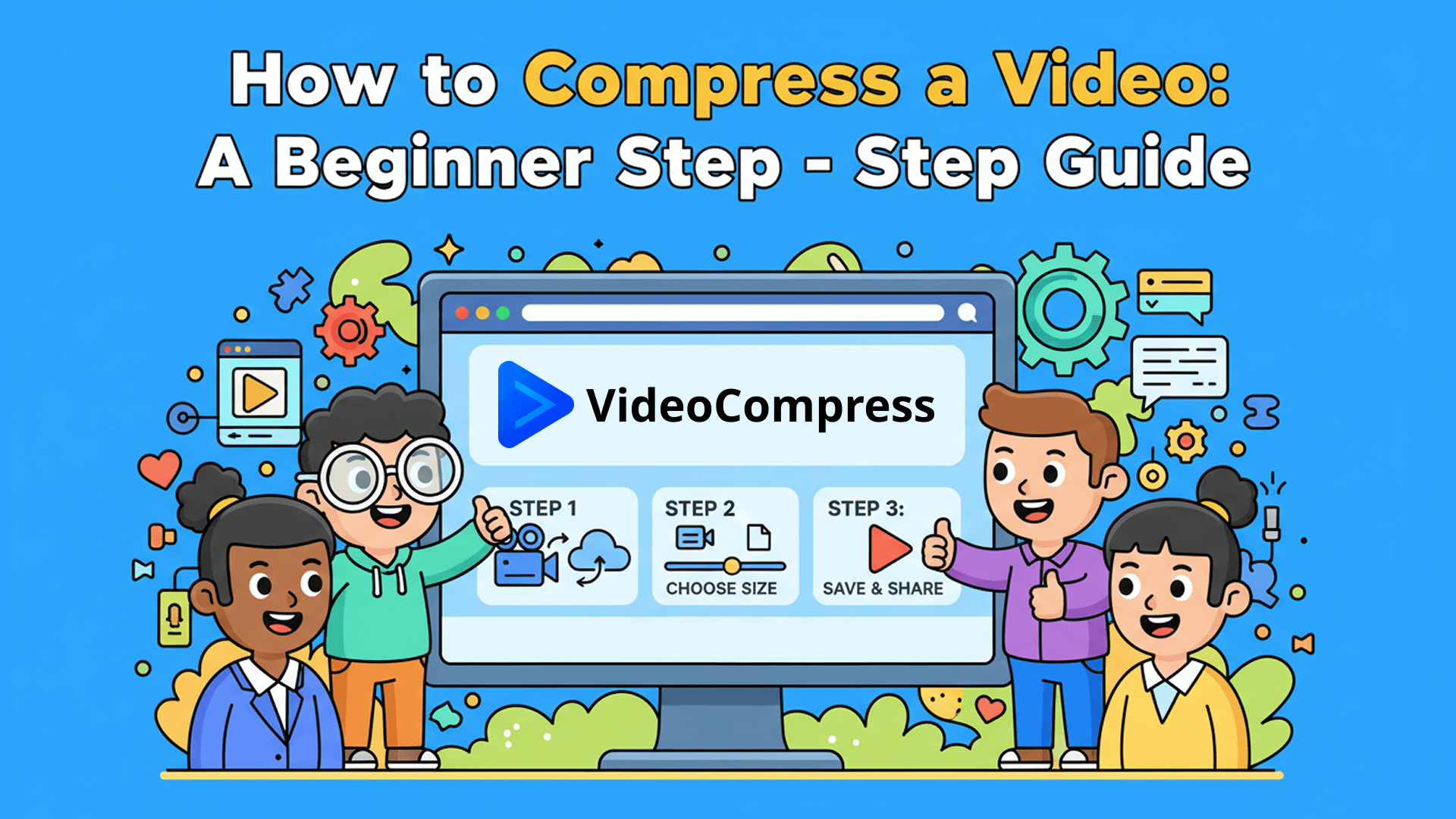
If you’ve ever tried to upload a video and been stopped by a file size limit, you already understand why people keep searching for how to compress a video. Video files are getting larger every year. Phones shoot in 4K by default, screen recordings grow fast, and even short clips can take up hundreds of megabytes.
The good news is that learning how to compress a video is no longer a technical skill reserved for professionals. With modern online tools like VideoCompress, anyone can reduce video size in minutes—no downloads, no complicated software, no guessing.
In this guide, we’ll cover the basics, walk through a simple step-by-step process, highlight common mistakes, and share practical tips to help you get better results. By the end, you’ll be able to reduce video size online with confidence and know what to adjust when needed.
What Does It Mean to Compress a Video?
Before jumping into steps, it helps to understand what video compression actually means and why it matters.
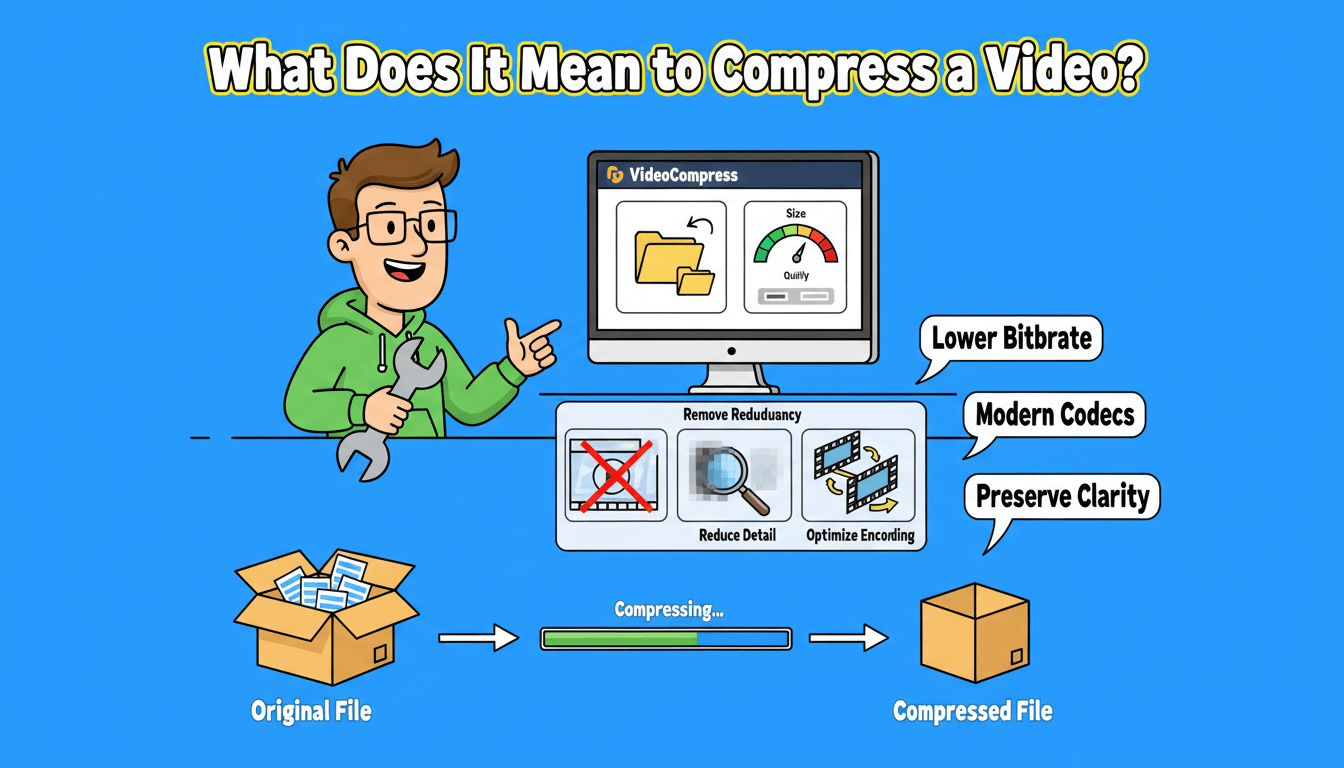
How Video Compression Works
Video compression works by optimizing how video data is stored, making files smaller without simply cutting content at random. The goal is to reduce file size while keeping the video visually acceptable.
Modern compression techniques focus on:
- Removing repeated visual information across frames
- Reducing details that the human eye is unlikely to notice
- Encoding frame changes more efficiently instead of storing every frame fully
Because of this, two videos with the same length and resolution can end up with very different file sizes, depending on how efficiently the video data is compressed.
Reducing File Size vs. Reducing Quality
One common misunderstanding about how to compress a video is that smaller files always mean worse quality. That’s not necessarily true.
A smart video compressor reduces file size efficiently by:
- Lowering the bitrate instead of the resolution
- Using modern codecs
- Preserving visual clarity where it matters most
With tools like VideoCompress, you can choose a balance between size and quality rather than blindly shrinking your video.
Common Video Formats You Can Compress
Most people deal with these formats every day:
- MP4
The most widely supported format, ideal for online sharing, social media, and streaming. - MOV
Common in Apple devices and video editing software, often higher quality but larger in size. - AVI
An older format mainly used in desktop and legacy systems, typically resulting in larger files. - MKV
A flexible format for high-quality videos with multiple audio tracks or subtitles. - WMV
A Microsoft format mainly seen in Windows-based or corporate environments.
VideoCompress supports 30+ major video formats, so you don’t need to convert files manually before compression.
VideoCompress also offers compatibility-focused compression options for older devices, which can help resolve playback issues on legacy hardware, though this may result in lower compression efficiency.
The Real Reasons People Need to Compress Videos
The demand for how to compress a video tutorials didn’t come from nowhere. It’s driven by real-world problems people face every day.
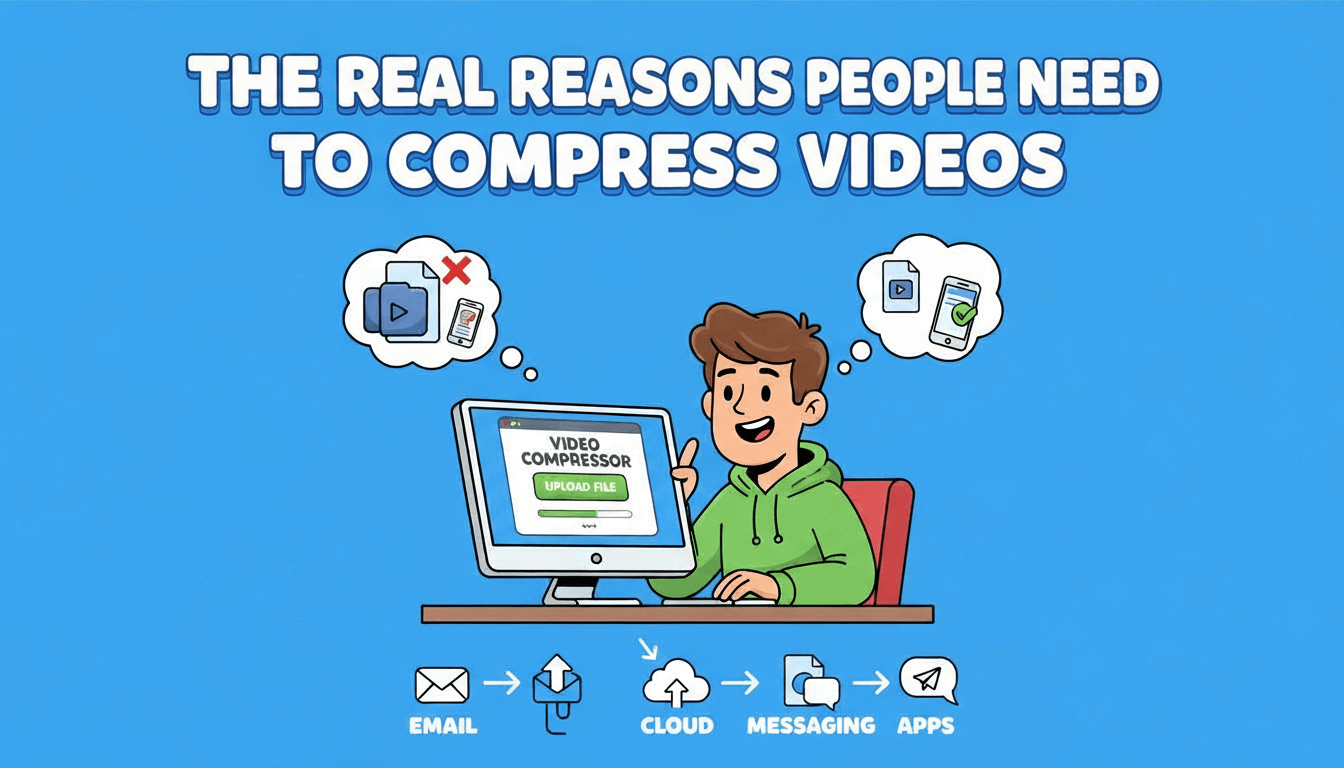
Large Videos Are Hard to Send
Messaging apps, email platforms, and cloud services all have file size limits. A short uncompressed video can be impossible to send without first learning how to compress a video properly. Today’s phones and cameras record in high resolution by default, which means even a brief clip can quickly become too large for everyday sharing.
When users don’t know how to compress a video, they are often forced to rely on cloud links or accept heavy automatic compression from apps, which can noticeably reduce quality. Using a proper video compressor allows you to reduce file size intentionally, making videos easier to send while keeping them clear and professional-looking.
Upload Limits on Platforms
Social media platforms often impose upload caps or automatically re-compress your videos after upload. This is one of the main reasons people search for how to compress a video before posting content online. When platforms handle compression for you, the final result may not match your original quality expectations.
By choosing to compress video online yourself, you stay in control of resolution, bitrate, and overall appearance. A reliable video compressor helps you meet platform requirements in advance, leading to faster uploads, fewer errors, and more consistent video quality across different platforms.
Saving Storage Space
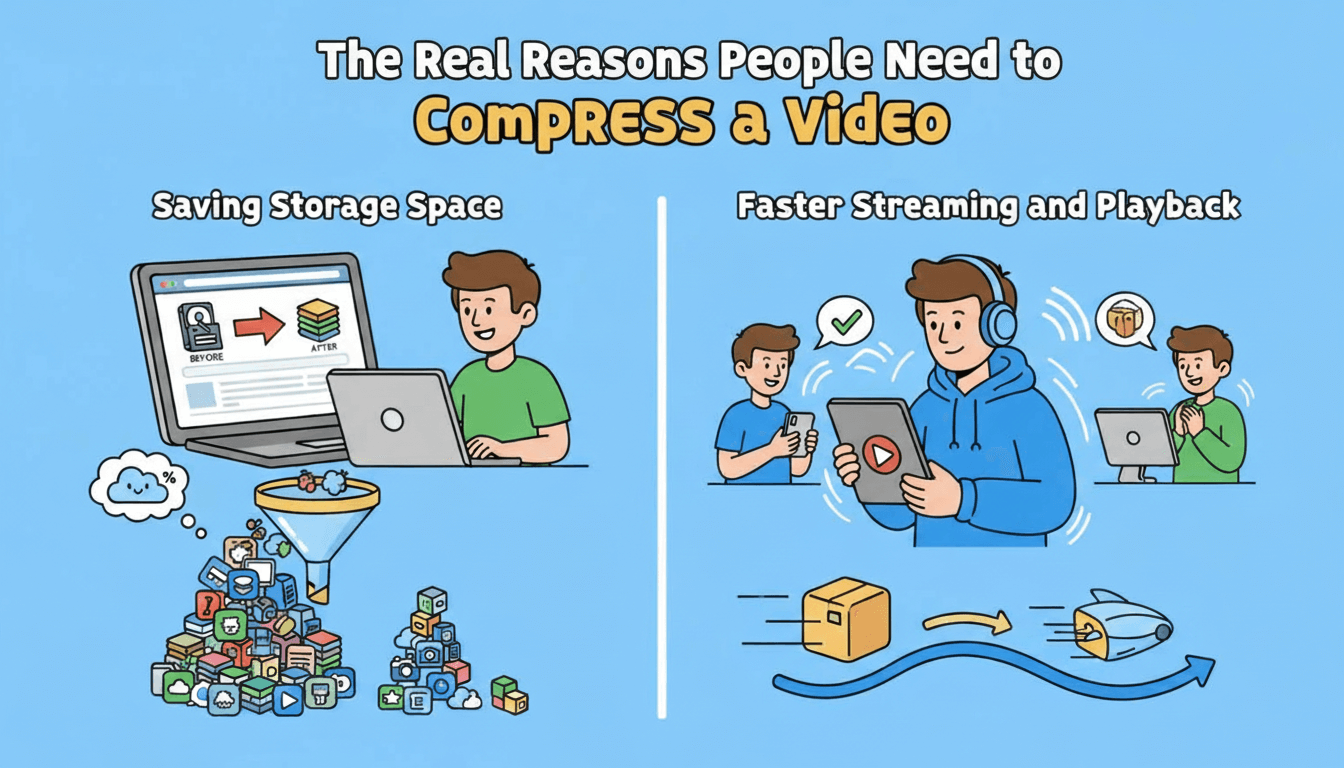
Video files are among the biggest storage hogs on phones, computers, and cloud drives. Without learning how to compress a video, storage fills up quickly, especially if you record videos frequently or work with media files.
Compressing videos allows you to keep more content without constantly deleting files or upgrading storage plans. With a smart video compressor, you can significantly reduce file size while preserving visual quality, making long-term file management simpler and more efficient.
Faster Streaming and Playback
Compressed videos load faster, stream more smoothly, and use less bandwidth. That’s why understanding how to compress a video is important not only for creators but also for anyone sharing videos with an audience.
Smaller, optimized files adapt better to different network conditions, especially on mobile devices. When you compress video online properly, viewers experience less buffering and smoother playback, which directly improves engagement and viewing satisfaction.
How to Compress a Video (Step-by-Step Guide)
Now let’s get practical. This section walks you through how to compress a video using a simple, beginner-friendly workflow.
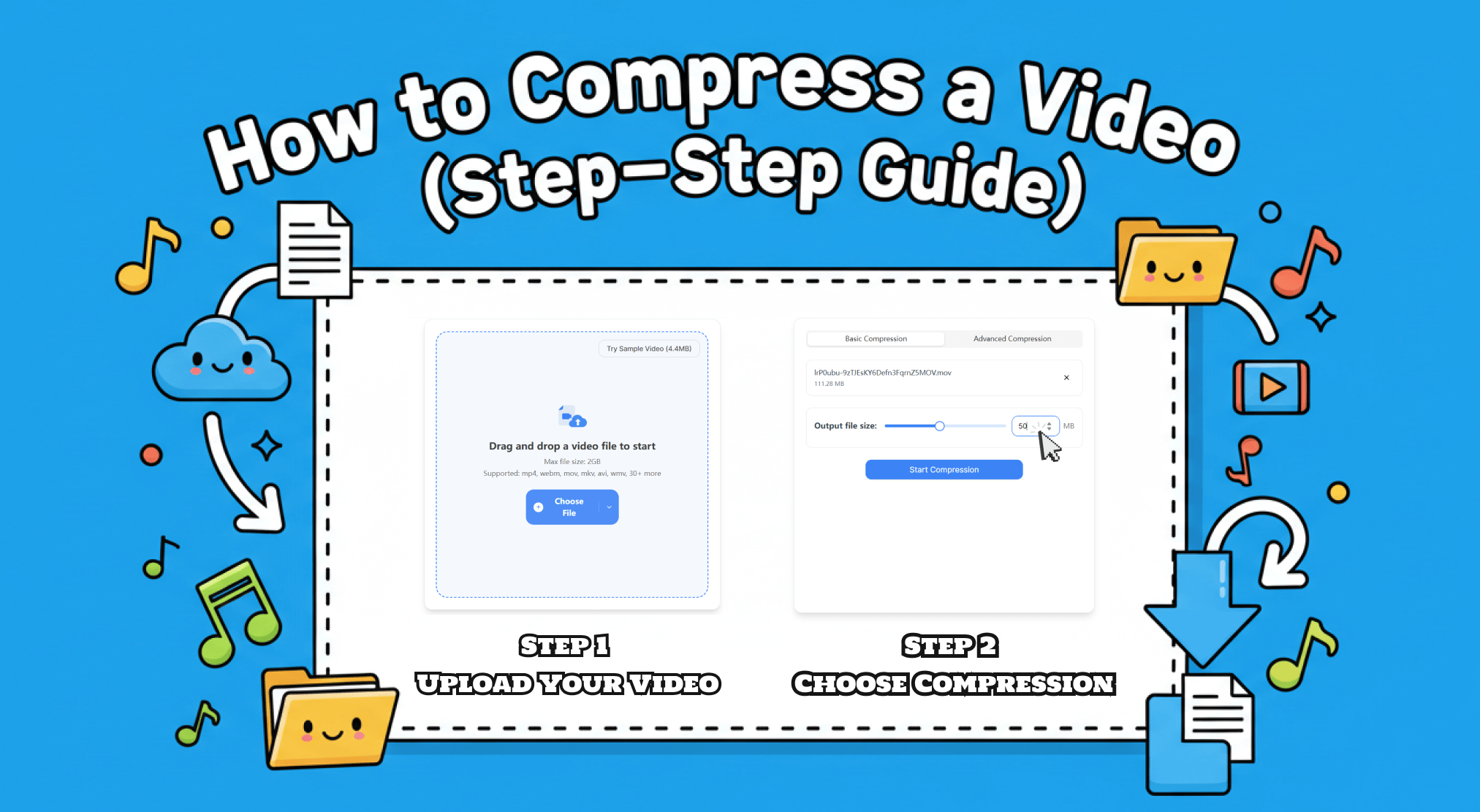
Step 1 — Upload Your Video
The first step in how to compress a video is getting your file into the tool. With VideoCompress, you have multiple flexible upload options designed for different workflows:
- Drag and drop your video directly onto the page
- Click to upload a video file from your device
- Paste a video URL to compress online content directly
- Import videos from Google Drive
- Import videos from Dropbox
Step 2 — Choose Your Compression Goal
This is where how to compress a video becomes flexible.
You can:
- Set a target file size (for example, under 50MB)
- Let the tool automatically balance size and quality
- Decide how aggressive the compression should be
If you’re compressing for email, smaller size matters most. If it’s for YouTube or a portfolio, visual quality might take priority.
Step 3 — Optional Advanced Settings
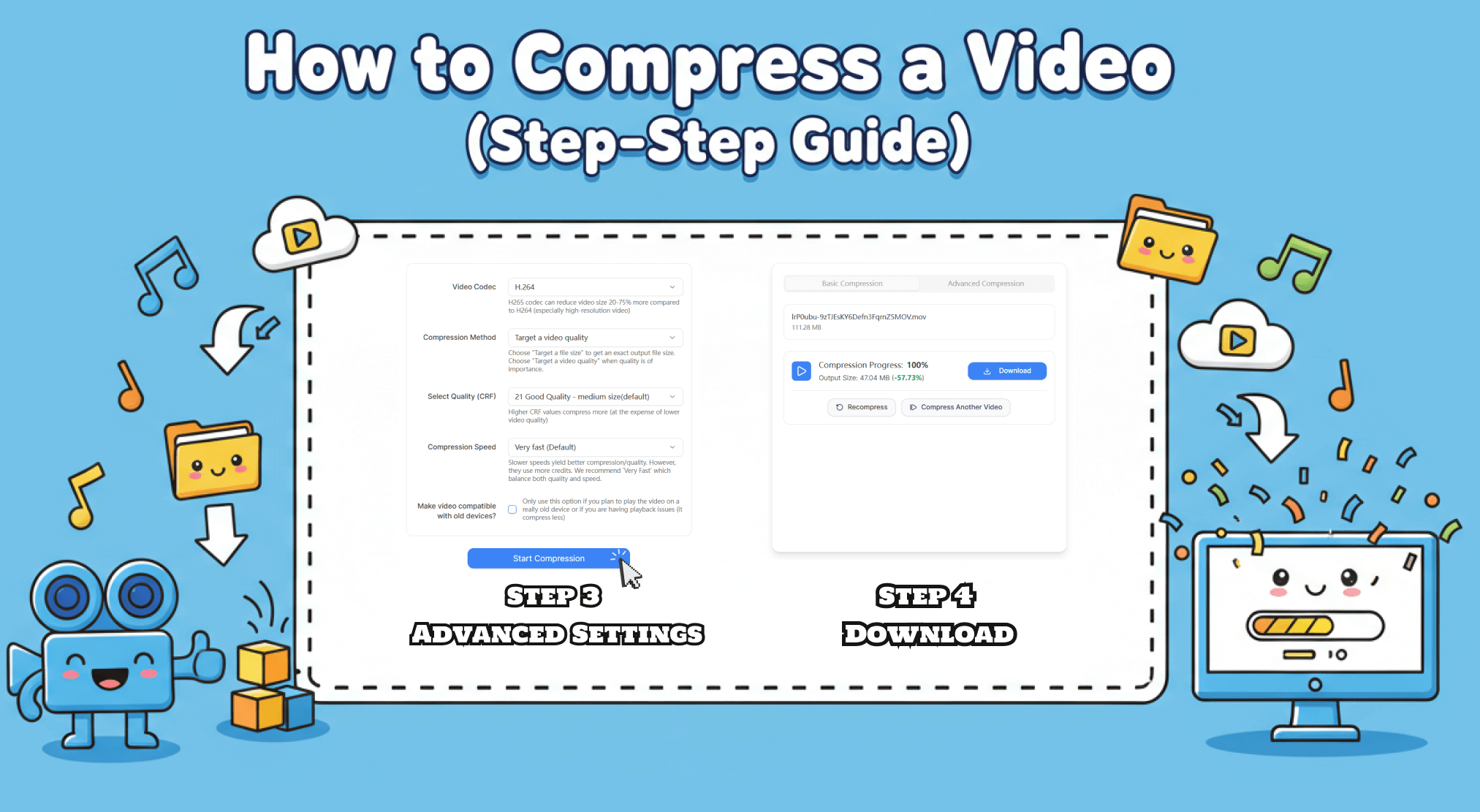
For users who want more control, advanced settings can help refine the result.
These may include:
- Bitrate adjustment
- Resolution scaling
- Frame rate optimization
If you’re new to video compression, you can safely skip this step.
VideoCompress handles most optimization automatically, which is ideal for beginners.
For most users, VideoCompress’s default compression mode is more than enough. It automatically selects optimized settings based on your video and target size, making it ideal for beginners who want reliable results without adjusting technical parameters manually.
Step 4 — Compress and Download
Once your settings are ready:
- Click Start Compression
- Let the compression process run
- Download your optimized video instantly
This final step is where everything comes together.
Common Mistakes When You Try to Compress a Video
Even though learning how to compress a video is easier than ever, many users still run into disappointing results. This usually isn’t because the tools are bad, but because small decisions during the compression process can have a big impact on quality and usability. Understanding these common mistakes helps you avoid wasted time and ensures your compressed video still looks professional.
Choosing Quality That’s Too Low
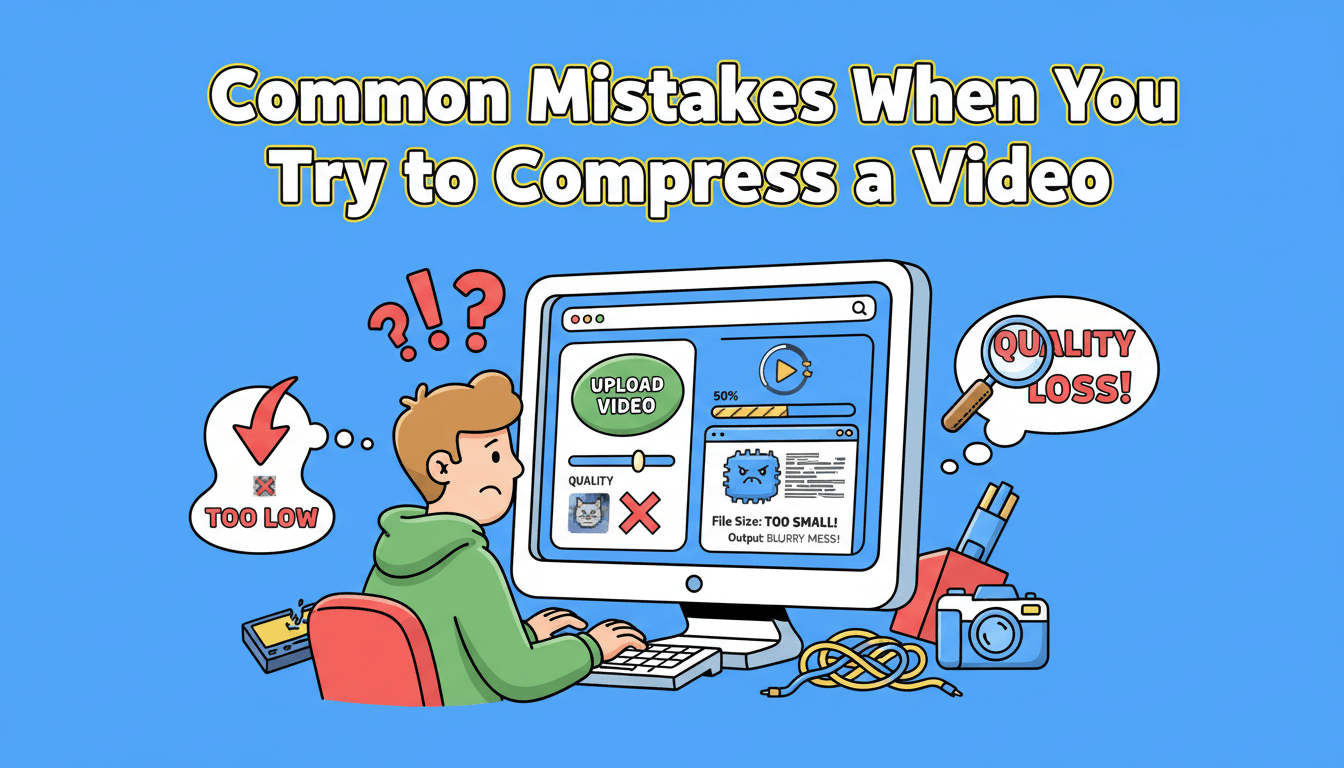
One of the most common mistakes when learning how to compress a video is reducing the quality too aggressively. While it may seem tempting to push file size as small as possible, over-compression often leads to blurry visuals, blocky motion, and text that becomes difficult to read—especially in presentations or screen recordings.
This problem usually happens when users lower the bitrate or resolution without understanding how those settings affect visual clarity. A reliable video compressor helps maintain visual balance by reducing file size intelligently instead of stripping away critical detail. The goal of compression should always be optimization, not destruction. When done correctly, viewers should barely notice that the video has been compressed at all.
Picking the Wrong Format
Format choice plays a bigger role in compression than many beginners realize. Some video formats are simply more efficient than others. For example, MP4 is widely considered the best option for online sharing because it offers strong compression with good compatibility across devices and platforms.
When users don’t fully understand how to compress a video, they may keep their original format even if it’s outdated or inefficient. This can result in larger file sizes or playback issues. Choosing the right format early in the process helps ensure smoother compression, faster uploads, and better playback performance across platforms.
Ignoring File Size Goals
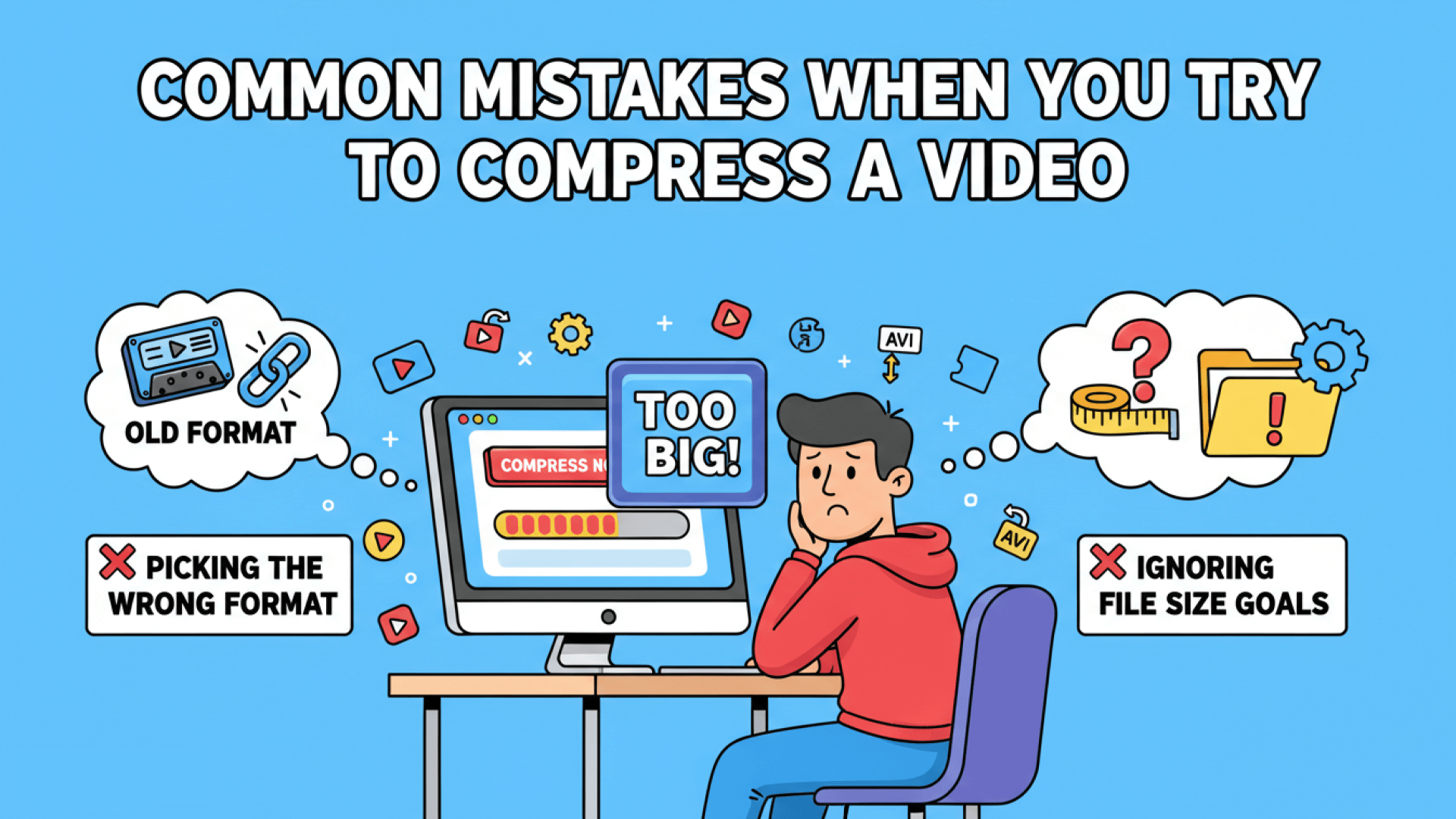
Another mistake is starting the compression process without a clear file size goal. Without knowing whether your video needs to be under 25MB for email or optimized for social media, compression becomes a guessing game.
This often leads to multiple attempts, wasted time, and inconsistent results. Setting a clear target upfront makes how to compress a video more predictable and efficient. Tools that allow direct file size selection remove this guesswork entirely and streamline the process.
Why Use VideoCompress for How to Compress a Video
With so many tools available online, it’s reasonable to wonder which one actually delivers consistent results. The difference comes down to usability, flexibility, and how well the tool understands real user needs.
No Software, No Hassle
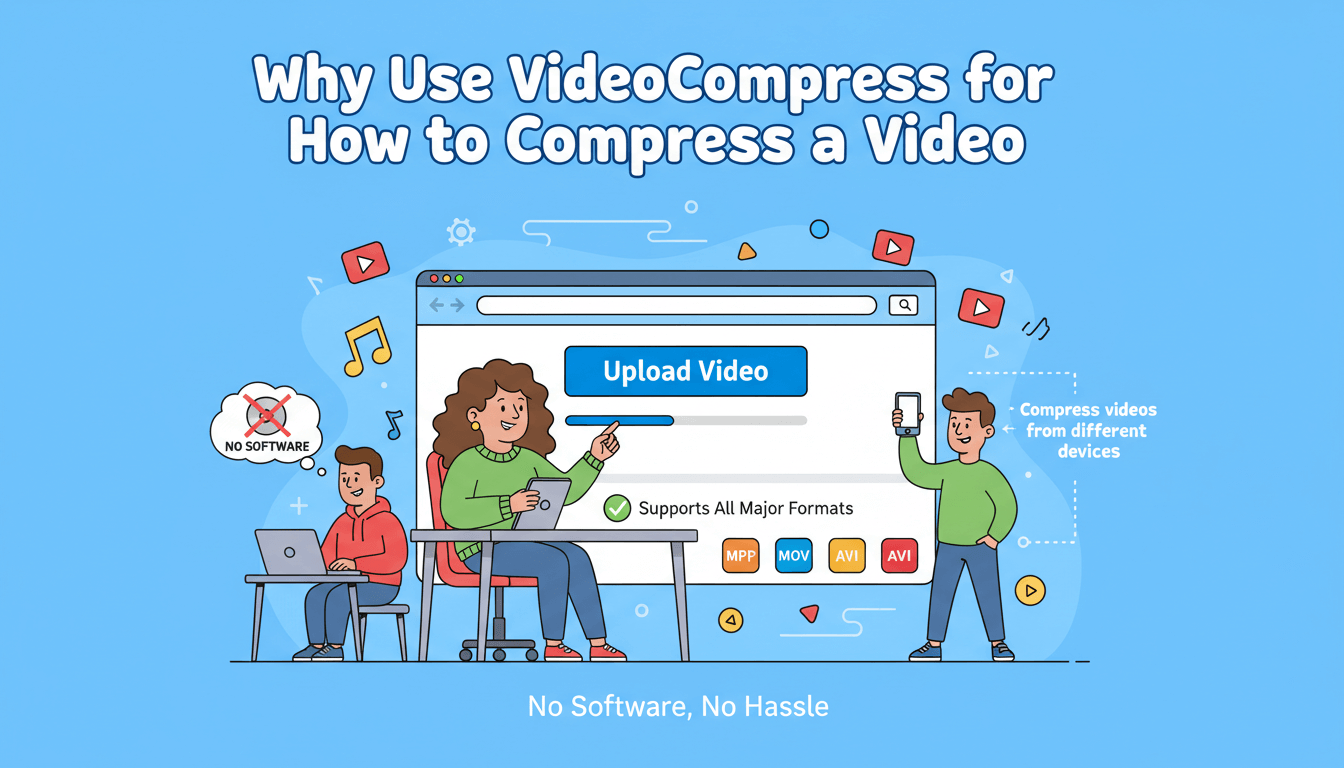
VideoCompress works entirely in your browser, which means there’s no software to install and no system requirements to worry about. This is especially helpful for users who just want to compress video online quickly without cluttering their devices or dealing with updates and compatibility issues.
The browser-based workflow also makes it easier to compress videos from different devices, whether you’re working on a laptop, tablet, or mobile phone.
Supports All Major Formats
A good video compressor shouldn’t force you to convert files before compression. VideoCompress supports MP4, MOV, AVI, and many other common formats, allowing users to upload and compress videos without extra steps.
This flexibility saves time and reduces errors, especially for users handling videos from multiple sources or devices.
Simple File Size Control
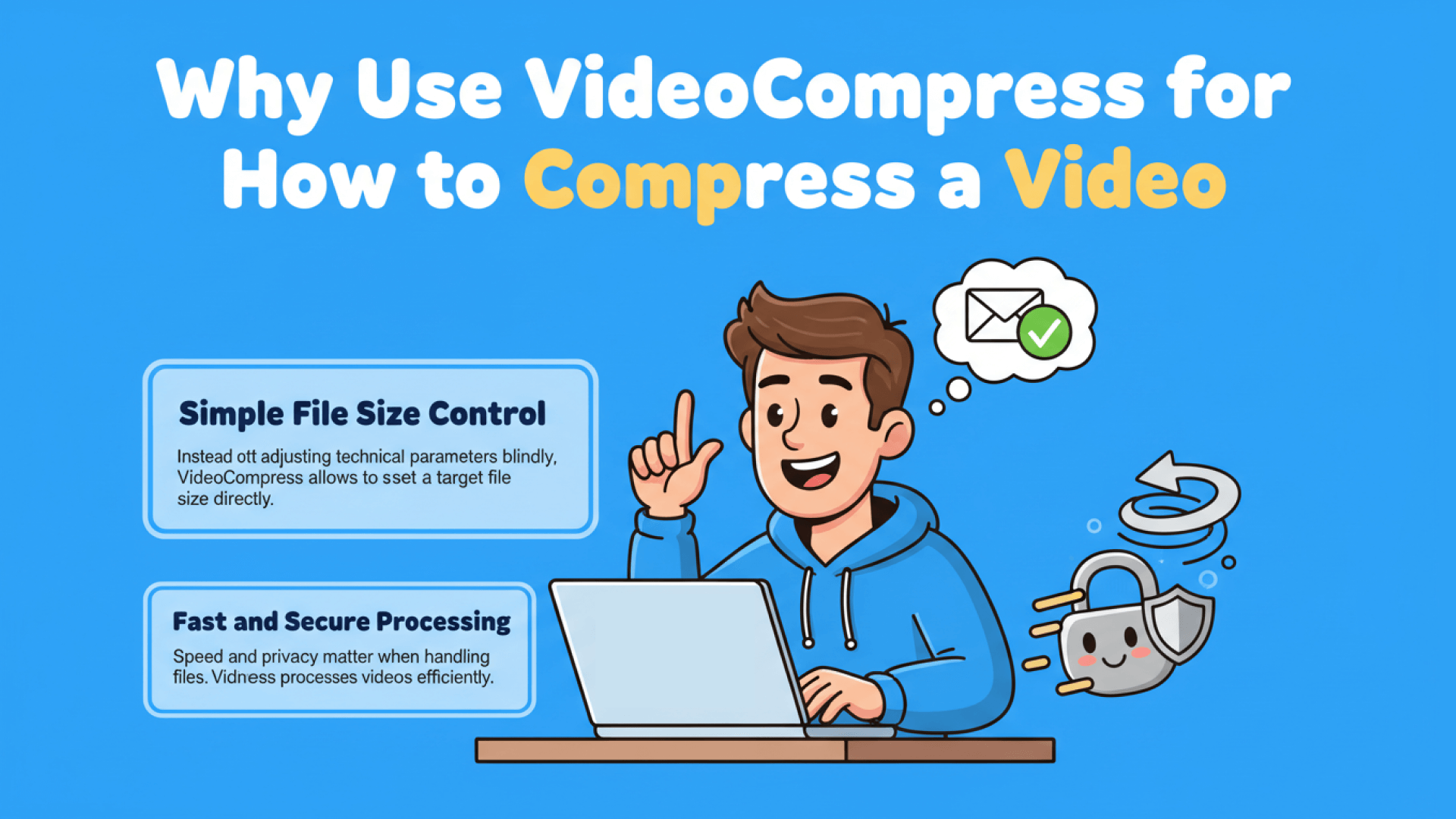
Instead of adjusting technical parameters blindly, VideoCompress allows you to set a target file size directly. The tool handles the optimization automatically, making how to compress a video approachable even for beginners.
This feature is particularly useful when working with platform limits or email attachment restrictions.
Fast and Secure Processing
Speed and privacy matter when handling video files. VideoCompress processes videos efficiently while keeping user data protected, allowing you to compress and download files with confidence.
Tips to Get Better Results When You Compress a Video
Even with a good tool, a few best practices can significantly improve results when applying how to compress a video.
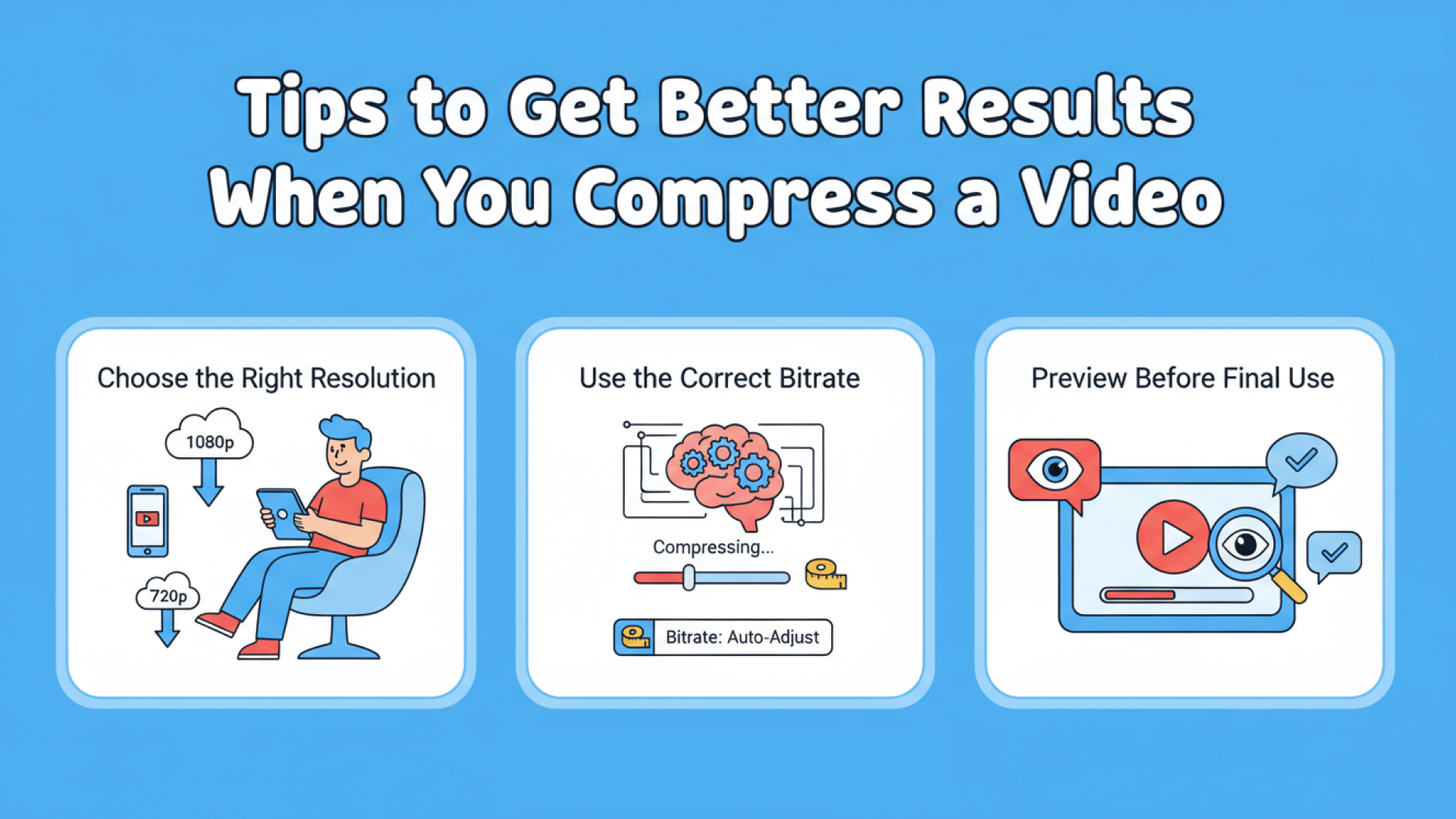
Choose the Right Resolution
Higher resolution isn’t always better. If your video will be viewed mainly on mobile devices, 1080p or even 720p often provides excellent quality with a much smaller file size.
Use the Correct Bitrate
Bitrate has the greatest impact on file size. Lowering it carefully reduces size without noticeably affecting its quality. A smart video compressor automatically finds this balance, saving you from manual trial and error.
Preview Before Final Use
Before sending or uploading, always review the compressed file. This final check ensures your compress video online process preserves important details like text, motion clarity, and audio quality.
Frequently Asked Questions about VideoCompress
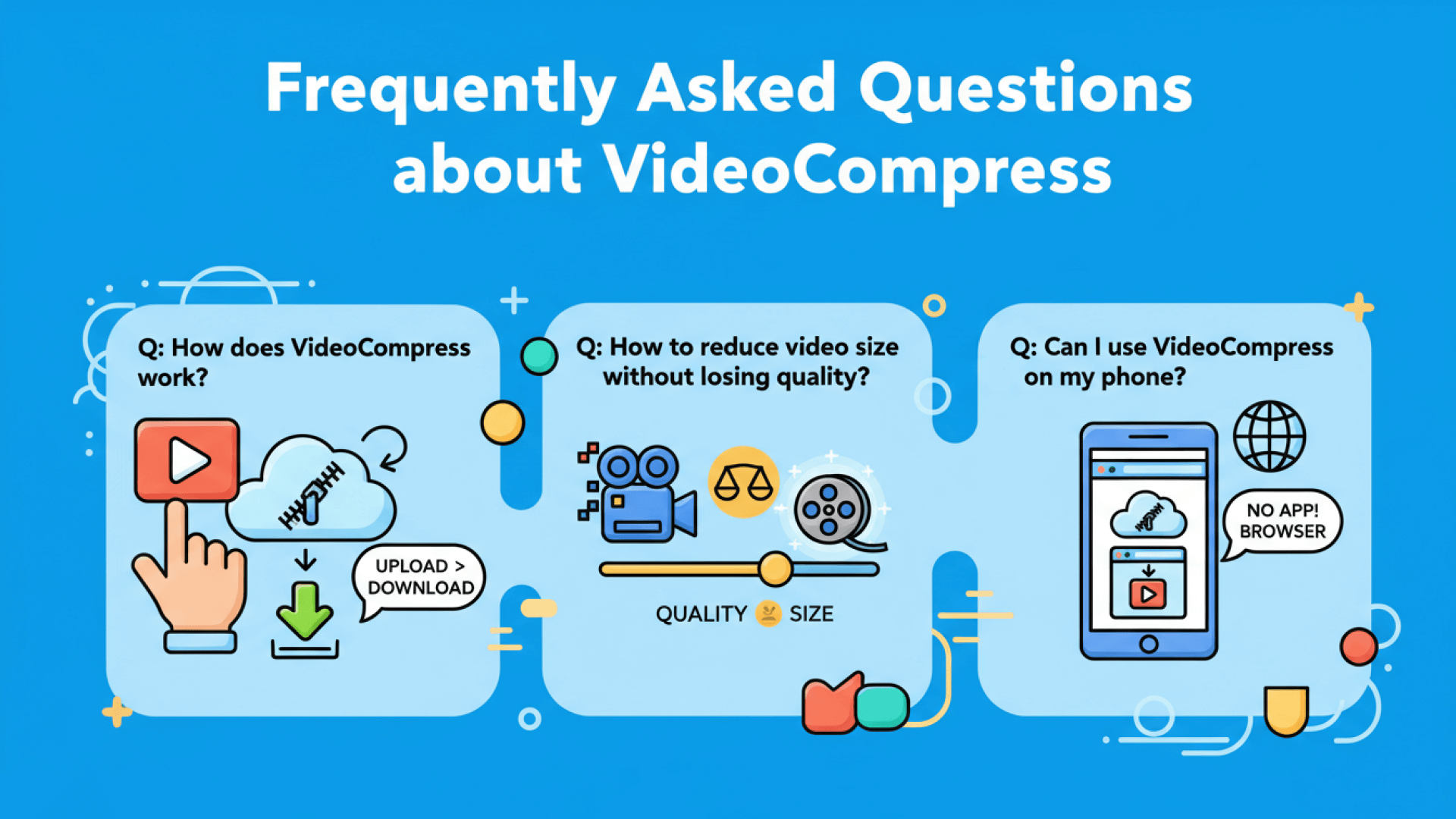
- Q: How does VideoCompress work?
A: VideoCompress lets you upload a video directly in your browser and compress it based on your selected target size or settings. Once processed, you can download the optimized video immediately. - Q: How to reduce video size without losing quality?
A: VideoCompress reduces video size by optimizing compression settings to balance file size and visual quality. Choosing an appropriate target size helps keep the video clear while making it smaller. - Q: Can I use VideoCompress on my phone?
A: Yes, VideoCompress works on mobile devices through a web browser, so no app installation is required. You can upload, compress, and download videos directly on your phone.
Conclusion: How to Compress a Video Easily with VideoCompress
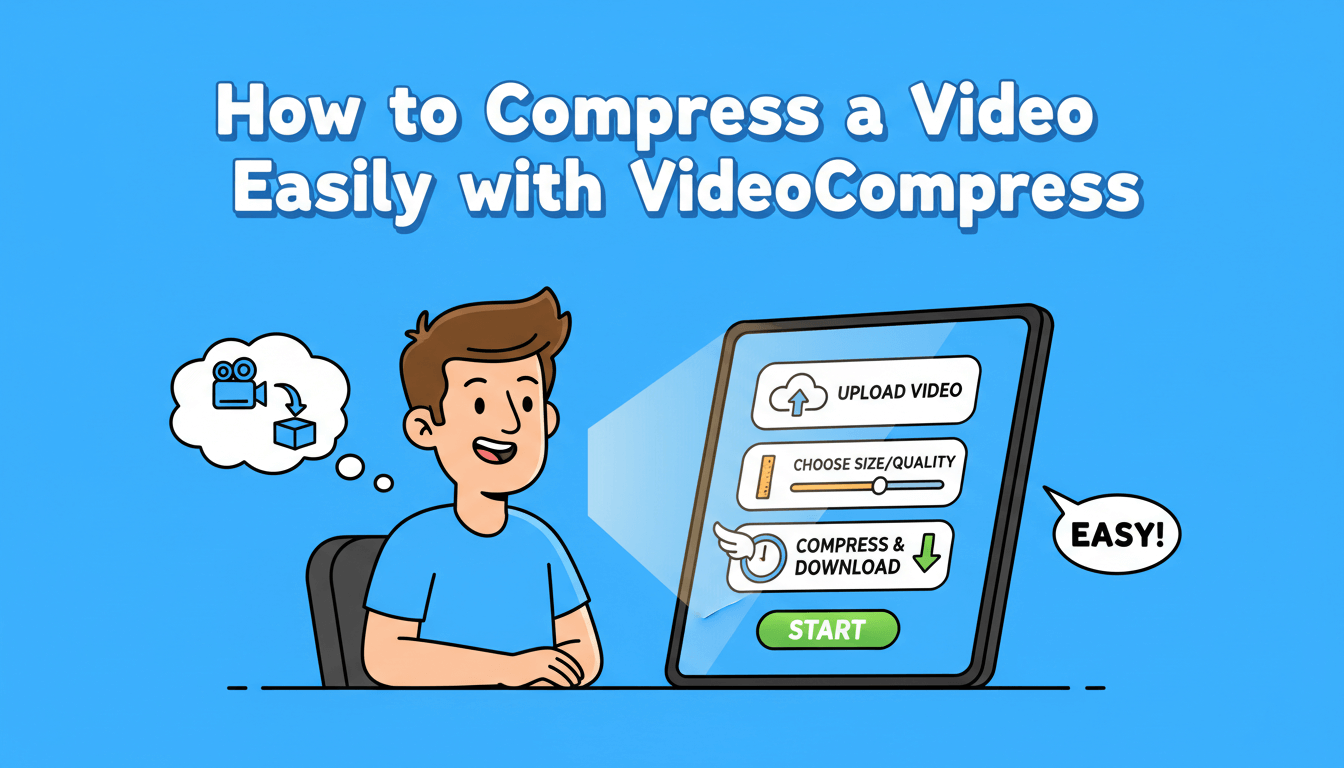
Learning how to compress a video is no longer optional in a world dominated by video content. Whether you’re sharing clips with friends, uploading content for work, or saving storage space, compression is essential.
With VideoCompress, the process becomes simple:
- Upload your video
- Choose your size or quality goal
- Compress and download in minutes
If you’ve been searching for a reliable way to compress video online, VideoCompress gives you speed, control, and ease—all without technical stress. Start today and experience how effortless how to compress a video with VideoCompress.