

- Introduction
- TL;DR: The Best Free Online PDF Compressor Options
- What Should You Look for in a Free Online PDF Compressor?
- Quick Comparison Table
- Top PDF Compressor Tools 2026
- Which Free Online PDF Compressor Is Best?
- FAQ About Free Online PDF Compressor Tools
- Final Verdict
Best Free Online PDF Compressor 2026: Top 6 Tools Compared
Introduction
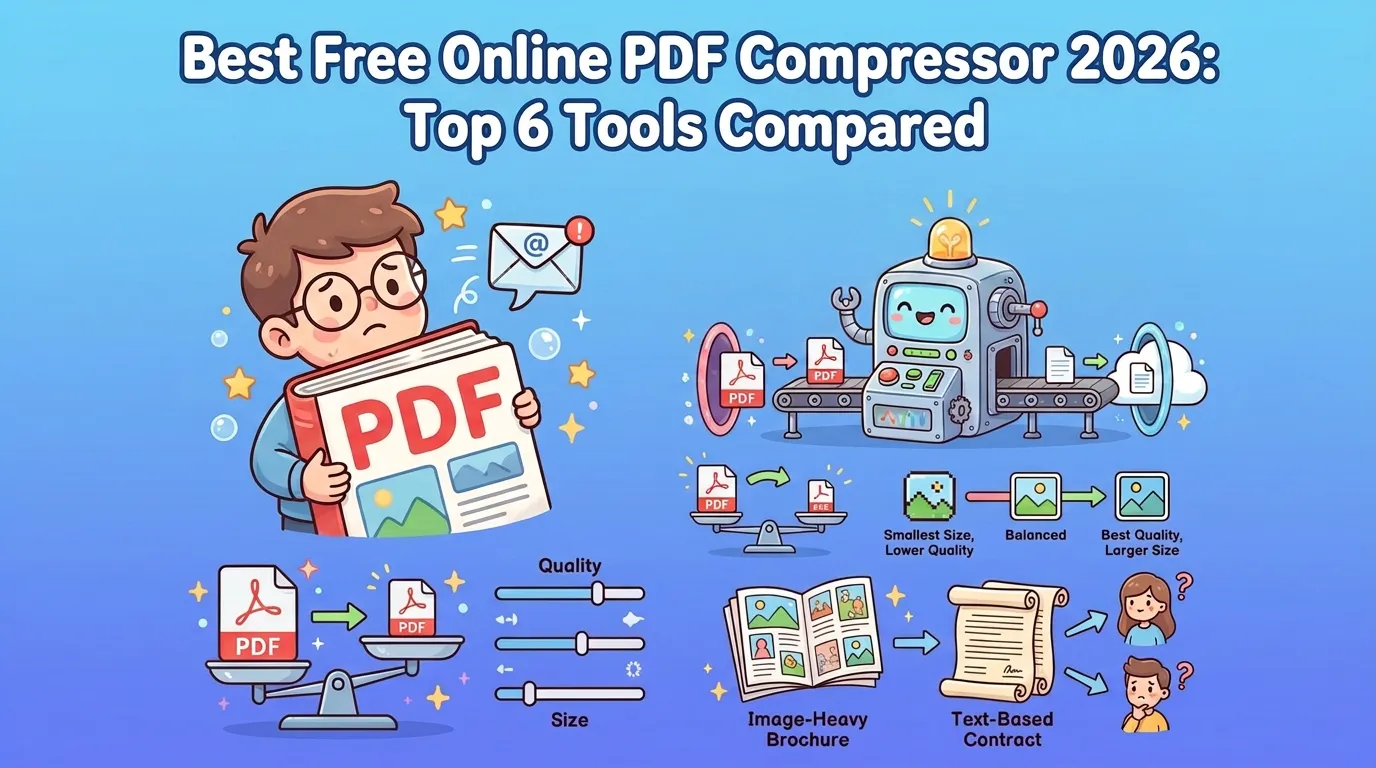
A PDF can look perfectly fine and still be too large to email, upload to a portal, or store comfortably. The obvious fix is a PDF compressor, but the smallest output is not always the best output. If images turn muddy, small text gets harder to read, or the page layout changes, the compression has gone too far.
For this guide, we reviewed six browser-based options: VideoCompress, Adobe Acrobat Online, Smallpdf, PDF24 Tools, FreeConvert, and Foxit. The main question is simple: what is the best free tool to compress a PDF without losing much quality?
Because compression results vary by document, this comparison focuses on the controls, free-use limits, batch support, and quality-versus-size options each service currently provides. An image-heavy brochure can behave very differently from a mostly text-based contract, so there is no honest universal “X% smaller” winner. The right PDF compressor depends on the kind of document you have and how much visual detail you need to preserve.
TL;DR: The Best Free Online PDF Compressor Options
- VideoCompress: Best for free batch compression.
- Adobe Acrobat Online: Best for clear compression presets and large single files.
- Smallpdf: Best for very large PDFs used occasionally.
- PDF24 Tools: Best for hands-on quality control.
- FreeConvert: Best for flexible settings and cloud imports.
- Foxit: Best for simple one-file compression.
These “Best for” labels are editorial recommendations based on each tool’s current features and free-use limits rather than a claim that one service always produces the smallest file.
If you mainly want to reduce PDF file size without making the document noticeably worse, start with a lighter or balanced setting. Move to stronger compression only when the output is still too large.
What Should You Look for in a Free Online PDF Compressor?
Quality vs. File Size
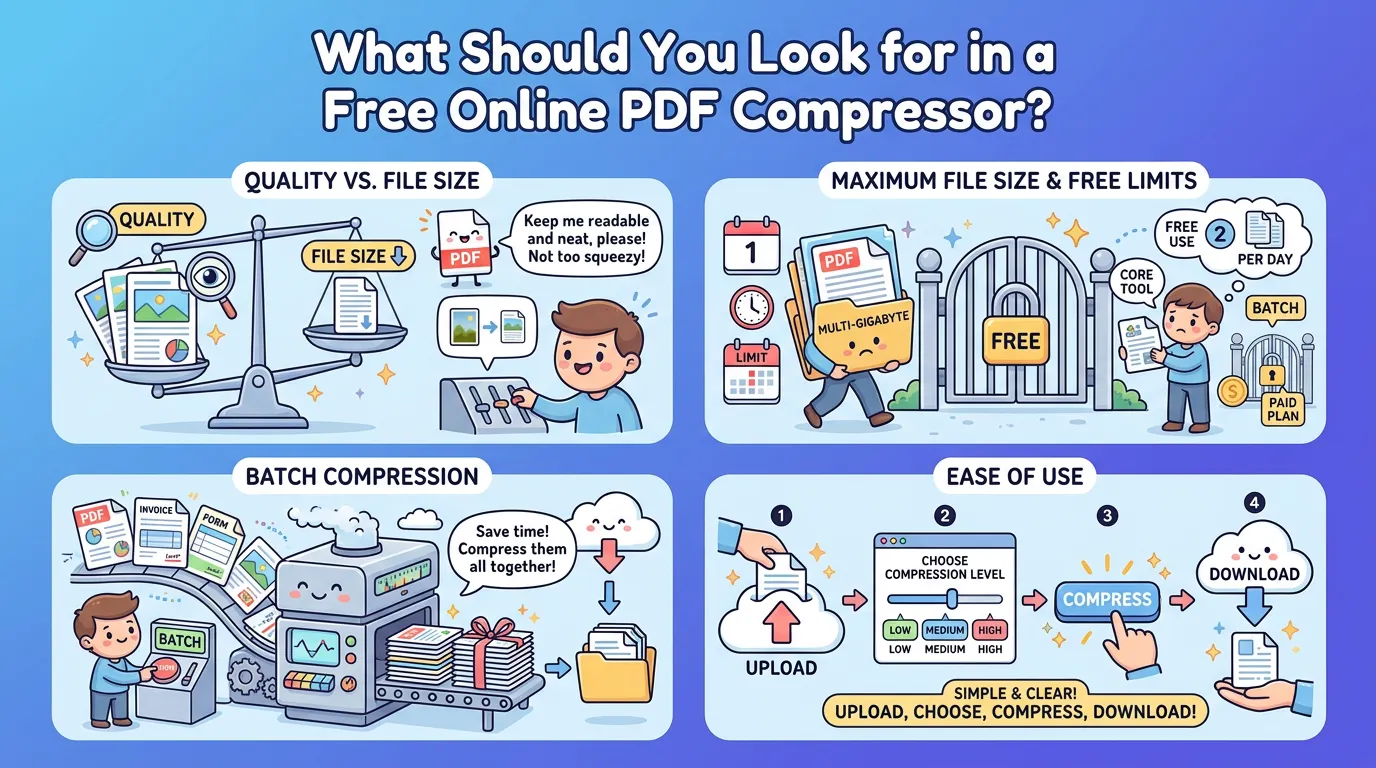
This is the most important trade-off. Stronger compression usually saves more space, but image-heavy and scanned PDFs may show visible degradation sooner than text-heavy files. PDF24, for example, notes that image-heavy files generally offer more room for compression and that lossless compression produces a smaller reduction.
A good PDF compressor should keep text readable, preserve the original page layout, and give you enough control to avoid over-compressing photos, charts, or scans. The goal is not the smallest possible file; it is the smallest file that still looks right for its destination.
Maximum File Size and Free Limits
“Free” can mean very different things. One service may accept multi-gigabyte files but limit daily use, while another may keep the core tool free and put batch processing behind a paid plan. Adobe, for example, offers basic online compression with limited free use, while Smallpdf currently gives free users two compressions per day.
If you are searching for “compress PDF free,” check both the upload limit and what is actually available before or after compression.
Batch Compression
Batch support matters when you have several reports, invoices, or forms to process. Compressing multiple documents together can save a lot of repetitive uploading and downloading.
Ease of Use
The ideal workflow is straightforward: upload, choose a compression level, compress, and download. Clear labels matter, especially when a tool offers several quality or optimization settings.
Quick Comparison Table
| Tool | Best For | Max File Size | Batch Compression | Quality / Compression Controls | Free-Use Notes |
|---|---|---|---|---|---|
| VideoCompress | Free batch compression | 1 GB | Up to 5 files | Low, Medium, High + grayscale | Free, no watermark |
| Adobe | Clear presets + large files | 2 GB | Paid plan | High, Medium, Low | Basic use is free with limits |
| Smallpdf | Very large occasional PDFs | 5 GB | Pro | Basic free; Moderate/Strong Pro | 2 free compressions/day |
| PDF24 Tools | Manual quality control | No fixed cap published | Yes | DPI, image quality, lossless mode | Free, no registration |
| FreeConvert | Flexible settings | 1 GB | Yes | No/Low/Medium/High, grayscale | Free limits apply |
| Foxit | Simple single-file use | 150 MB | No online batch | Compression-level selection | Free, no account required |
The limits and plan details above were checked against the providers’ current product pages and documentation in 2026.
Top PDF Compressor Tools 2026
1. VideoCompress
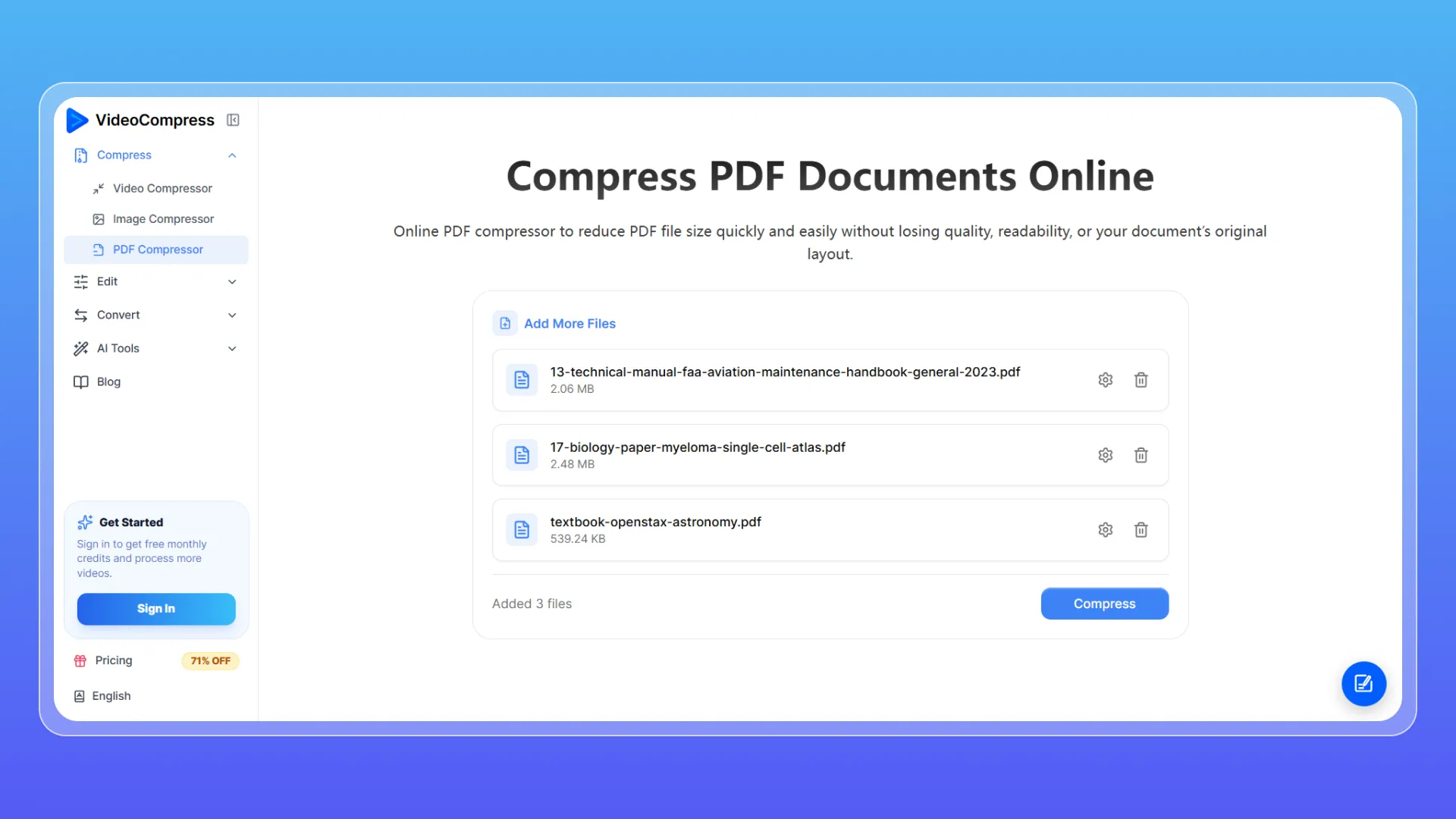
VideoCompress offers three compression levels—Low, Medium, and High—plus a No Compression option. You can upload PDFs up to 1 GB each, process up to five files in one batch, and download the results directly in your browser. The tool is free to use, adds no watermark, and requires no software installation.
The quality settings are easy to understand. Low preserves the most visual quality, Medium offers a balance between quality and file size, and High applies stronger compression for a smaller output. You can also convert the PDF to grayscale when color is not essential, which may help reduce the file size further.
Pros
- Up to 1 GB per file
- Batch compression for up to five PDFs
- Three clear compression levels
- Grayscale option
- Free with no watermark
Cons
- Fewer manual controls than tools like PDF24
Best for
Users who want a simple PDF file compressor for large files or free batch compression without dealing with technical settings.
2. Adobe Acrobat Online
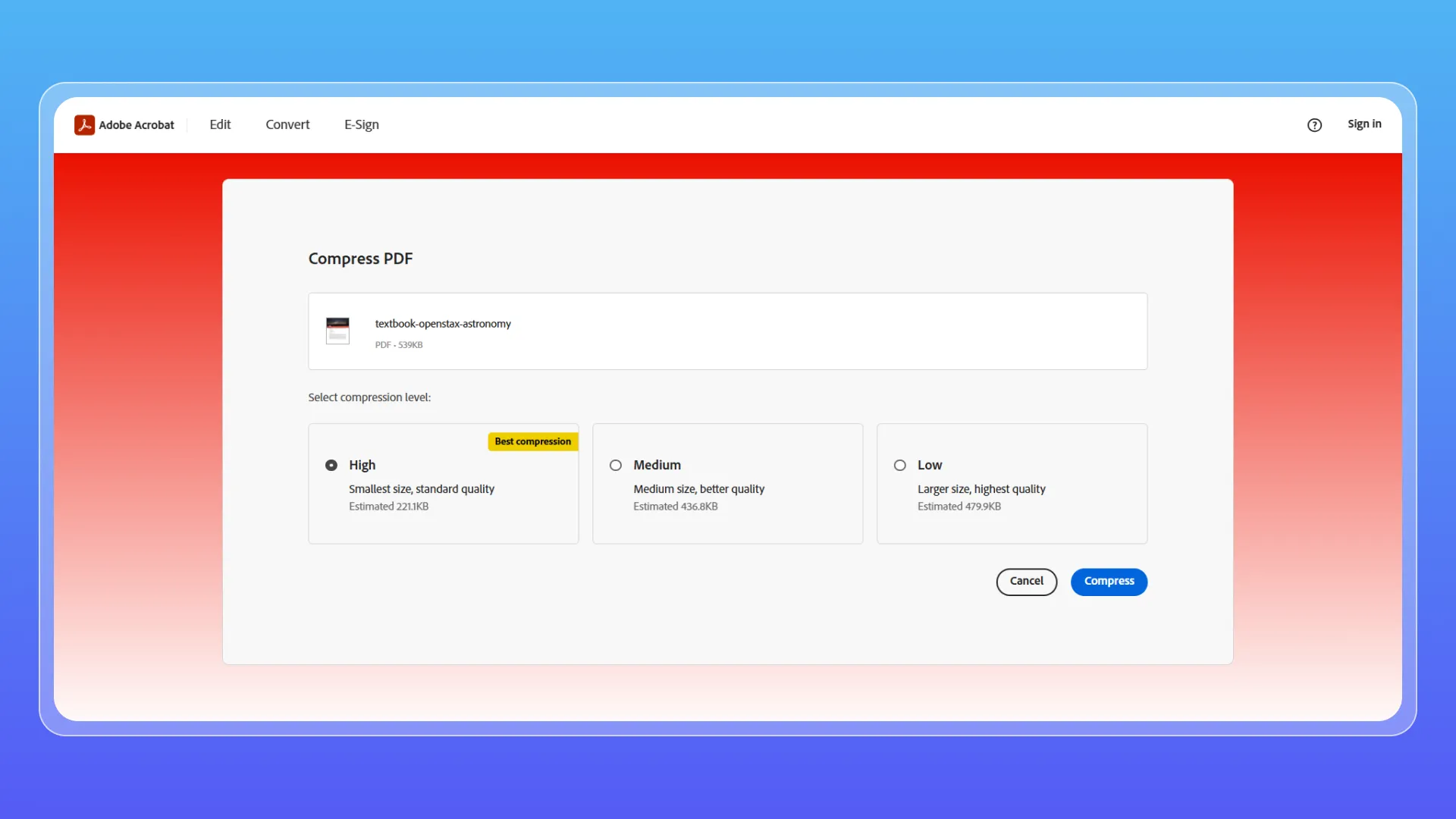
Adobe Acrobat Online accepts PDF files up to 2 GB and offers High, Medium, and Low compression. Adobe explains that different levels balance file size and image quality, and its online process also reduces image resolution and removes unnecessary data where appropriate.
That makes the size-versus-quality choice easy to understand, even if you do not know what DPI or image downsampling means. Basic online compression is available free with limited use, but Adobe says unlimited compression, batch processing, and advanced controls require a paid Acrobat plan.
Pros
- Up to 2 GB per PDF
- Clear High, Medium, and Low presets
- Simple browser-based workflow
Cons
- Free use is limited
- Batch processing requires a paid plan
Best for
Users who want a familiar PDF compressor with clear quality presets for a large single document.
3. Smallpdf
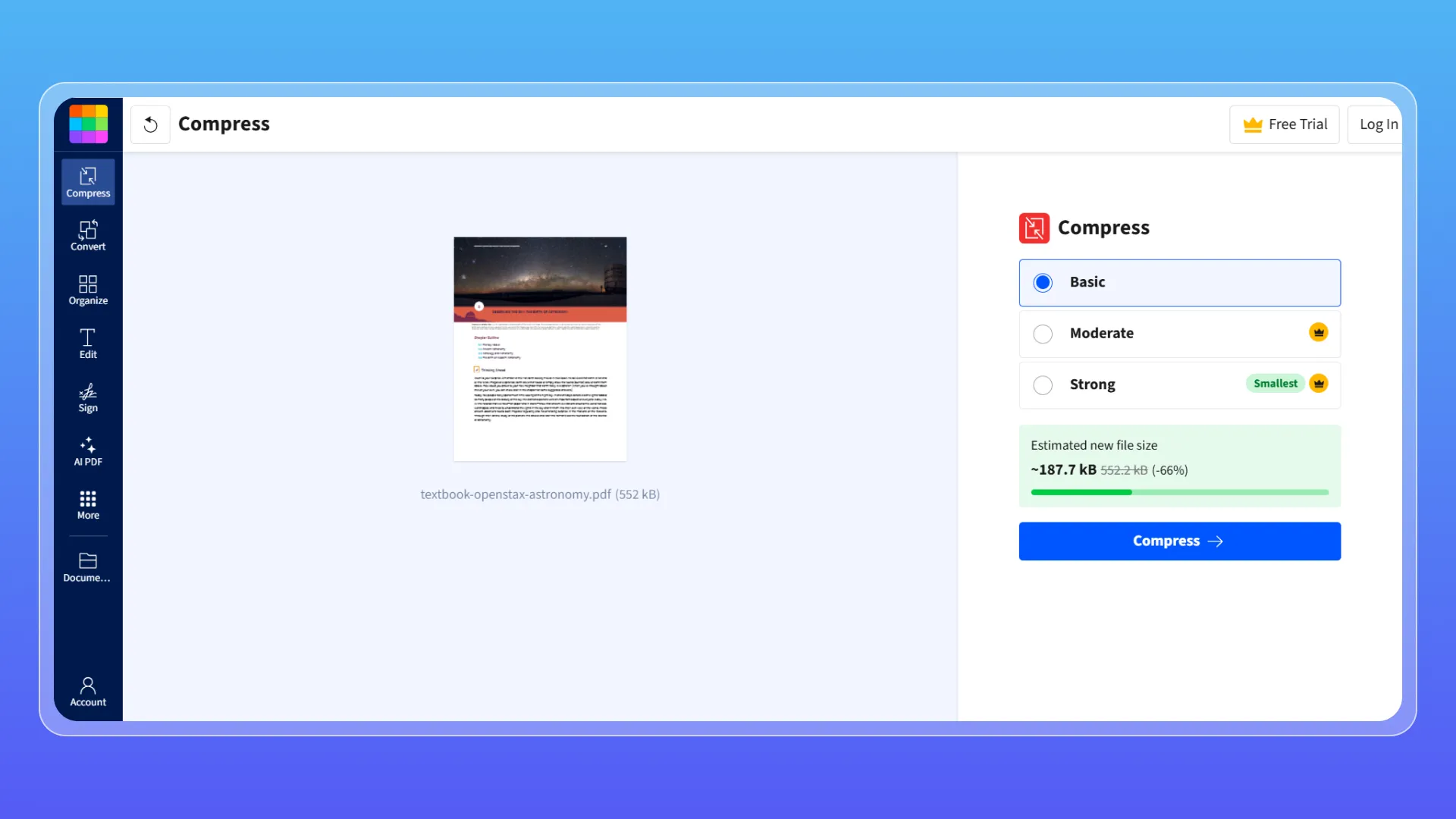
Smallpdf has one of the largest published free file limits in this comparison. Its 2026 guidance says free users can compress PDFs up to 5 GB and get two free compressions per day. Basic compression is free, while Moderate and Strong compression are Pro features.
For the specific goal of keeping quality high, Basic is the most relevant option. Smallpdf says its compression modes are designed to balance smaller files with document quality, and its main tool page positions Basic as the free starting point. The interface is polished and browser-based, but regular users can run into the daily limit quickly.
Pros
- Up to 5 GB for free users
- Clean, beginner-friendly workflow
- Basic compression available free
Cons
- Two free compressions per day
- Moderate, Strong, and batch features require Pro
Best for
People who need a PDF compressor for very large files but only use it occasionally.
4. PDF24 Tools
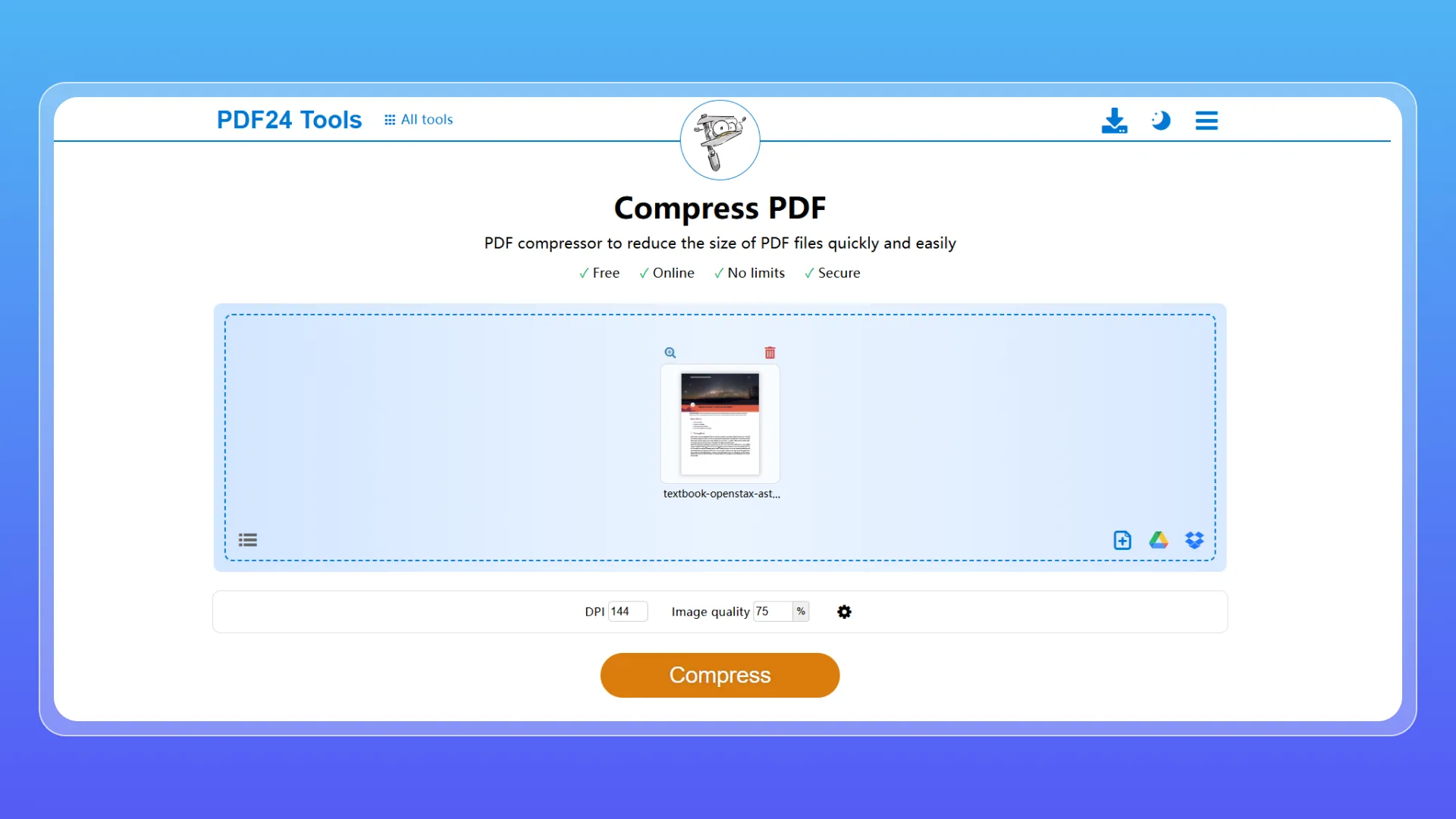
PDF24 takes a more technical approach. Instead of relying only on a few presets, it lets you adjust DPI and image quality directly. It also offers lossless compression and additional optimization settings.
That control is useful if preserving quality matters more than convenience. PDF24 notes that lossless compression is possible, but the reduction in file size will usually be smaller. Its online tool supports multiple files, requires no registration, and does not require software installation. The trade-off is that beginners may need a moment to understand which settings to change.
Pros
- Adjustable DPI and image quality
- Lossless compression option
- Multiple-file support
- Free with no registration
Cons
- More technical than preset-based tools
- No fixed maximum upload size is published on the compressor page
Best for
Users who want a PDF file compressor with direct control over the quality-versus-size trade-off.
5. FreeConvert
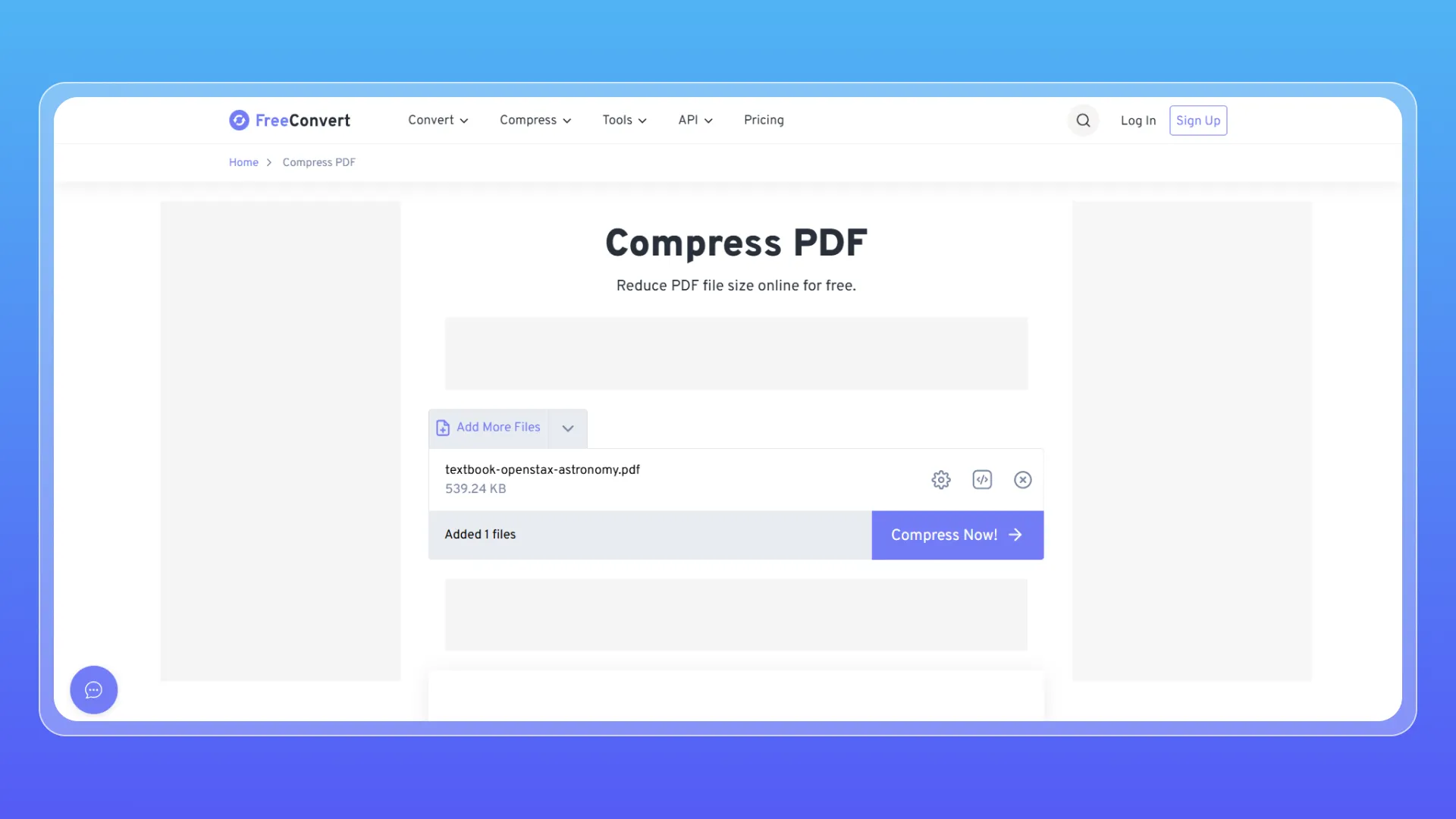
FreeConvert sits between simple presets and advanced manual tools. Its PDF compressor accepts files up to 1 GB and offers No Compression, Low, Medium, and High settings. Medium is positioned as the balance between quality and size, while Low keeps more quality and High pushes for a smaller output.
It also supports uploads from Dropbox, Google Drive, OneDrive, and URLs, plus a grayscale option that can reduce size further when color is not important. “Apply to All” makes the settings easier to reuse across multiple files. FreeConvert also offers paid upgrades for users who need higher limits.
Pros
- 1 GB file limit
- Multiple quality levels
- Grayscale option
- Cloud and URL imports
Cons
- Free processing limits apply
- More controls than some casual users need
Best for
Users who want to reduce PDF file size with flexible quality settings or cloud-based imports.
6. Foxit
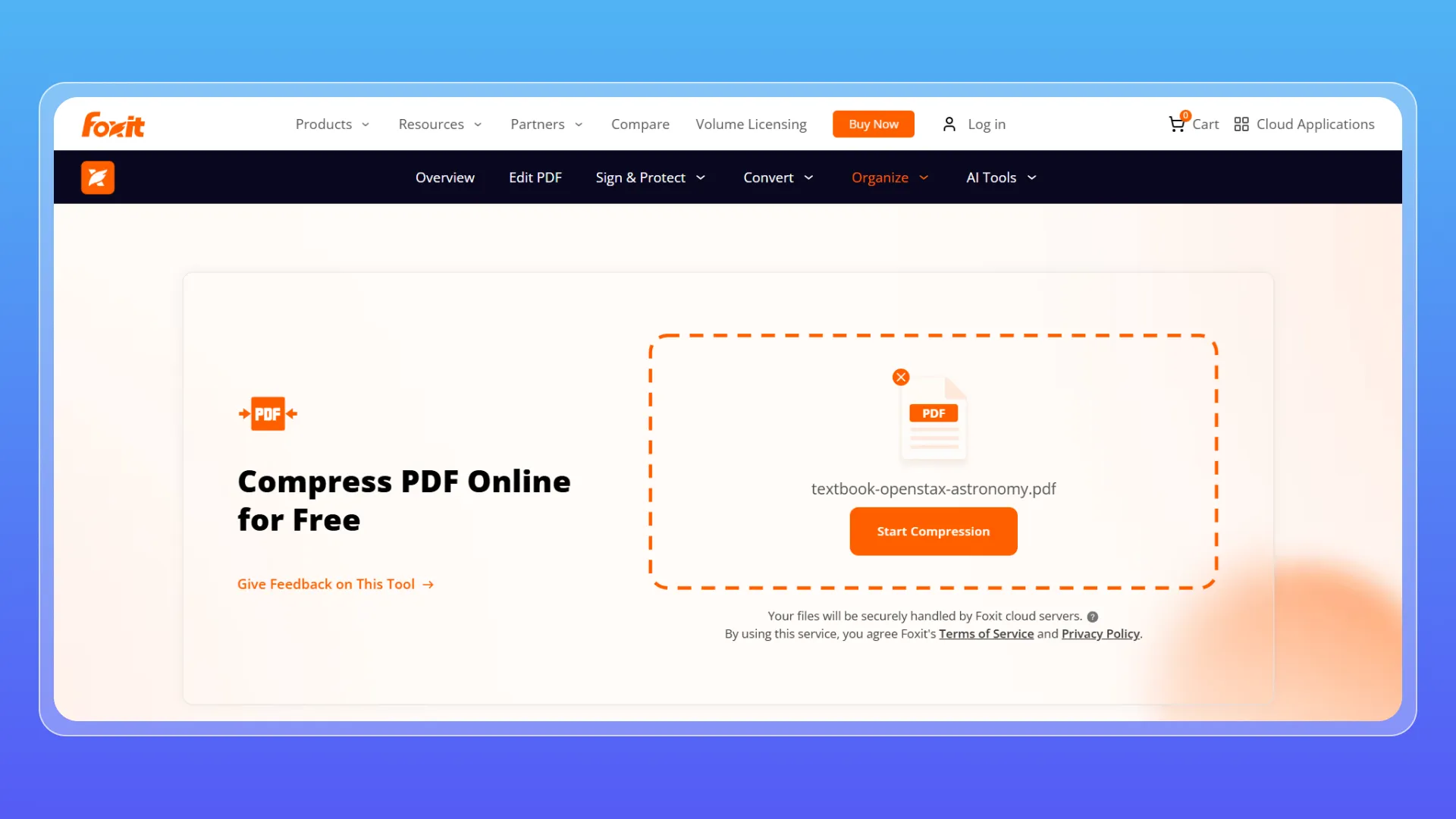
Foxit keeps its free online workflow simple. The tool accepts a PDF up to 150 MB, requires no account, and lets you choose a compression level before downloading the result. Foxit says its compression is designed to keep text, images, tables, vector graphics, and formatting readable.
The main limitation is scale. The online tool processes one PDF at a time, and the 150 MB upload cap is much lower than the limits published by Adobe, Smallpdf, VideoCompress, and FreeConvert. Batch compression and advanced optimization are available in Foxit’s desktop product instead.
Pros
- No account required
- Simple browser workflow
- Compression-level selection
Cons
- 150 MB maximum file size
- One PDF at a time online
Best for
Users who want a quick PDF compressor for a smaller, one-off document.
Which Free Online PDF Compressor Is Best?
There is no single winner for every document, especially when the goal is to compress a PDF without losing much quality.
Choose PDF24 if you want direct control over DPI and image quality.
Choose VideoCompress if you want simple presets plus free batch processing. Adobe Acrobat Online is a good fit for users who prefer familiar High, Medium, and Low presets. Smallpdf is useful for very large occasional files, FreeConvert offers flexible settings and cloud imports, and Foxit works well for smaller one-off jobs.
The best PDF compressor for quality is the one that lets you stop before the document starts looking worse. For image-heavy files, that usually means starting with lighter compression and checking photos, charts, and fine text before moving to a stronger setting.
FAQ About Free Online PDF Compressor Tools
What is the best free online PDF compressor?
The best option depends on your priority. VideoCompress is useful for free batch processing, PDF24 for manual quality control, Adobe for simple presets, Smallpdf for very large occasional files, FreeConvert for flexible settings, and Foxit for straightforward single-file compression.
Can I compress a PDF without losing quality?
You can often make a PDF noticeably smaller without obvious quality loss, but the result depends on what is inside the document. Lossless compression preserves quality but usually saves less space. If the PDF contains many images or scans, stronger compression may reduce image sharpness before it affects text or layout. PDF24 explicitly notes this trade-off in its lossless mode.
How can I compress PDF free online?
If you want to compress PDF free, upload your document to a browser-based tool, choose a light or balanced compression level, run the compression, and download the result. If the file is still too large, try a stronger level and compare the output.
Can I compress multiple PDF files at once?
Yes, but free batch support varies. VideoCompress supports up to five files at once, PDF24 supports multiple files, and FreeConvert provides multi-file controls. Adobe and Smallpdf put batch features behind paid plans, while Foxit’s free online tool handles one PDF at a time.
Final Verdict
The best free tool is not simply the one that produces the smallest file. It is the one that gets the document under your size limit while keeping text readable, images acceptable, and the original layout intact.
VideoCompress is a strong choice for free batch compression, Adobe for clear presets, Smallpdf for very large occasional files, PDF24 for manual quality control, FreeConvert for flexible settings, and Foxit for quick single-file jobs. A practical PDF compressor should make that quality-versus-size trade-off easy to understand.
If you need a PDF file compressor to reduce PDF file size for email, uploads, or storage, start with moderate compression and inspect the result before going stronger. That quick quality check is usually more useful than chasing the smallest possible number.