

- Introduction
- What Is the Difference Between Trimming and Cutting a Video?
- Best Online Video Trimmers & Cutters🧰
- Comparison Table: Best Video Trimmer Tools📊
- Industry Trends: Why Online Video Cutting Is Exploding 📈
- Top Tools Breakdown 🎬
- How to Choose the Right Video Trimmer & Cutter for Your Needs 🎯
- FAQ
- Conclusion 🧩
8 Best Online Video Trimmers Without Losing Quality in 2026
Introduction
We’re living in a video-first internet.
From TikTok and YouTube Shorts to product demos and AI-generated content, video is now the fastest way to capture attention—and hold it. But here’s the problem most people run into:
Editing videos is still harder than it should be.
Not everyone wants to learn complex tools like Adobe Premiere Pro. And honestly, most people don’t need that level of complexity just to trim video online or remove a few seconds from a clip.
The real needs are much simpler:
- Remove awkward intros and endings
- Cut out mistakes in the middle
- Do it fast, without installing anything
- Keep the original quality intact
That’s where modern video trimmer tools come in.
Today’s online video cutter platforms let you cut video, trim edges, and export high-quality clips—all directly in your browser.
In this guide, we’ll break down the 8 best video trimmer tools in 2026, compare them side by side, and help you choose the right one for your workflow.
What Is the Difference Between Trimming and Cutting a Video?
Before we jump into the tools, let’s clarify something important.
Trimming and cutting are often used interchangeably—but they’re not the same.
- Trimming → shortening the beginning or end of a video
- Cutting → removing a section from the middle
A good online video cutter should support both.
That means you can:
- Trim unnecessary intros
- Cut mistakes from the middle
- Export clean, ready-to-use clips
If a tool only handles one of these well, it can feel limiting.
Best Online Video Trimmers & Cutters🧰
- VideoCompress
- InVideo
- Clideo
- Kapwing
- FreeConvert
- Rotato
- Canva Video Trimmer
- Adobe Express
Comparison Table: Best Video Trimmer Tools📊
| Tool | Trim | Cut | Easy to use | No Watermark | Pricing | Files Up to |
|---|---|---|---|---|---|---|
| VideoCompress | Yes | Yes | ⭐⭐⭐⭐⭐ | Yes | Free | Up to 5GB |
| InVideo | Yes | No | ⭐⭐⭐⭐ | Yes | Free/$15 per month | Up to 800MB |
| Clideo | Yes | Yes | ⭐⭐⭐⭐ | No | Free/$9 per month | Up to 500MB |
| Kapwing | Yes | Yes | ⭐⭐⭐ | No | Free/$16 per month | Export Up to 1 minute |
| FreeConvert | Yes | Limited | ⭐⭐⭐ | Yes | Free/$12.99 per month | Up to 1GB |
| Rotato | Yes | No | ⭐⭐⭐⭐ | Yes | Free | Up to 2GB |
| Canva | Yes | Limited | ⭐⭐⭐ | No | Free/$15 per month | Up to 1GB |
| Adobe Express | Yes | No | ⭐⭐⭐⭐ | No | Free/$9.99 per month | Up to 1GB |
Quick takeaway:
- Best all-in-one → VideoCompress
- Best for creators → Kapwing / InVideo
- Best for simple use → Clideo / FreeConvert
Industry Trends: Why Online Video Cutting Is Exploding 📈
The way we create and edit video content is rapidly evolving.
What used to require complex timelines, manual edits, and professional software can now be done in seconds using a modern video trimmer or online video cutter.
Today, most users can trim video online, cut video, and publish content quickly—without needing advanced technical skills.
So why is this happening now?
Here are three key trends shaping the future of video cutting:
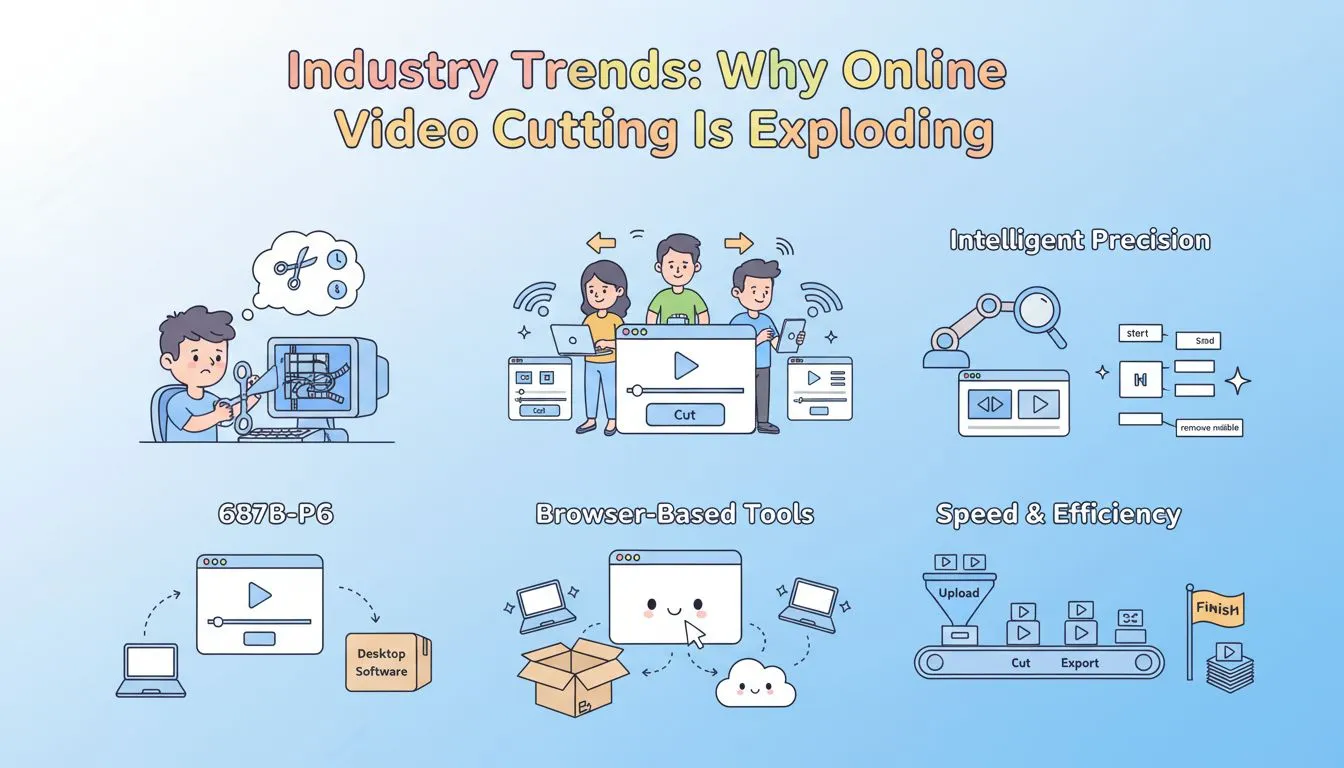
1. From Manual Editing to Intelligent Precision
Video editing is no longer about dragging clips frame by frame.
We’re moving toward intelligent, streamlined editing—where tools are designed to reduce friction and speed up execution.
Modern video trimmer tools focus on:
- Precise trimming (start/end control)
- Clean video cutting from the middle
- Fast processing without complex timelines
Instead of spending hours learning editing workflows, users can now:
- Remove unwanted intros instantly
- Cut mistakes from the middle in seconds
- Export polished clips with minimal effort
👉 Tools like VideoCompress are designed to handle this use case efficiently—fast, accurate, and focused on essential editing tasks.
Key takeaway: Simplicity and precision are replacing complexity.
2. Browser-Based Tools Are Replacing Desktop Software
There is a clear shift from traditional editing software to browser-first tools.
In the past, if you wanted to cut video, you had to install heavy programs like Adobe Premiere Pro.
Now, a modern online video cutter offers:
- No installation required
- Instant access from any device
- Cloud-based processing
- Faster, simpler workflows
This matters especially for:
- Remote teams
- Content creators on the go
- Users working across multiple devices
Instead of being tied to one machine, you can now trim video online from anywhere.
👉 Platforms like Kapwing, Clideo, and VideoCompress highlight this transition toward lightweight, accessible editing.
Key takeaway: The future of video cutting is increasingly browser-first and device-agnostic.
3. Speed and Workflow Efficiency Are the New Priority
Content creation is no longer occasional—it’s continuous.
Creators today are producing:
- Daily TikTok videos
- Weekly YouTube content
- High-volume ad creatives
This shift has changed expectations.
Users no longer want fragmented workflows. They want:
Upload → Trim → Cut → Export → Publish
All in one place.
Modern video trimmer tools are optimized for:
- Fast uploads
- Quick edits
- Minimal export time
- Ready-to-use output
With the right online video cutter, you can:
- Trim video online in seconds
- Cut video without switching tools
- Maintain consistent output quality
👉 Tools that combine speed + simplicity are becoming the default choice.
Key takeaway: Efficiency—not feature overload—is now the biggest competitive advantage.
Top Tools Breakdown 🎬
1. VideoCompress
Overview
VideoCompress is a fast and efficient video cutter designed for users who want simplicity without sacrificing quality. It allows you to cut video segments or trim edges directly in your browser.
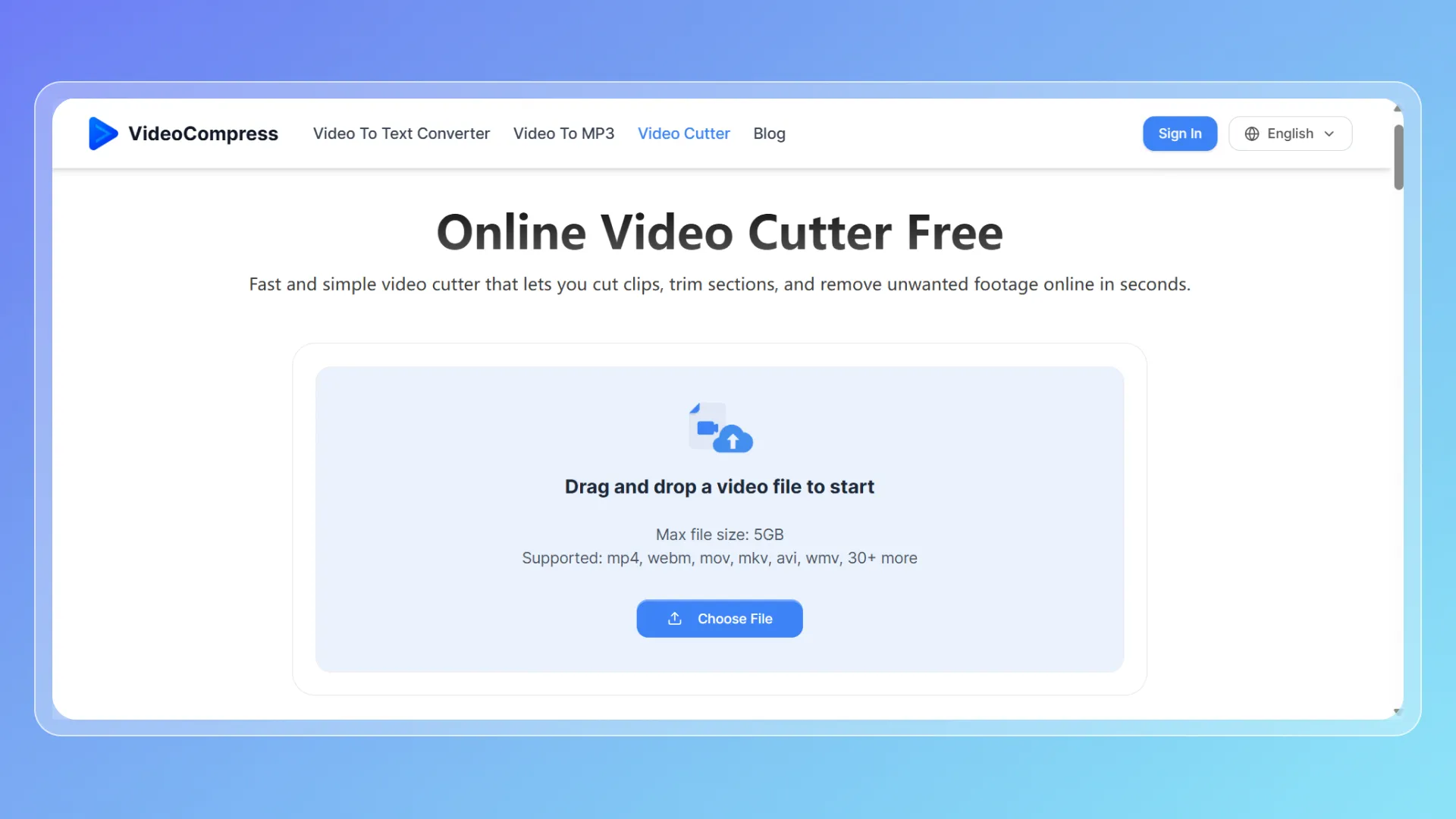
Key Features
- Trim video online (start & end)
- Cut the middle sections
- Supports 40+ formats
- No installation required
- Fast processing
Pros & Cons
Pros
- Extremely easy to use
- No quality loss during video cutting
- Wide format support
Cons
- Limited advanced editing features
Best For
- Users who want fast, no-fuss video cutting
- Beginners and casual creators
- Anyone needing a reliable online video cutter
2. InVideo
Overview
InVideo is a powerful online video creation platform that also functions as a capable video trimmer. It combines editing tools with templates, making it easy to cut video and produce social media or marketing content.
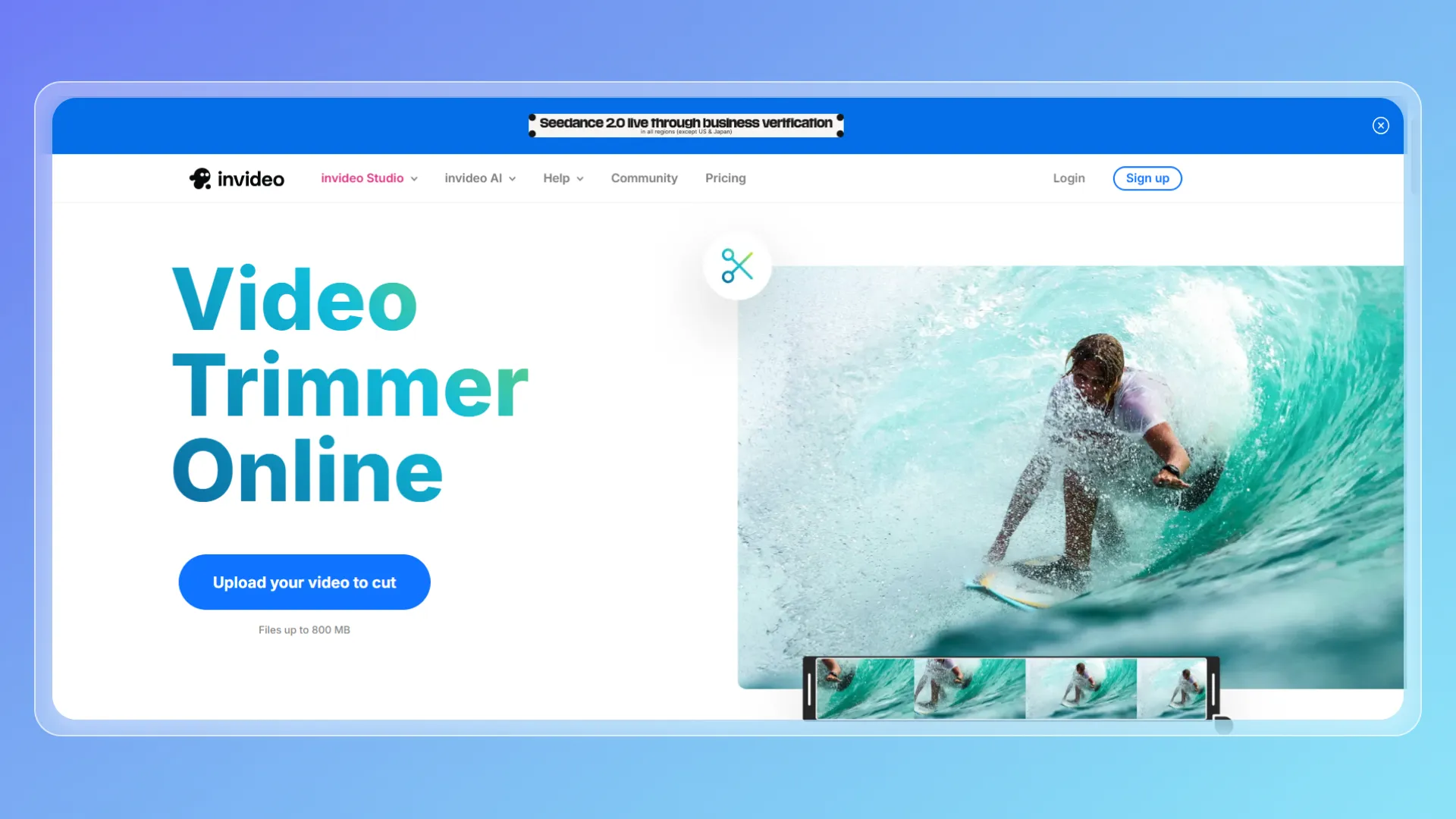
Key Features
- Trim video online with timeline controls
- Cut video segments from the middle
- Pre-built templates for fast content creation
- Text overlays, transitions, and media library
- Cloud-based editing
Pros & Cons
Pros
- A feature-rich platform beyond basic video cutting
- Great for content production at scale
- Template-driven workflow
Cons
- Slight learning curve for beginners
- Watermark on free exports
Best For
- Marketers creating ads and promos
- Content creators producing short-form videos
- Users who want more than a basic online video cutter
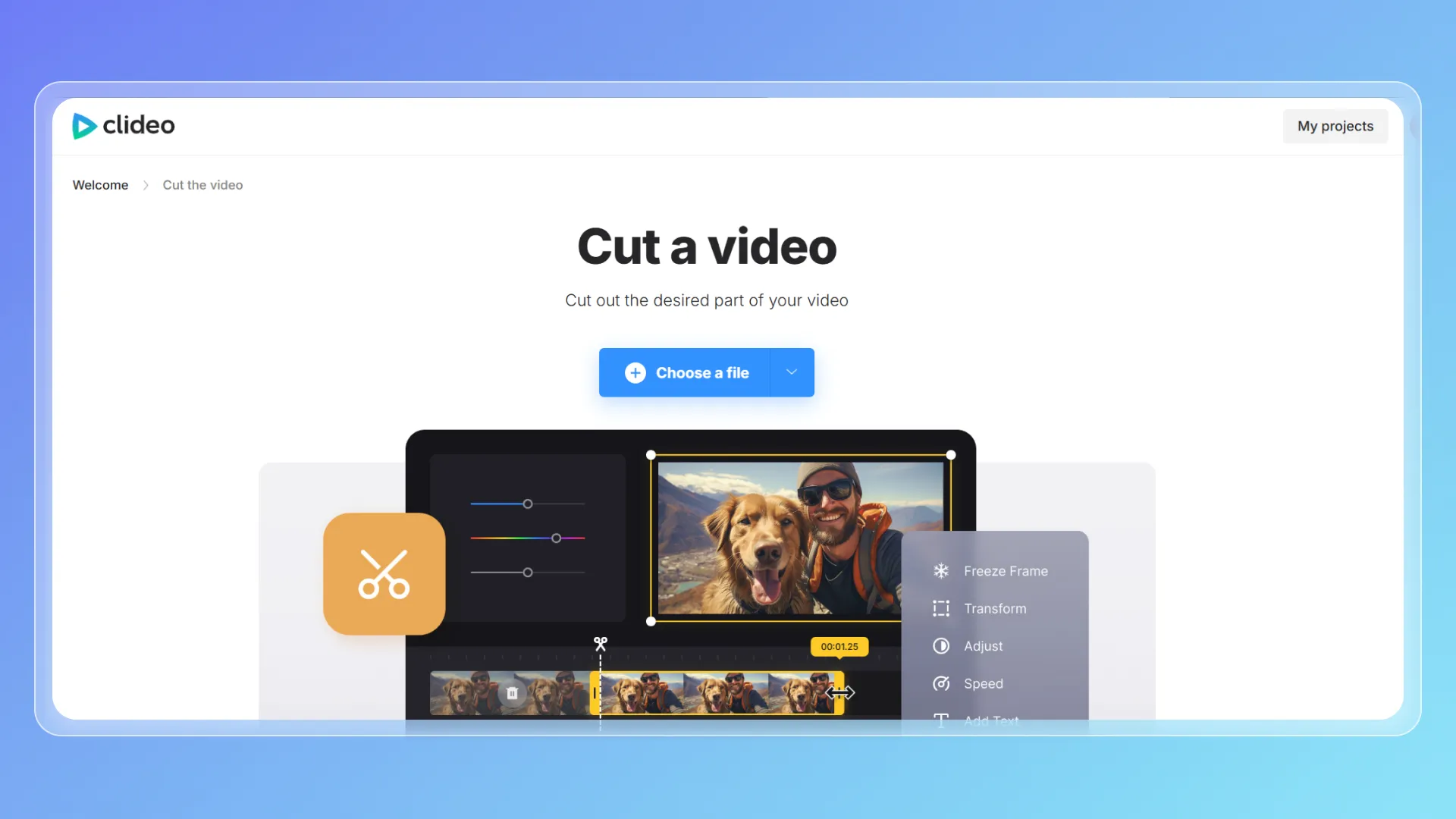
3. Clideo
Overview
Clideo is a straightforward online video cutter designed for quick and simple edits. It’s ideal for users who want to trim video online without dealing with complex interfaces.
Key Features
- Trim the start and end of videos
- Basic video cutting for simple edits
- Works entirely in the browser
Pros & Cons
Pros
- Very beginner-friendly
- Clean and minimal interface
- Fast processing for small files
Cons
- Watermark on free plan
- Limited advanced editing options
Best For
- First-time users
- Quick, one-off edits
- Simple trimming tasks
4. Kapwing
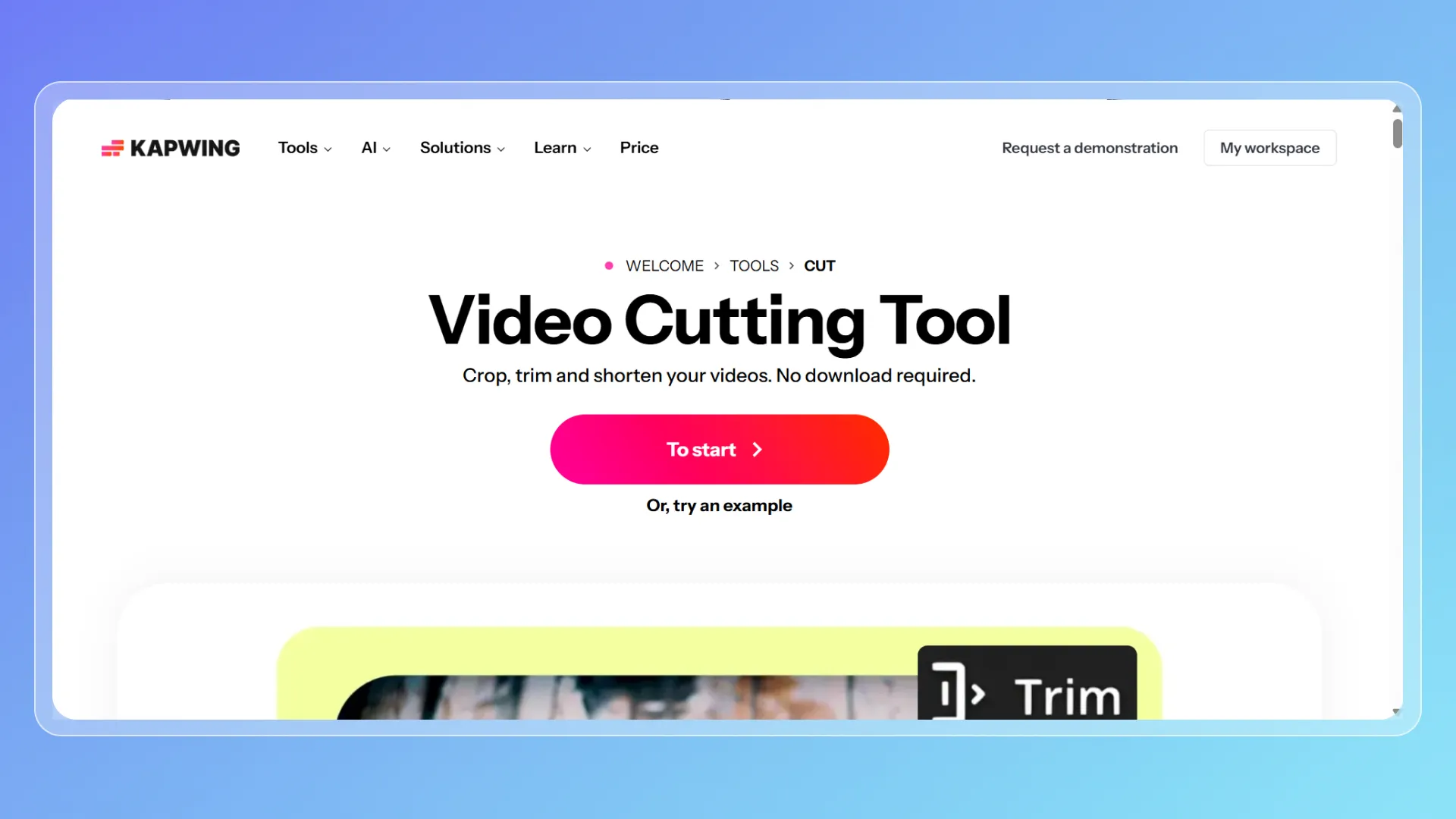
Overview
Kapwing is a modern content creation platform with a strong video trimmer and collaboration features. It allows users to cut video, add subtitles, and edit content in a shared workspace.
Key Features
- Precise trim video online functionality
- Cut video segments with timeline editing
- Auto subtitles and captions
- Team collaboration tools
- Cloud-based projects
Pros & Cons
Pros
- Great for team workflows
- Advanced editing features
- Supports multiple formats
Cons
- Slower rendering for large files
- Watermark on free exports
Best For
- Teams and collaborative creators
- YouTubers and educators
- Users needing more advanced video cutting tools
5. FreeConvert
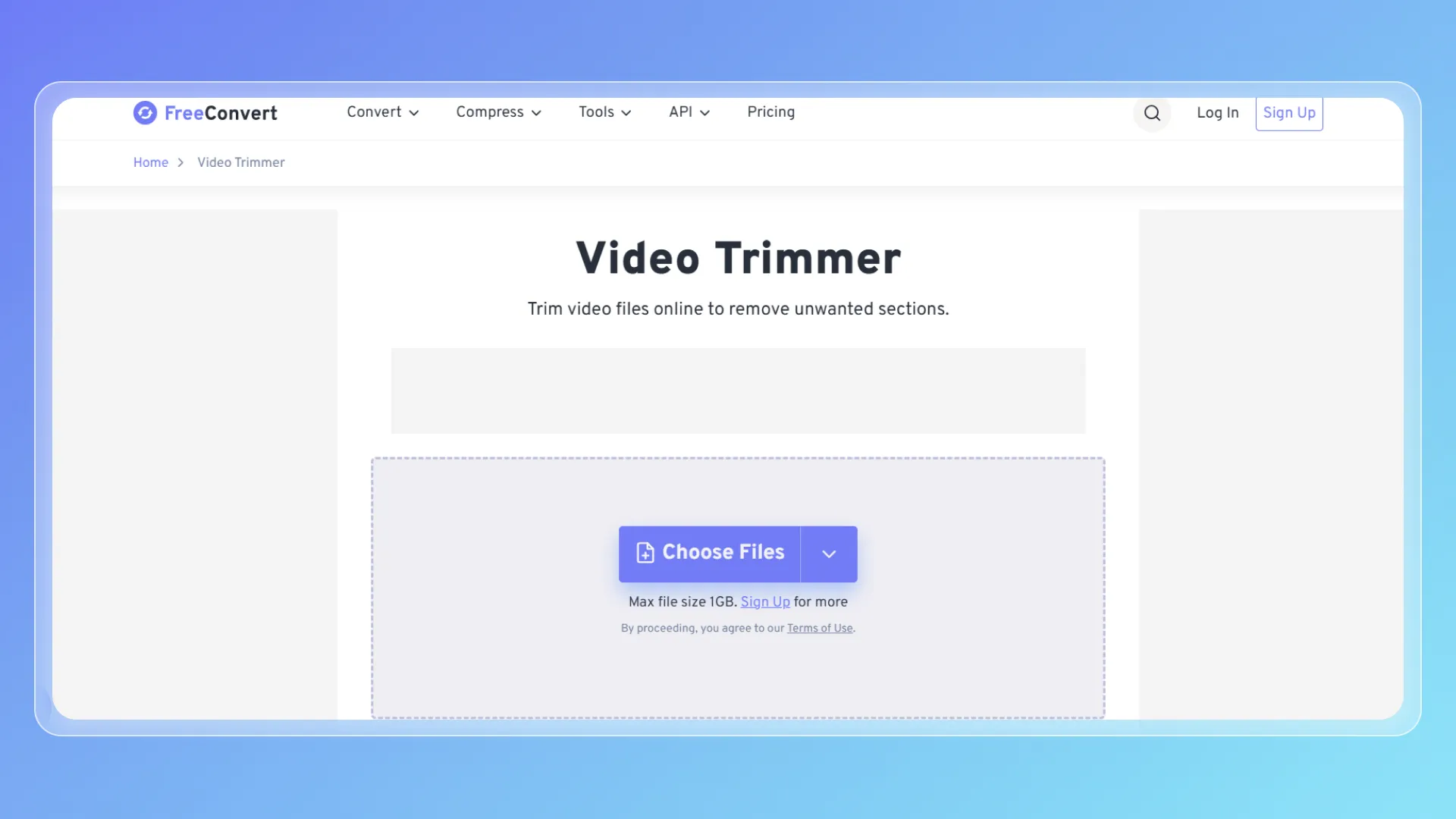
Overview
FreeConvert is primarily a file conversion tool, but it also offers a reliable video trimmer for basic editing needs. It’s useful for users who want to cut video while converting formats.
Key Features
- Trim video online during conversion
- Supports a wide range of formats
- Batch processing capabilities
- Adjustable output settings
Pros & Cons
Pros
- Strong format compatibility
- Free and accessible
- Combines conversion + trimming
Cons
- Limited precision for cutting
- Not designed for advanced editing
Best For
- Users handling multiple file formats
- Basic video cutting tasks
- Batch processing workflows
6. Rotato
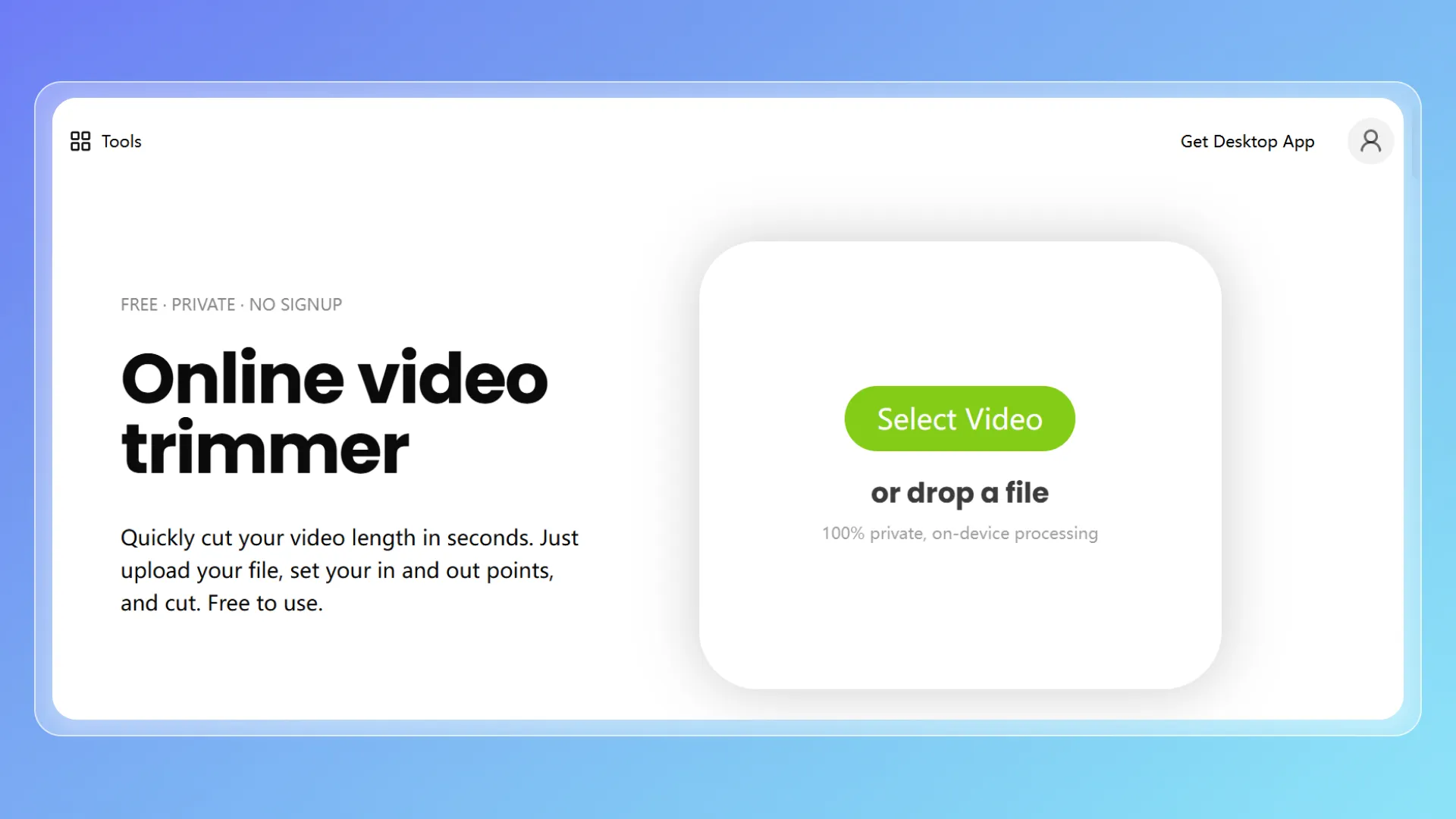
Overview
Rotato is a niche tool focused on creating high-quality app previews, but it also includes a simple video trimmer for polishing clips.
Key Features
- Trim video online for short clips
- High-resolution export
- Clean visual output
- Minimal interface
Pros & Cons
Pros
- Excellent visual quality
- Simple and focused
Cons
- Limited video cutting capabilities
- Not a full-featured online video cutter
Best For
- Designers
- App developers
- Users needing clean presentation clips
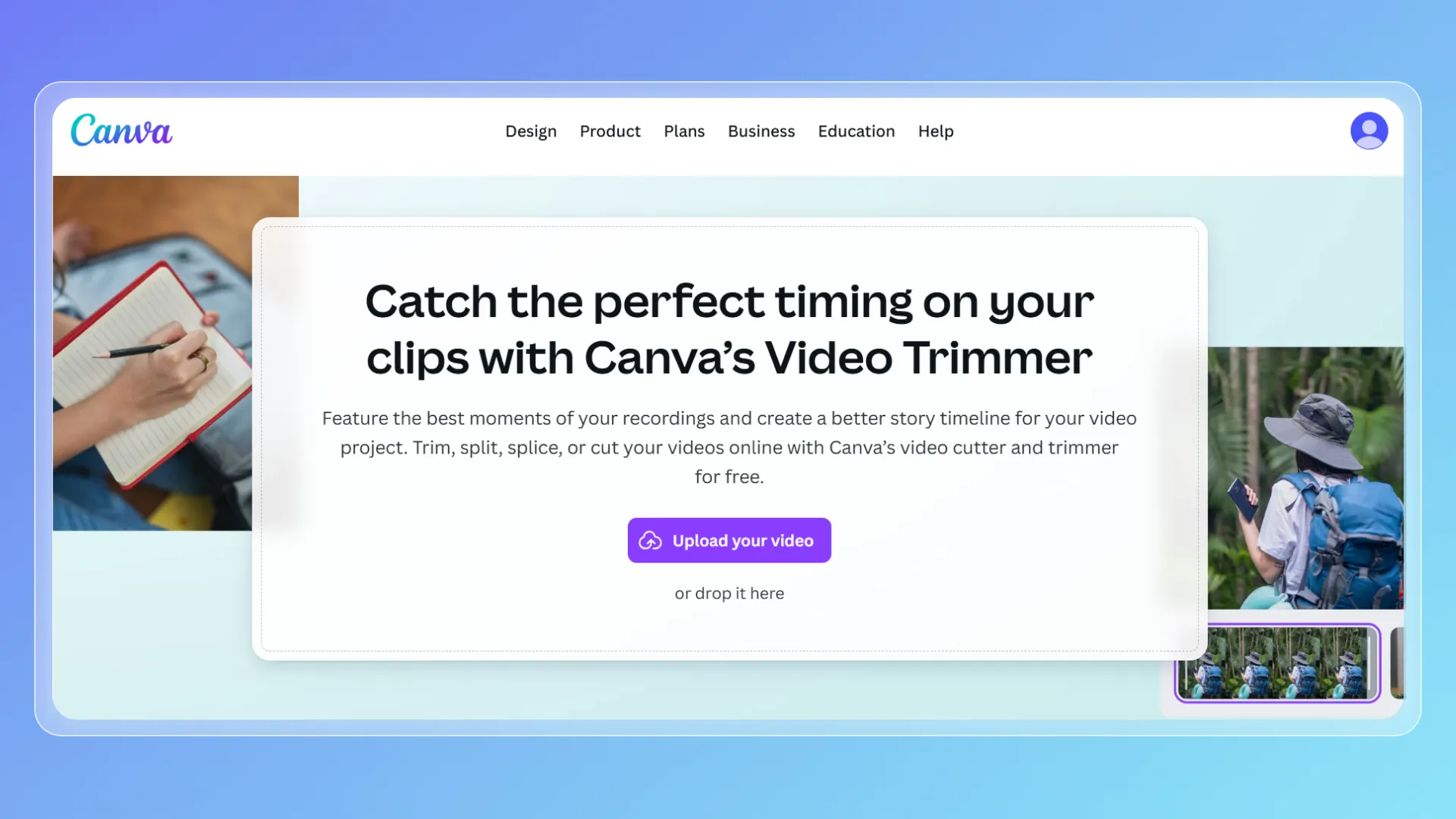
7. Canva
Overview
Canva’s video trimmer is part of its broader design ecosystem, allowing users to trim video online while combining visuals, text, and branding elements.
Key Features
- Drag-and-drop editing
- Trim video online within projects
- Templates and design assets
- Cloud-based collaboration
Pros & Cons
Pros
- Extremely easy to use
- Integrated design workflow
- Ideal for social media
Cons
- Limited ability to cut video precisely
- Not focused on advanced editing
Best For
- Social media creators
- Beginners
- Branding and marketing content
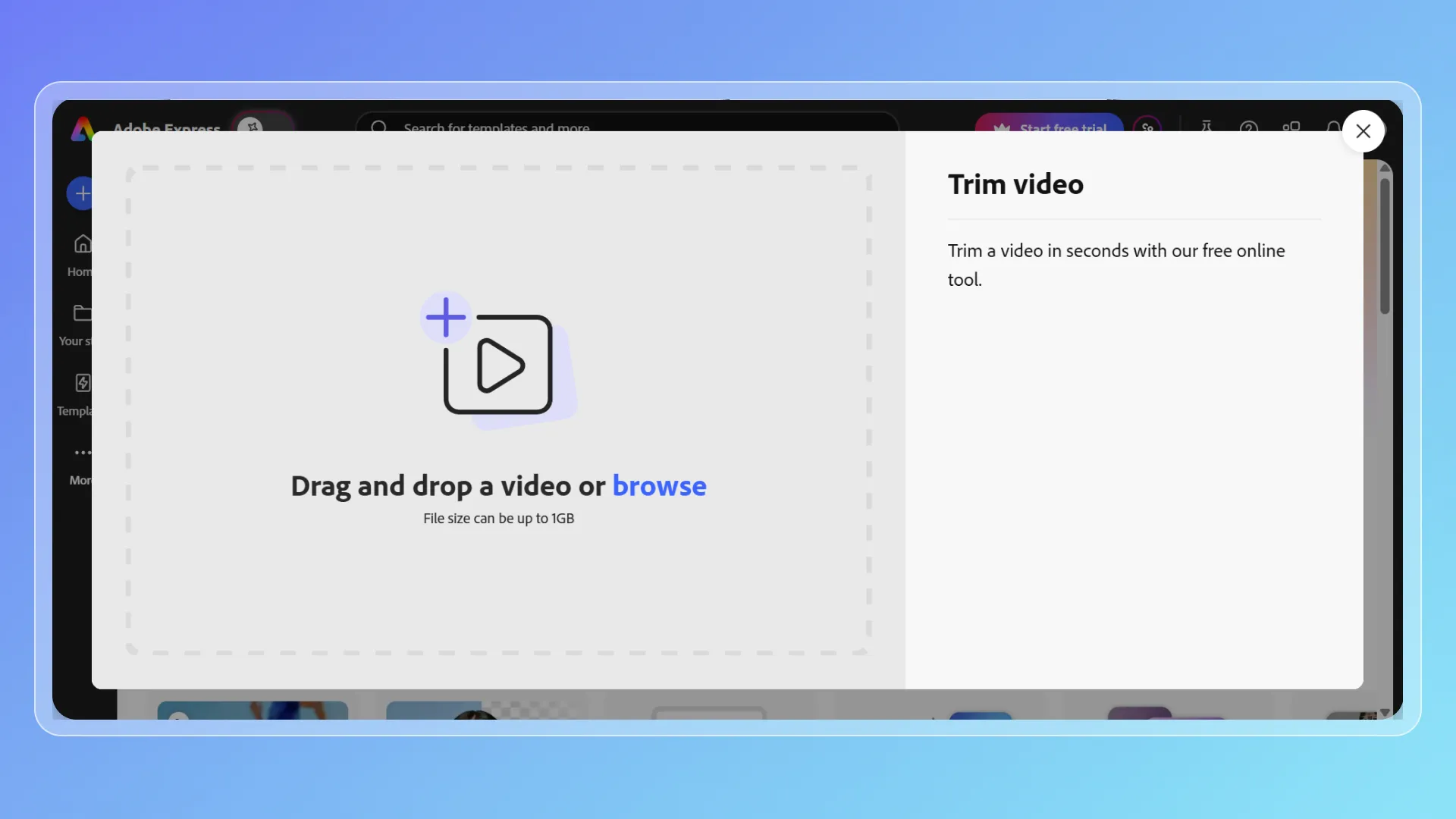
8. Adobe Express
Overview
Adobe Express provides a lightweight way to cut and trim video online, especially for users already in the Adobe ecosystem.
Key Features
- Trim video online quickly
- Basic video cutting tools
- Integration with Adobe tools
- Cloud-based editing
Pros & Cons
Pros
- Reliable performance
- Strong ecosystem integration
- Clean interface
Cons:
- Limited features in the free plan
- Less flexible than advanced editors
Best For
- Adobe users
- Beginners exploring video editing
- Quick, lightweight video trimmer needs
How to Choose the Right Video Trimmer & Cutter for Your Needs 🎯
With so many video trimmer and online video cutter tools available today, choosing the right one can quickly become overwhelming.
At first glance, most tools seem similar—they all let you trim video online or cut video clips. But once you start using them, the differences become clear.
It really comes down to three things:
👉 Choose based on your goal, skill level, and workflow
Instead of relying on a single tool, many users benefit from combining tools—especially when balancing speed, quality, and flexibility in video cutting tasks.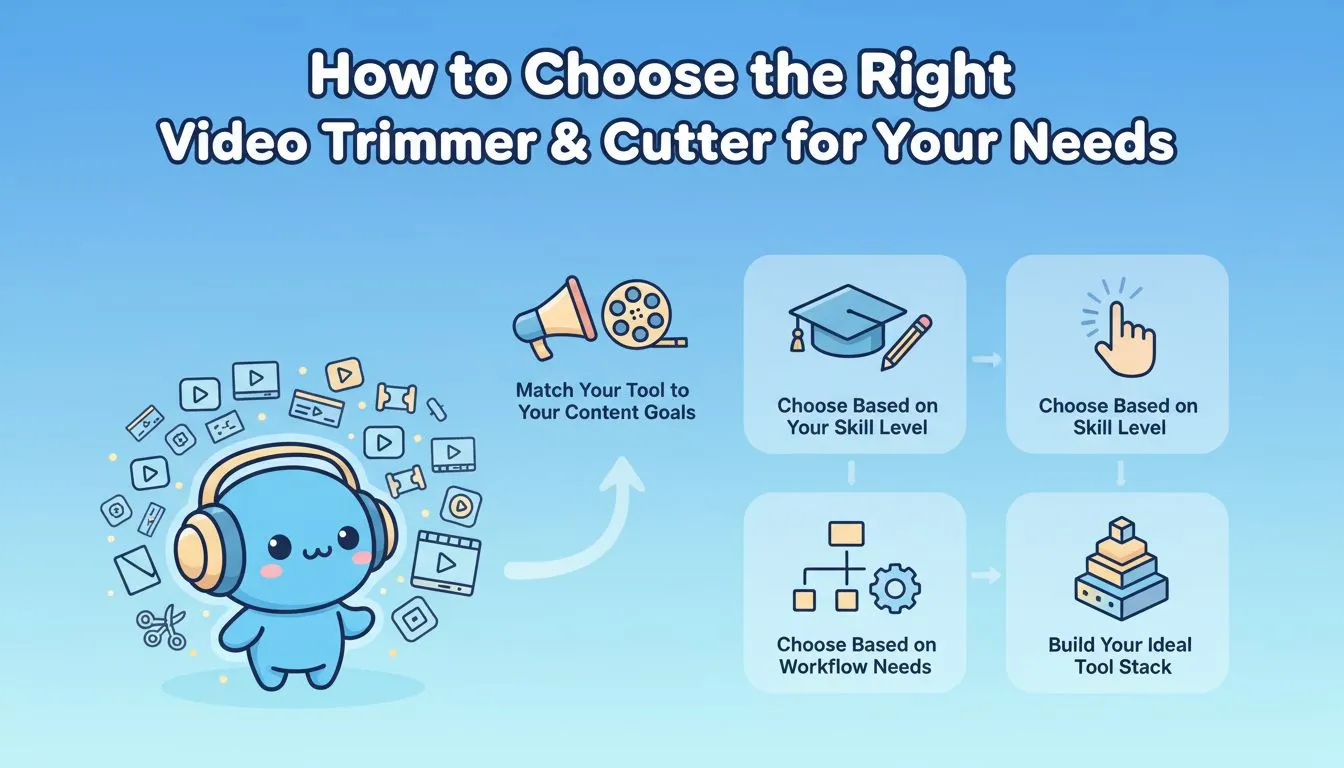
1. Match Your Tool to Your Content Goals
Your primary use case should always come first.
Different types of content require different levels of precision, speed, and flexibility.
- Social Media Content (TikTok, Reels, Shorts)
If you're producing short-form content, speed is everything.
You need to:
Trim video online quickly
Cut video clips for pacing
Export fast and post immediately 👉 Best fit: VideoCompress + Canva + Kapwing. This setup allows you to handle fast video cutting, add visuals, and publish quickly.
- YouTube & Long-Form Content
For longer videos, precision matters more.
You’ll likely need to:
Cut video sections from the middle
Trim multiple segments
Maintain consistent quality 👉 Best fit: Kapwing + Adobe Express. These tools provide more control while still being accessible as an online video cutter.
- Business & Marketing Content
If you're working on ads, product demos, or branded content:
Quality must be consistent
Formats need to be flexible
Editing should be efficient
👉 Best fit: VideoCompress + InVideo
→ Combine fast video trimmer functionality with structured content creation.
2. Choose Based on Your Skill Level
Not all online video cutter tools are built for the same type of user.
Choosing the wrong level of complexity can slow you down.
- Beginners (No Editing Experience)
If you’ve never edited video before, you don’t need advanced tools.
You just need to:
Trim video online
Cut video without confusion
Export quickly
👉 Recommended: VideoCompress + Clideo
→ Clean interfaces, minimal setup, and fast results.
- Intermediate Creators (Content Production)
If you’re creating content regularly:
You need more flexibility
Faster workflows
Better control over edits
👉 Recommended: Kapwing + Canva
→ Ideal for consistent video cutting and content creation.
- Advanced Users / Professionals
If you care about precision and control:
Frame-level trimming
Timeline editing
Multi-step workflows
👉 Recommended: Kapwing + Adobe Express
→ A balance between control and accessibility without going full desktop software.
3. Choose Based on Workflow Needs
Your workflow matters just as much as features.
The right video trimmer should fit into how you actually work—not the other way around.
- Solo Creators
If you’re working alone:
Speed and simplicity matter most
You want minimal setup
You need fast video cutting
👉 Best fit: VideoCompress or Clideo
→ Lightweight, efficient, and easy to use.
- Teams & Collaborative Workflows
If you’re working with others:
You need shared editing
Consistent output
Cloud-based access
👉 Best fit: Kapwing + VideoCompress
→ Collaboration + online video cutter functionality.
- High-Volume Content Production
If you're producing content at scale:
Batch processing matters
Speed is critical
You need repeatable workflows
👉 Best fit: VideoCompress + FreeConvert
→ Combine fast trim video online workflows with format handling.
4. Build Your Ideal Tool Stack
Most users don’t rely on just one tool. The most efficient workflows combine multiple tools based on strengths.
👉 Recommended stack: VideoCompress + Canva + Kapwing
This combination covers:
- Fast video trimming and cutting
- Visual design and branding
- Flexible editing and collaboration
It creates a simple workflow:
Upload → Trim → Cut → Enhance → Export → Publish
Final Insight🔍
Choosing the right video trimmer isn’t about picking the most powerful tool.
It’s about choosing the tool that helps you:
- Trim video online faster
- Cut video more efficiently
- Maintain quality without extra effort
👉 The best creators today don’t just edit videos—they optimize their entire workflow.
FAQ
How can I trim video online without losing quality?
Use a video trimmer that avoids re-encoding. Tools like VideoCompress preserve original quality during export.
What is the best free online video cutter?
It depends on your needs, but tools like VideoCompress and Clideo are great starting points.
Can I cut video without a watermark?
Yes, some tools offer watermark-free exports, especially for basic video cutting tasks.
Is it safe to use an online video cutter?
Most reputable tools delete files after processing, but always check privacy policies.
Conclusion 🧩
Video editing is changing fast.
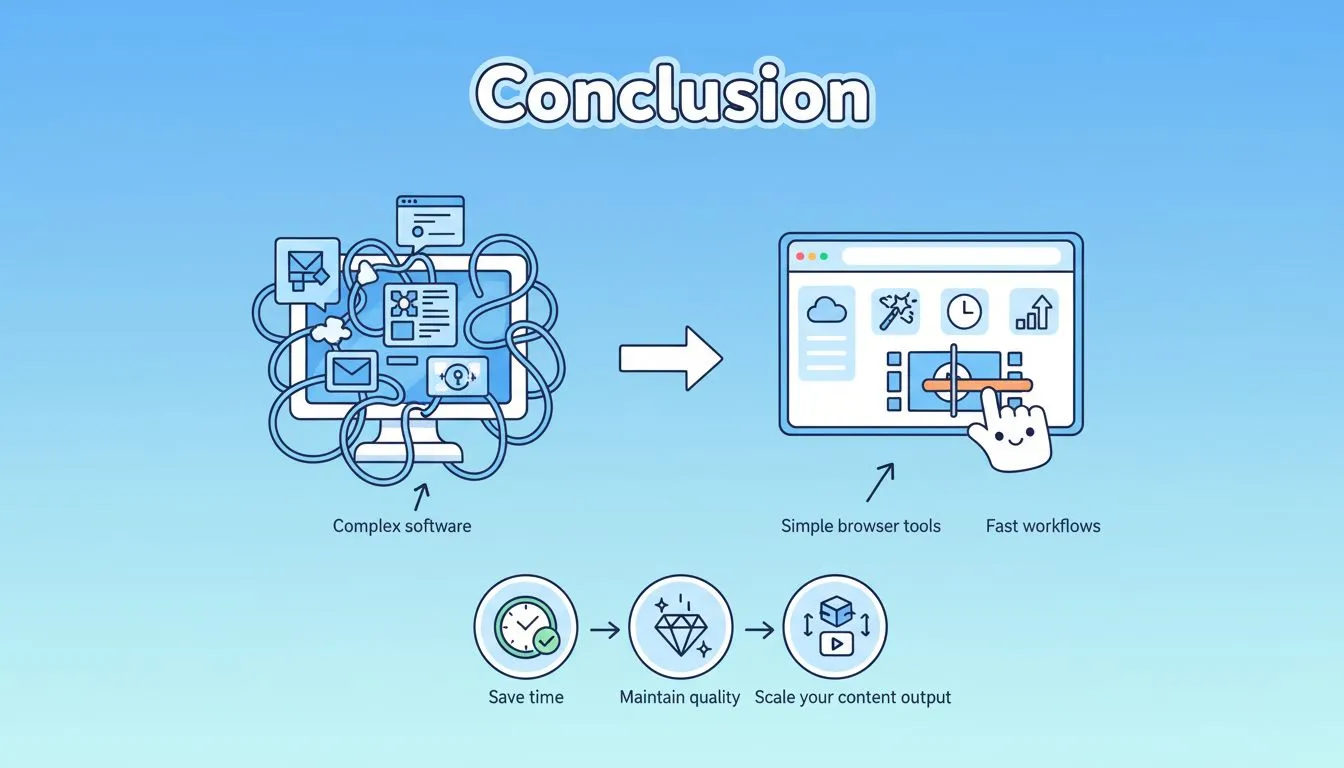
We’ve moved from:
- Complex software → simple browser tools
- Manual editing → fast workflows
- High barriers → accessible tools
The real advantage now isn’t skill—it’s efficiency.
If you choose the right video trimmer, you can:
- Save time
- Maintain quality
- Scale your content output
And that’s what modern content creation is all about.