

- Introduction
- 5 Best Video Compression Tools of 2026⏩
- What Is Real Video Compression and How Is It Different from Changing Resolution?
- What Problems Can a Video Compressor Actually Solve?
- Typical Use Cases for Reducing Video Size
- Top 5 Video Compressor Tools of 2026 Reviewed
- Video Compressor Comparison Table📊
- How to Choose the Right Video Compressor💡
- Practical Tips for Better Video Compression Results
- Conclusion
5 Best Video Compressors in 2026: Reduce File Size Quickly
Introduction
For a long time, compressing video files felt like a task reserved for professionals. If you wanted to reduce the size of a large video, you often had to download complicated software, learn about codecs, adjust bitrates, and experiment with export settings that rarely produced predictable results.
For casual users, the process was even more frustrating. A quick attempt to reduce file size—such as lowering the resolution or exporting again from a video editor—often resulted in blurry footage, washed-out colors, or a file that was still too large to upload.
But the landscape has changed dramatically over the past few years.
Modern devices now record high-resolution footage by default. Smartphones routinely capture 4K video at high frame rates, while creators, marketers, and everyday users share videos across platforms like YouTube, TikTok, Discord, and cloud storage services.
As a result, video files have become significantly larger, and managing those files efficiently has become a practical necessity.
This is where the need to compress video online becomes essential.
Instead of simply shrinking resolution or degrading quality, modern tools optimize the internal structure of your media so files remain visually clear while taking up far less storage space. A reliable free video compression tool enables faster uploads, saves storage media, and makes sharing seamless without sacrificing visual integrity.
In this guide, we’ll explore how this technology actually works, what problems it solves, and review five widely used solutions to help you find the best way to shrink video size for your workflow in 2026.
5 Best Video Compression Tools of 2026⏩
- VideoCompress: Best for sers who want a simple and reliable video compressor online for quickly reducing video file size without technical setup.
- VEED: Best for creators who want a video compressor combined with simple online editing tools.
- Clideo: Best for users who need a fast video compressor for occasional tasks or quick file size reduction.
- FreeConvert: Best for users who want a flexible video compressor that also handles format conversion.
- HandBrake: Best for advanced users who want a powerful video compressor with detailed control over encoding settings.
What Is Real Video Compression and How Is It Different from Changing Resolution?
Many people assume that compressing a video simply means making it smaller. In reality, video compression is much more sophisticated than that.
Understanding the difference can help you choose the right video compressor and avoid common mistakes that damage video quality.
Bitrate Optimization vs. Simply Shrinking the Image 📉
Lowering a video’s resolution may reduce file size, but it also removes visual information. This is why exporting a 4K video as 720p often looks noticeably soft or blurry.
A proper video compressor works differently. Instead of discarding visual detail outright, compression algorithms analyze patterns between frames, optimize encoding efficiency, and reduce redundant data.
The result is a file that remains visually similar while occupying much less storage.
In other words, compression is about efficiency, not simply shrinking pixels.
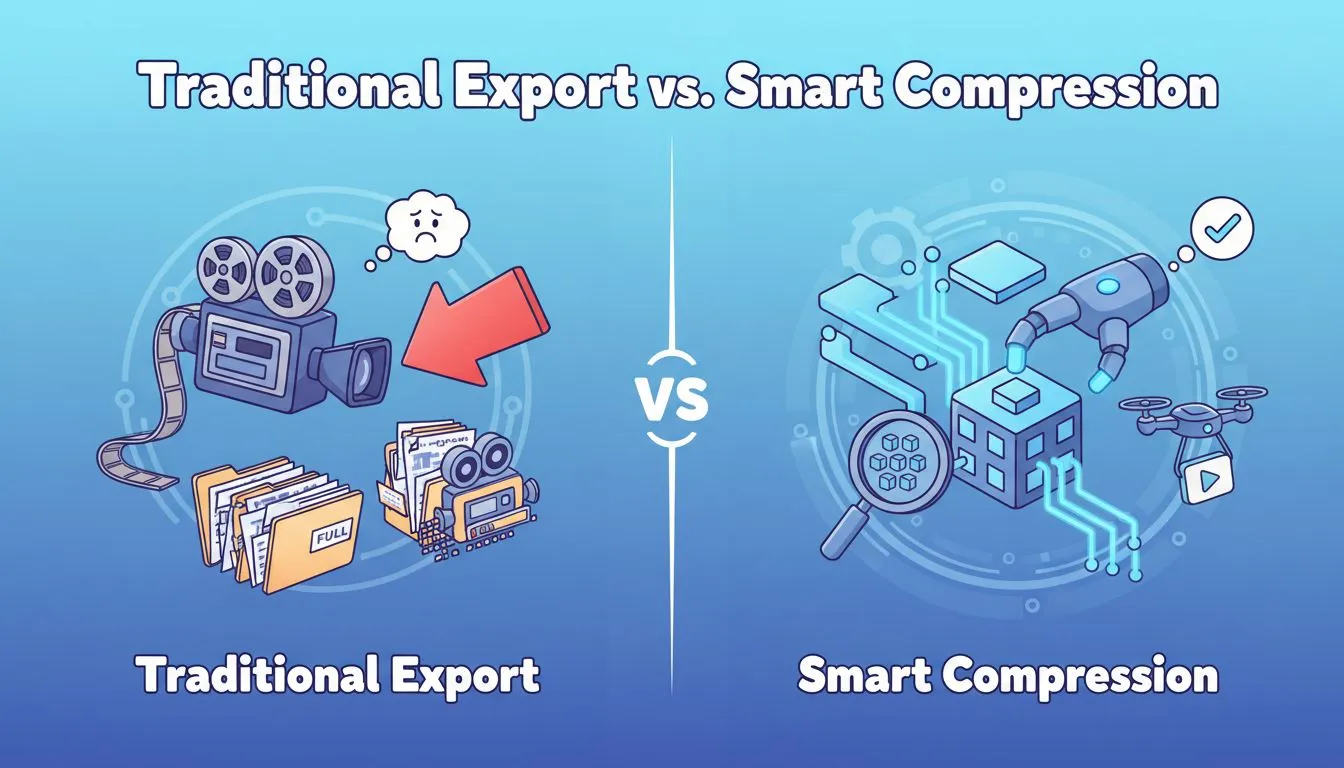
Traditional Export vs. Smart Compression 🧠
Most video editing software includes export settings that allow users to adjust bitrate and format. However, these exports are not always optimized for minimal file size.
Professional video compressor tools approach the problem from a different perspective. They restructure video encoding in ways that maintain detail while minimizing redundant data.
This difference is why a dedicated video compressor often produces significantly smaller files than a standard video export.
The Importance of “Visually Lossless” Compression ✨
In 2026, compression quality is often measured by something called visually lossless compression.
This means that while the file size has been reduced, the human eye cannot easily detect the difference between the original and compressed video.
For creators and businesses, this balance is crucial. A high-quality video compressor ensures that viewers experience the same visual clarity while the file becomes dramatically easier to store and share.
What Problems Can a Video Compressor Actually Solve?
The growing demand for efficient workflows has made these tools more relevant than ever. A capable video size reducer addresses several common challenges that individuals and organizations face when managing high-resolution media.
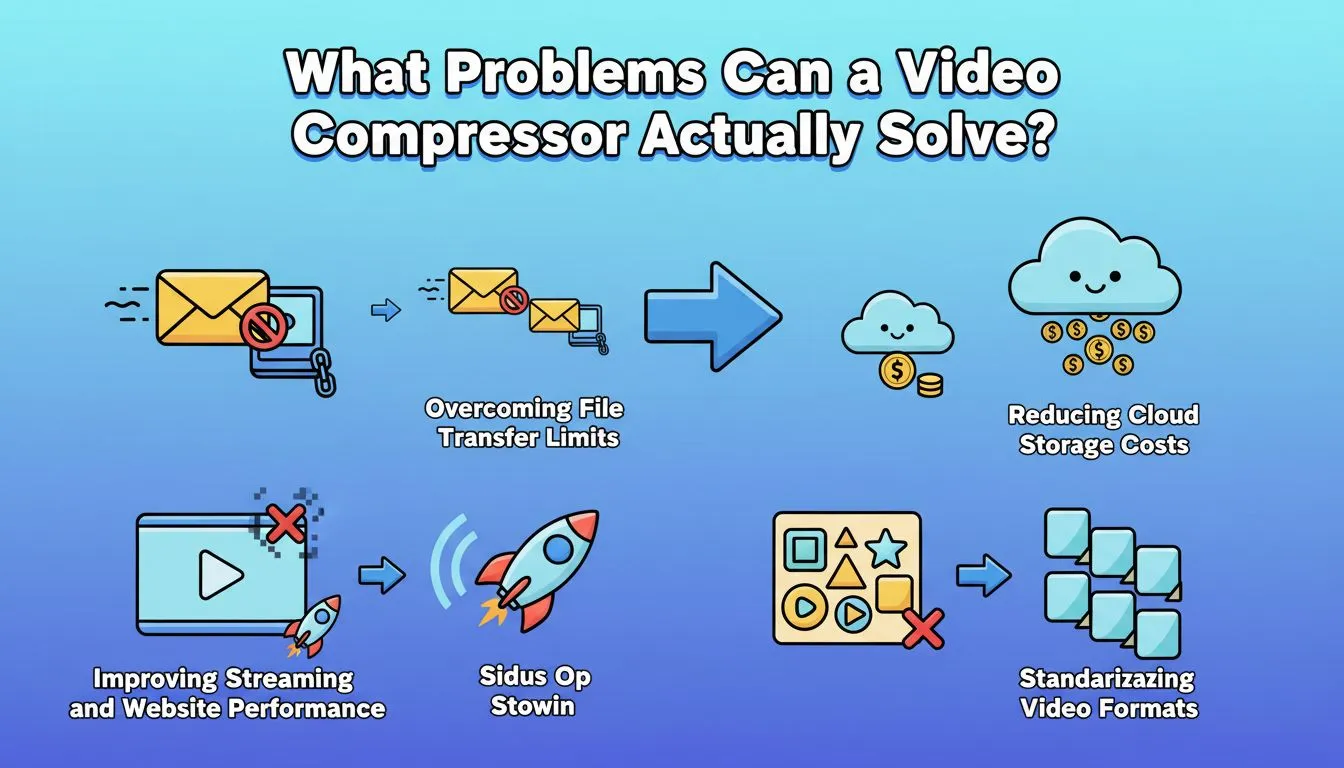
Overcoming File Transfer Limits
Many platforms impose strict upload limits.
For example:
- Gmail attachments are limited to 25MB
- Discord attachments are limited to 10MB
- Messaging apps like WhatsApp automatically compress or reject large files
A video compressor helps users to shrink videos to meet these limits without destroying visual quality.
Improving Streaming and Website Performance
Video content is increasingly embedded on websites, product pages, and landing pages.
However, bulky files throttle page loading times and inflate bandwidth costs. Using a video compression tool reduces file size so media loads instantly while remaining sharp, directly improving user engagement and reducing bounce rates.
Reducing Cloud Storage Costs
Video files can quickly accumulate.
A single minute of 4K footage may occupy hundreds of megabytes. For companies storing marketing assets or content creators managing archives, storage costs can escalate quickly.
Efficient compression can dramatically increase storage efficiency. With a reliable video compressor, the same storage capacity can hold significantly more footage.
Standardizing Video Formats
Older videos often exist in inconsistent formats such as AVI, MOV, or outdated codecs.
Many modern video compressor tools can convert these files into standardized formats like MP4 with H.265 encoding during compression.
This improves compatibility across devices and platforms.
Typical Use Cases for Reducing Video Size
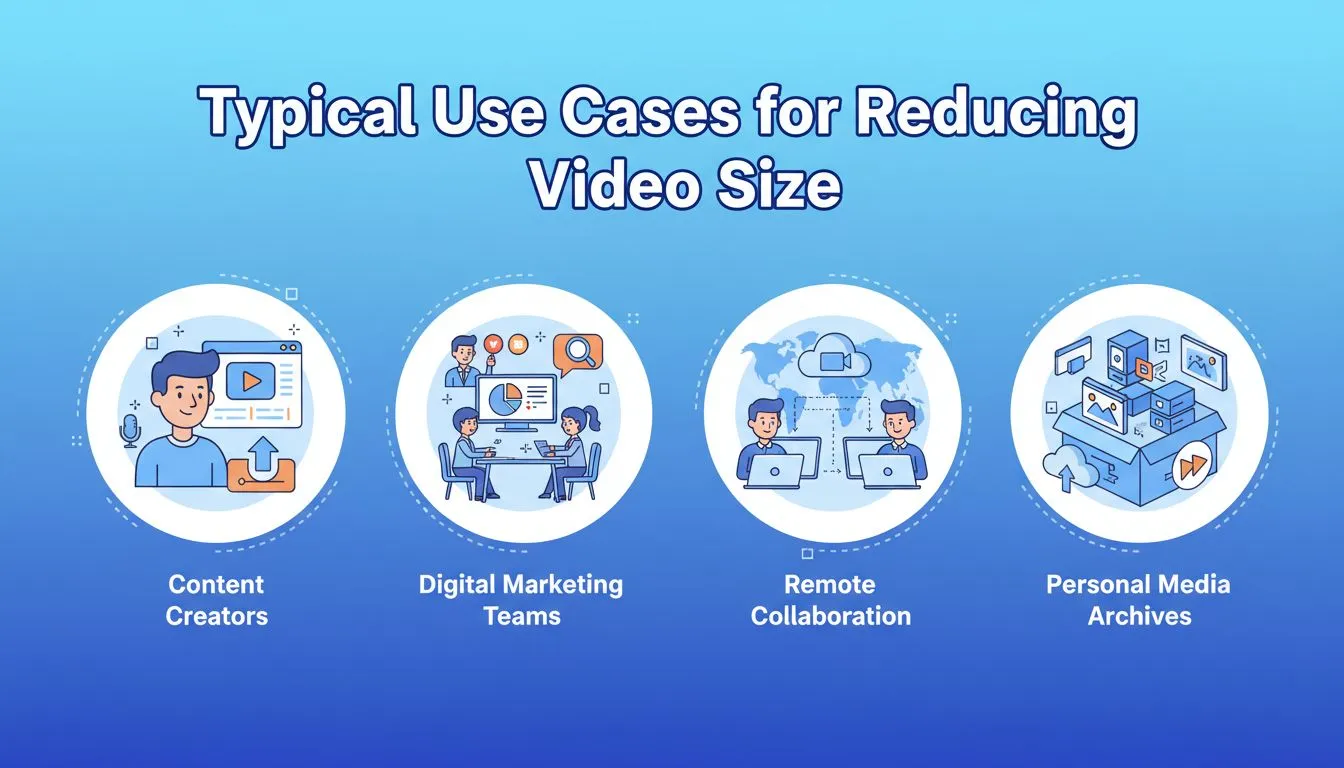
Not everyone approaches file reduction for the same reason. Different workflows require different specialized features to compress video online effectively. Understanding these scenarios helps identify the most efficient solution for your specific needs.
🤳Content Creators
Social media creators frequently upload videos to platforms such as YouTube, TikTok, and Instagram.
These creators often need a video compressor that reduces file size while preserving visual clarity, allowing uploads to complete faster without compromising audience experience.
📈Digital Marketing Teams
Marketing departments depend heavily on video assets for campaigns, advertisements, and product demos. Optimized media loads faster on landing pages and in email campaigns, directly improving engagement metrics and conversion rates. Using a reliable video size reducer maintains professional quality while maximizing web performance.
🤝Remote Collaboration
With remote work becoming standard in many industries, video files such as screen recordings, product demos, and presentations are frequently shared across teams.
A fast video compressor ensures these files can be transferred quickly across messaging platforms or internal collaboration tools.
📸Personal Media Archives
Many people store thousands of memories on smartphones or cloud services. Compressing MP4 or MOV files allows users to preserve their favorite moments while reclaiming valuable storage space. In this case, a simple and accessible web-based tool is often the most practical solution.
Top 5 Video Compressor Tools of 2026 Reviewed
Not all compression tools are built for the same audience. Some focus on technical control, while others emphasize speed and ease of use.
Below is a practical review of five widely used video compressor tools in 2026.
VideoCompress🏆
Best For
Users who want a simple and reliable video compressor online for quickly reducing video file size without technical setup.
Overview
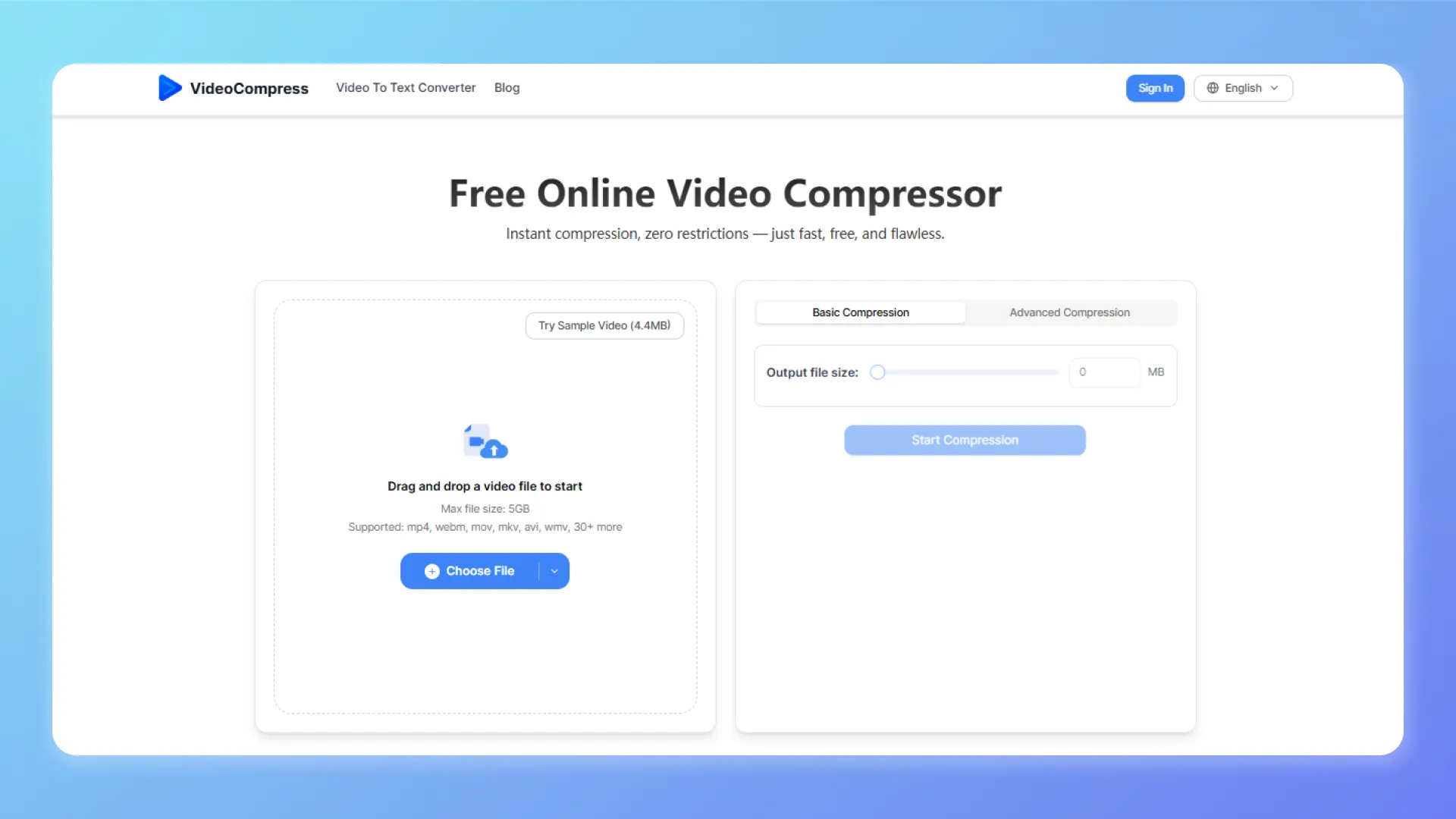
VideoCompress focuses on one task: making large videos smaller quickly and easily. Instead of embedding compression inside a complicated editing platform, it provides a straightforward workflow—upload a video, compress it in the cloud, and download the optimized file within seconds.
Because it runs entirely in the browser, users can reduce file size without installing software or adjusting complex encoding settings. This makes it a practical video compressor for creators, marketers, and everyday users who need fast results before uploading or sharing videos online.
Strengths
- Free to use with no watermark
- Simple upload–compress–download workflow
- Cloud processing for fast results
- Supports all common formats such as MP4, MOV, and AVI
Limitations
- Limited advanced encoding controls
- Requires an internet connection
Price
- Completely free
- No subscriptions, no hidden fees, and no watermarks
VEED🎬
Best For
Creators who want a video compressor combined with simple online editing tools.
Overview
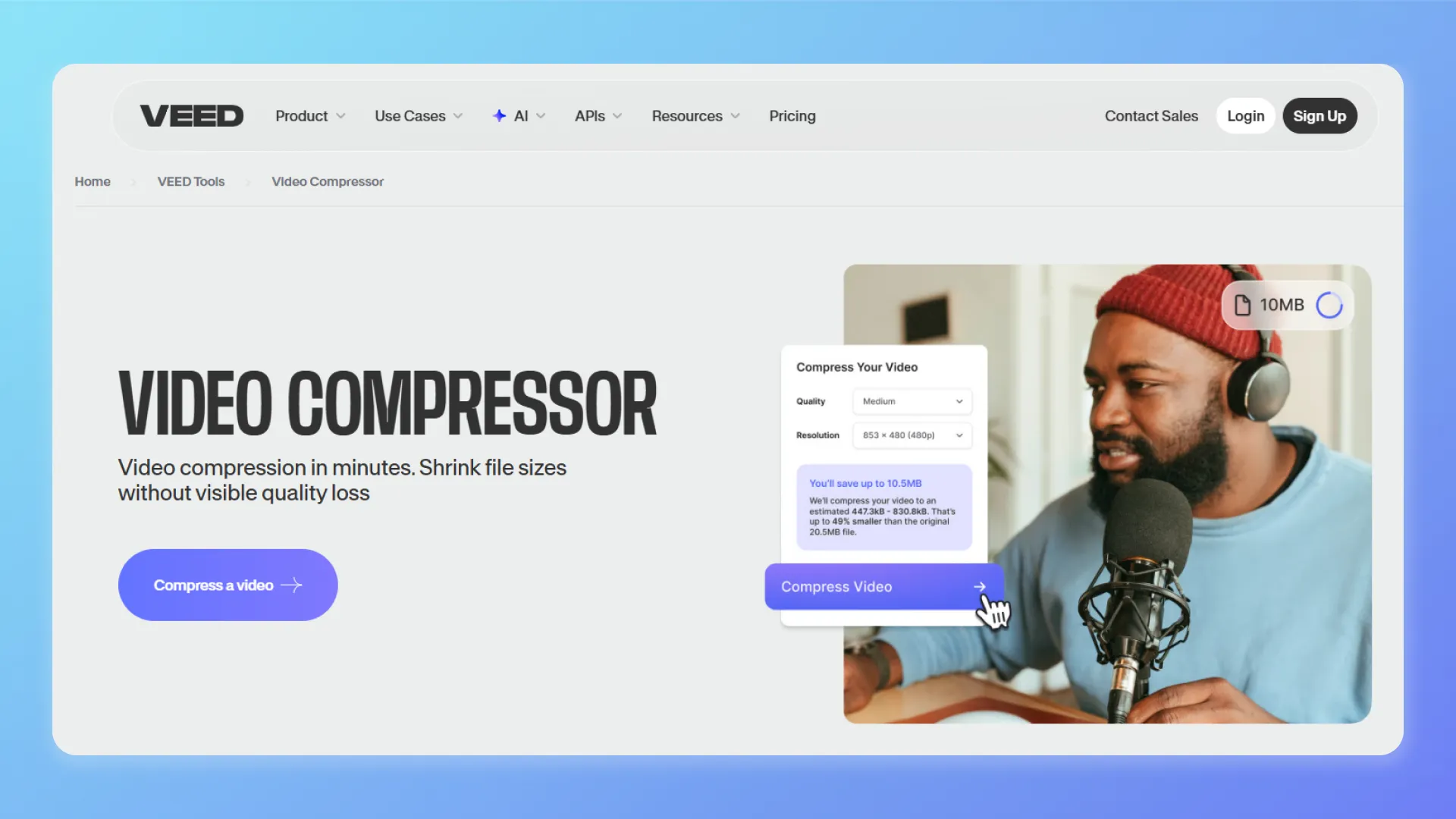
VEED combines video editing and compression inside a browser-based platform. Instead of exporting a large video and compressing it later, users can trim clips, add subtitles, and optimize file size in the same workspace.
This makes VEED a convenient option for creators who regularly publish social media content and want a lightweight video compressor integrated into their editing workflow.
Strengths
- Built-in editing and compression tools
- Browser-based workflow accessible from any device
- Useful features such as subtitles and trimming
Limitations
- Compression is secondary to editing features
- Free exports include limitations
Price
- Free plan available
- Paid plans start around $12 per month
Clideo⚡
Best For
Users who need a fast video compressor for occasional tasks or quick file size reduction.
Overview
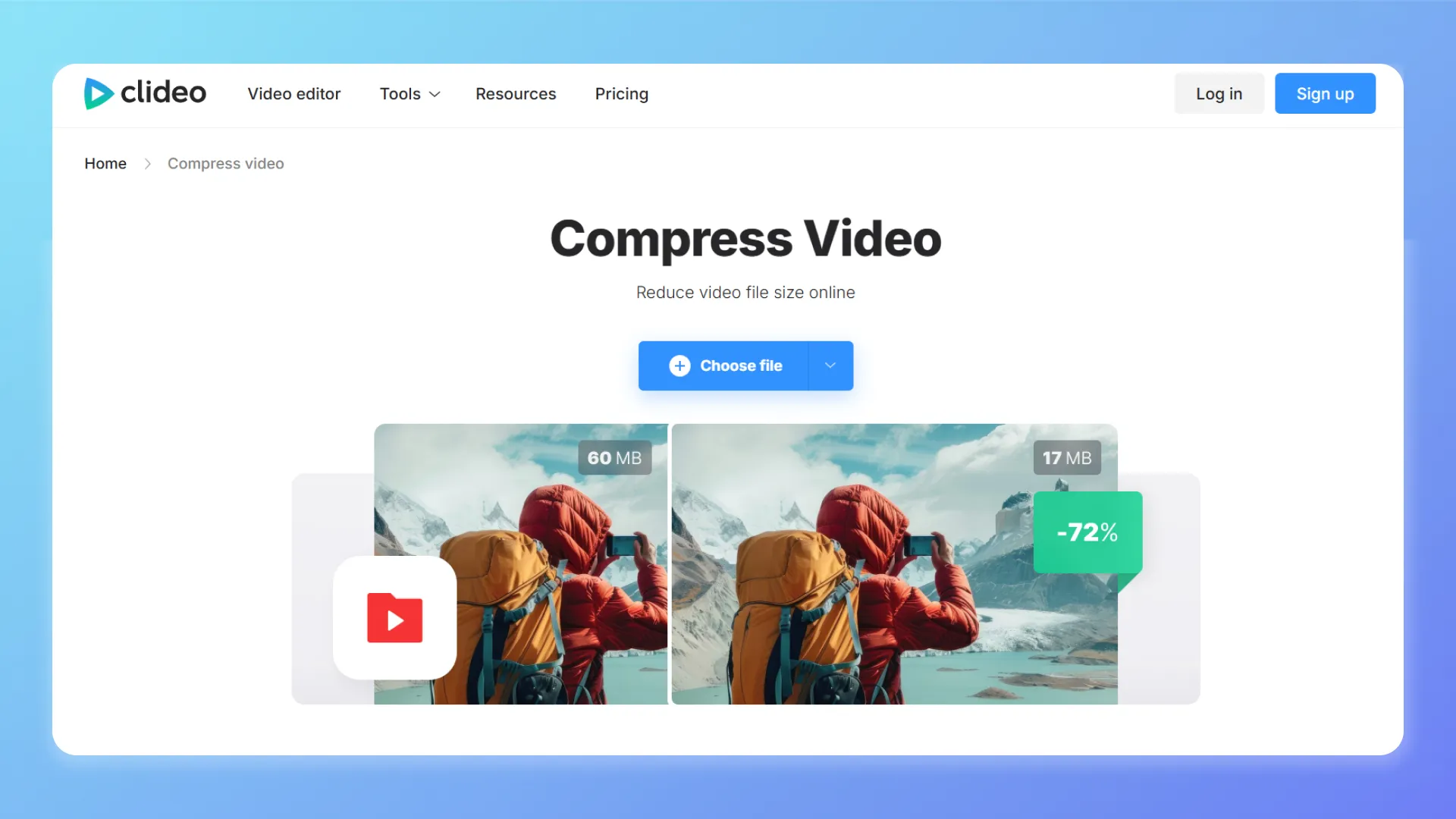
Clideo is a web-based video compressor built for simplicity. Users upload a file, choose a compression preset, and receive a smaller version in minutes without installing any software.
The platform also integrates with cloud services like Google Drive and Dropbox, allowing users to import large files directly. This makes Clideo especially useful when you need a quick solution to meet upload limits.
Strengths
- Very simple interface
- Preset compression levels for fast results
- Cloud integrations with Google Drive and Dropbox
Limitations
- Free plan includes a watermark
- Upload size limits on the free version
Price
- Free plan available with limitations
- Paid plans $ 6 / month, $72 / year
FreeConvert⚙️
Best For
Users who want a flexible video compressor that also handles format conversion.
Overview
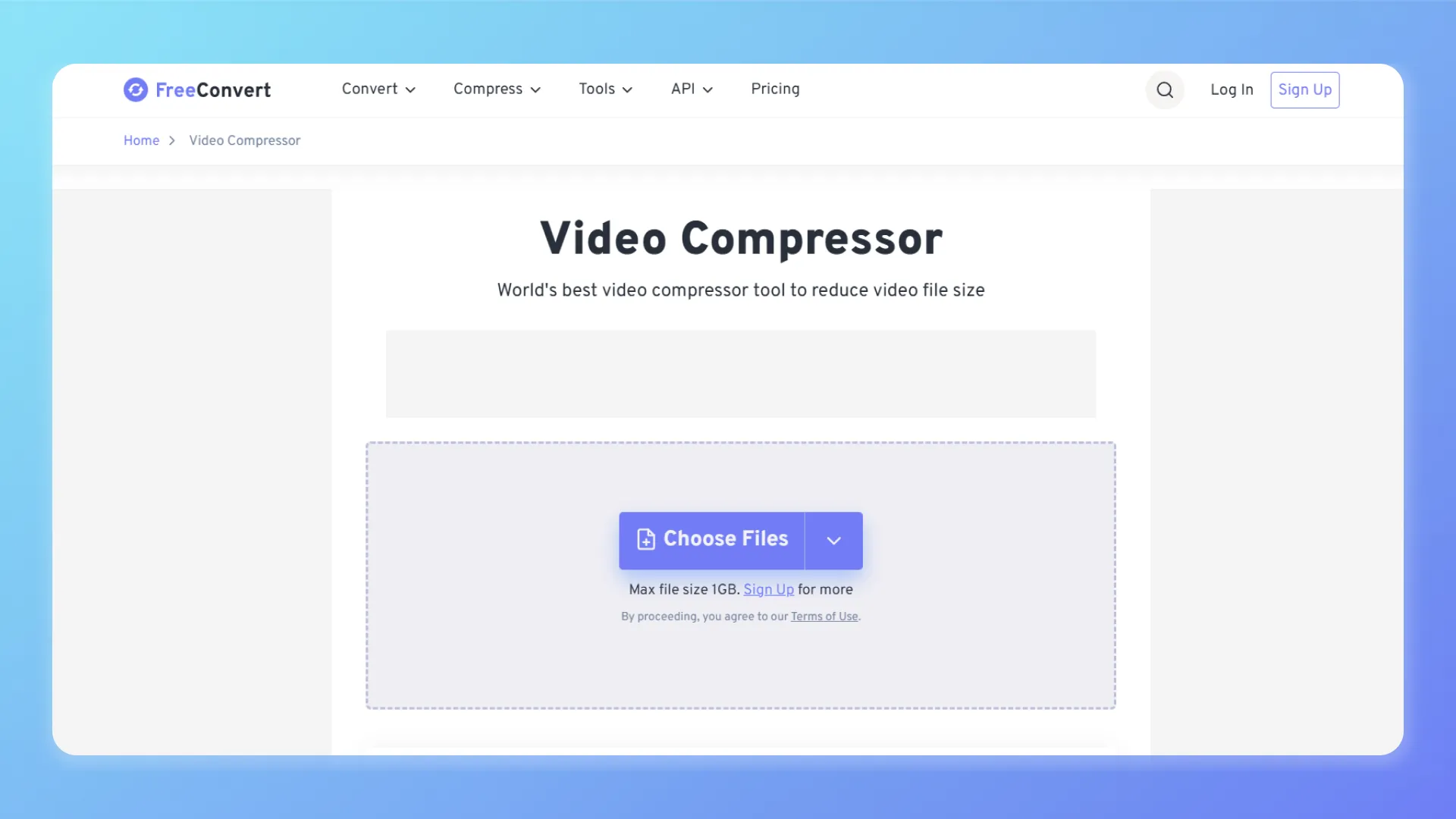
FreeConvert combines file conversion and compression in one platform. Its video compressor supports many formats and helps users to adjust bitrate, resolution, and output settings before processing the file.
This flexibility makes it a good choice for users who want more control than typical one-click compression tools while still working inside a web browser.
Strengths
- Supports many video formats
- Adjustable compression settings
- Works directly in the browser
Limitations
- Interface may feel complex for beginners
- Free plan includes file size limits
Price
- Free plan available
- Basic paid plans $12.99 / month, standard $24.99 / month
HandBrake💻
Best For
Advanced users who want a powerful video compressor with detailed control over encoding settings.
Overview
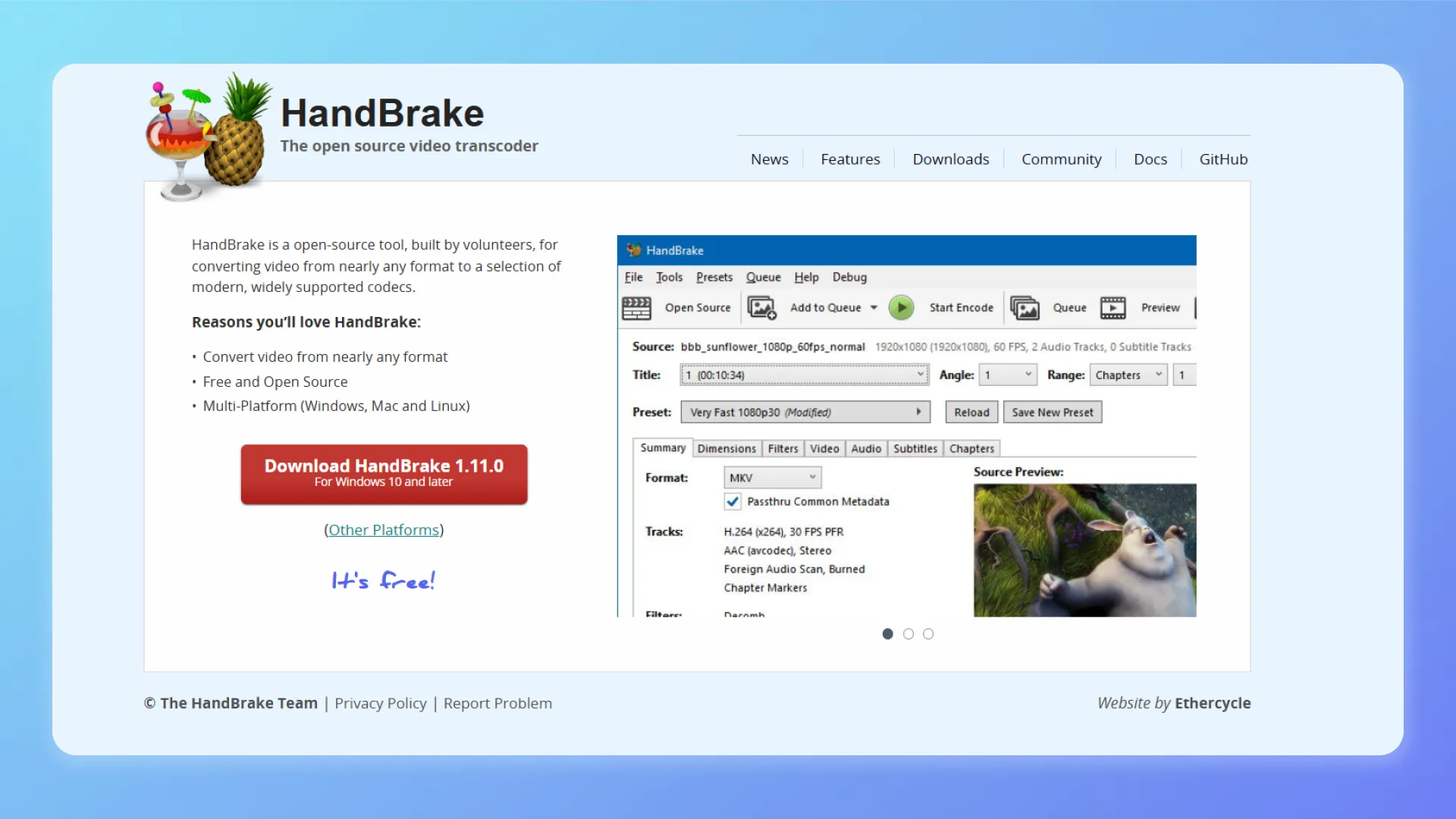
HandBrake is a well-known open-source desktop tool used for video encoding and compression. Unlike browser-based platforms, it must be downloaded and installed locally on Windows, macOS, or Linux.
The software is widely used by advanced users because it provides detailed control over encoding settings such as bitrate, resolution, frame rate, and output format. For beginners, HandBrake also includes built-in presets that help simplify the process without needing to adjust every parameter manually.
Strengths
- Highly customizable encoding settings
- Supports many formats and codecs
Limitations
- Requires downloading and installing desktop software
- Interface may feel complex for beginners
Price
- Completely free
- Open-source software
Video Compressor Comparison Table📊
Most video compressor tools advertise similar features, but the real experience can vary quite a bit. Some prioritize speed, others focus on compression control, and some are designed mainly for simplicity.
The comparison below highlights the practical differences based on real workflows instead of marketing claims.
| Product | Core Features | Target Audience | Ease of Use | Pricing |
|---|---|---|---|---|
| VideoCompress⭐ | Cloud-based compression; supports MP4/MOV/AVI; no watermark. | Creators, marketers, everyday users. | Very Easy | Completely Free |
| VEED | Integrated editor; subtitles & captions; browser-based. | Social media managers, content creators. | Moderate | Free / Paid |
| Clideo | Preset-based compression; cloud (Drive/Dropbox) integration. | Casual users, administrative tasks. | Easy | Free / Paid |
| FreeConvert | Advanced format conversion; adjustable bitrate/resolution. | Technical users, file conversion specialists. | Easy | Free / Paid |
| HandBrake | Open-source encoding; deep codec customization; local processing. | Professional editors, technical power users. | Complex | Free |
How to Choose the Right Video Compressor💡
Selecting the best video compressor depends on how you actually work with video files.
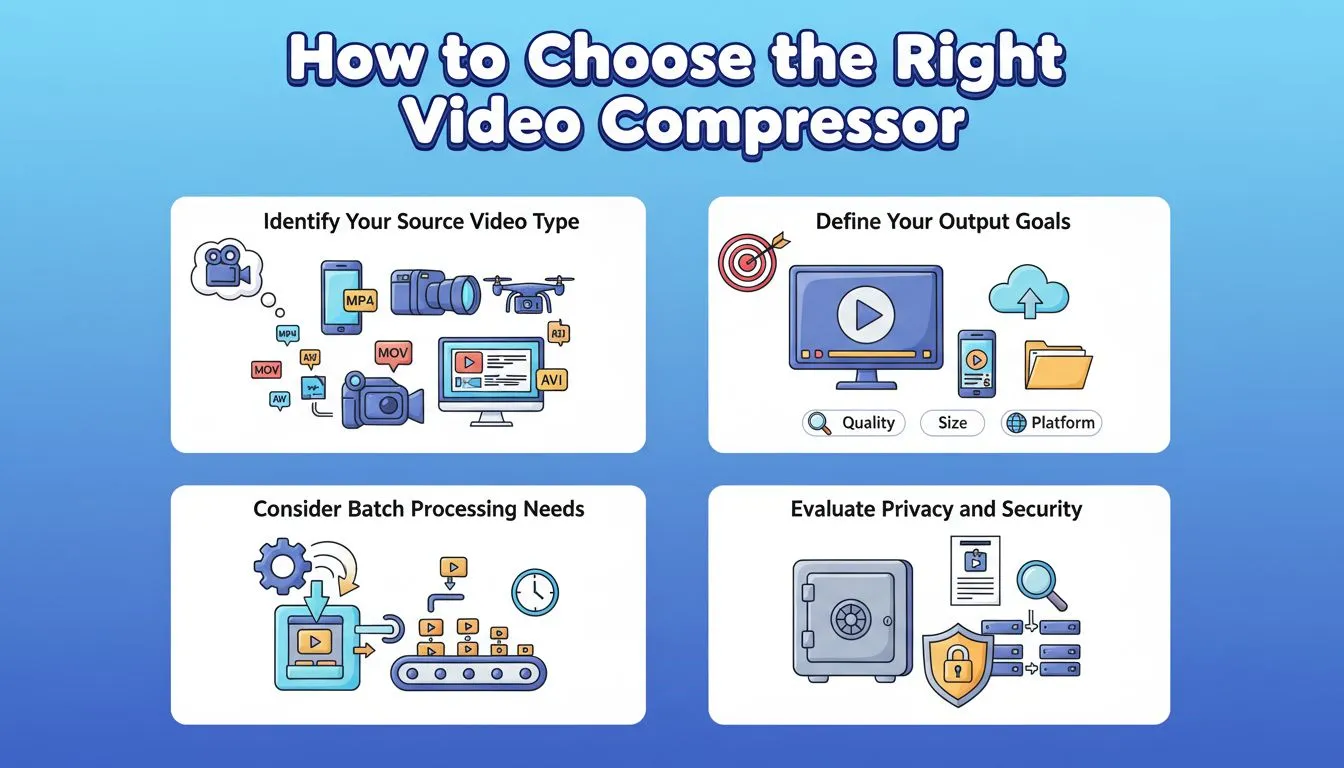
Step 1: Identify Your Source Video Type
Consider what kind of videos you typically compress.
- 4K camera footage
- Screen recordings
- Social media clips
Different tools may perform better depending on the file type.
Step 2: Define Your Output Goals
Ask yourself what matters more:
- Maximum visual quality
- Minimum file size
The right video compressor balances these priorities differently.
Step 3: Consider Batch Processing Needs
If you frequently compress large collections of files, automation features can save time.
Professional tools often offer batch processing, while simpler online video compressor solutions focus on quick individual tasks.
Step 4: Evaluate Privacy and Security
For sensitive files—such as internal business recordings—offline tools may provide additional peace of mind.
However, reputable online video compressor platforms often include secure processing environments and automatic file deletion policies.
Practical Tips for Better Video Compression Results
Even the best video compressor produces better results when used thoughtfully.
Best Practices
- Start with the highest quality source file
- Avoid compressing an already compressed video repeatedly
- Choose modern codecs such as H.264 or H.265
- Match compression level to the final use case
Common Mistakes to Avoid
- Over-compressing small videos
- Exporting with incompatible formats
- Ignoring bitrate settings
Remember that effective compression aims for usability rather than extreme reduction.
Conclusion
There is no single video compressor that fits every workflow.
Some tools prioritize advanced controls for technical users, while others focus on accessibility and speed.
Among the tools reviewed here, VideoCompress stands out for its balance of simplicity, performance, and accessibility. Its streamlined workflow makes it particularly appealing for users who want to reduce file size quickly without navigating complex encoding parameters.
For content creators, marketing teams, and everyday users managing large video files, a dependable video compressor can make video storage, sharing, and publishing dramatically easier.
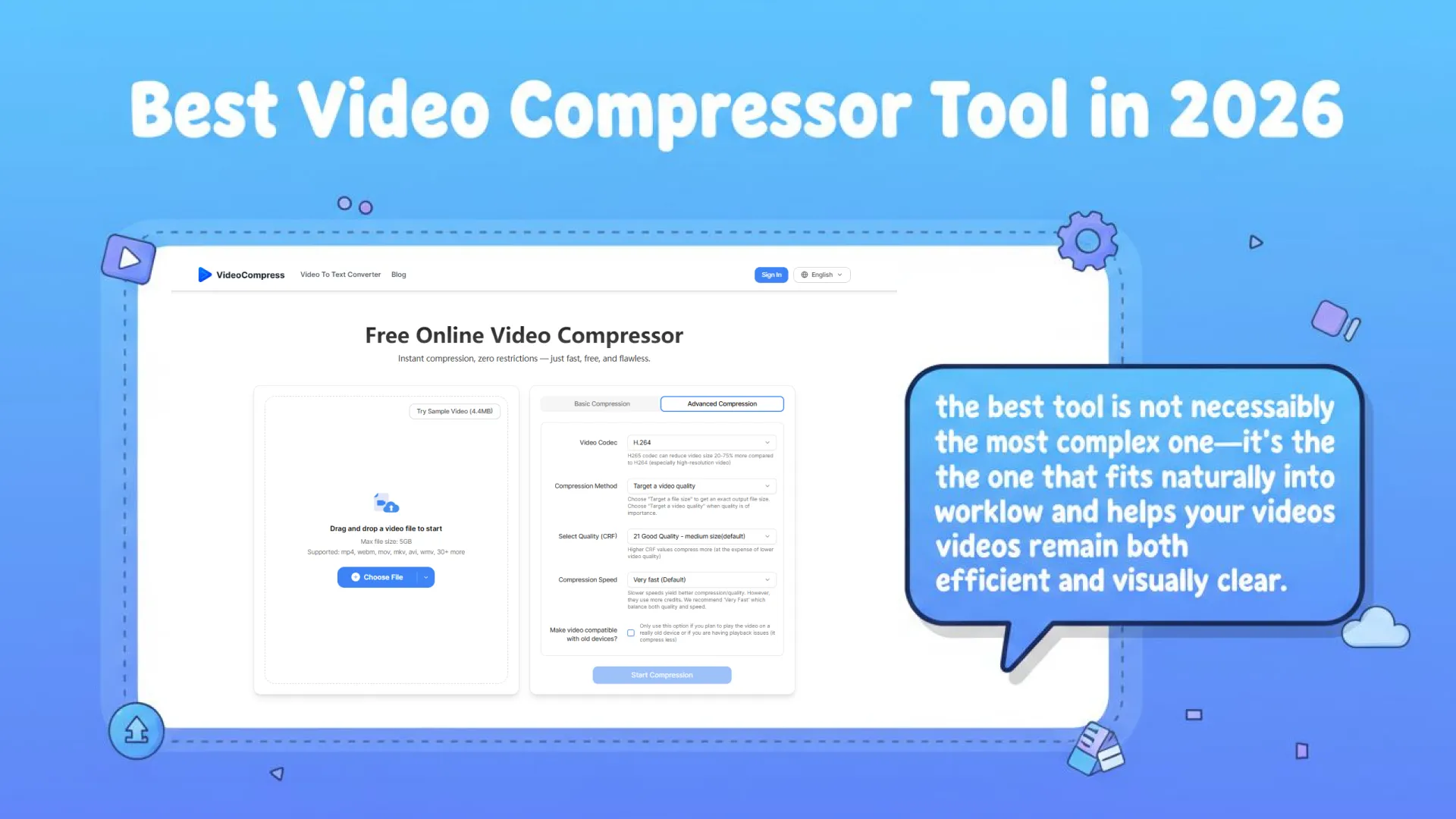
In the end, the best tool is not necessarily the most complex one—it’s the one that fits naturally into your workflow and helps your videos remain both efficient and visually clear.