

- Introduction
- Why Do PDF Files Become So Large?
- Can You Compress a PDF Without Losing Quality?
- Which Compression Method Should You Choose?
- 5 Proven Ways to Compress a PDF Without Losing Quality
- Why Choose VideoCompress PDF Compressor?
- When Should You Compress a PDF?
- Best Compression Settings for Different Scenarios
- Common Mistakes That Reduce PDF Quality
- Final Thoughts
How to Compress a PDF Without Losing Quality
Introduction
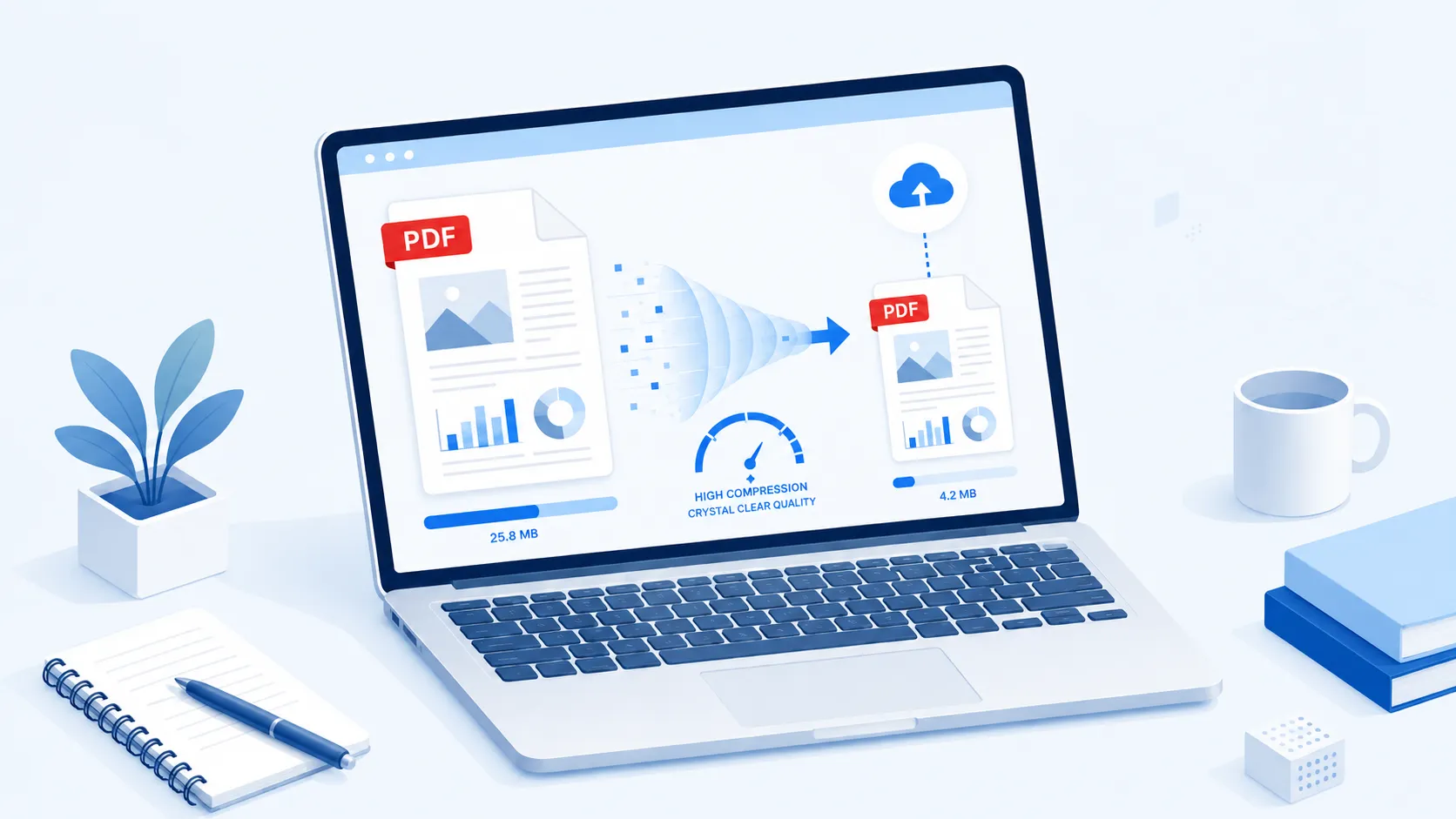
Whether you're sending an important contract, submitting a job application, or uploading coursework, you've probably encountered one frustrating message:
"Your file exceeds the maximum upload size."
Large PDF files are one of the most common problems people face when sharing documents online. A presentation filled with high-resolution images, a scanned contract, or a lengthy report can easily grow to tens—or even hundreds—of megabytes.
The obvious solution is to compress the PDF.
The problem?
Many people worry that compression will make their document blurry, unreadable, or unprofessional.
Fortunately, that's no longer the case.
Modern PDF compression technology makes it possible to significantly reduce PDF file size while keeping text sharp, images clear, and document formatting intact. The key is understanding how PDF compression works and choosing the right method for your specific document.
In this guide, you'll learn:
- Why PDF files become so large
- Whether you can compress a PDF without losing quality
- The best methods to reduce PDF file size
- How to choose the right compression level
- Common mistakes to avoid
- The easiest way to compress PDFs online
By the end of this article, you'll know exactly how to compress a PDF without losing quality, whether you're preparing documents for email, cloud storage, online submissions, or everyday sharing.
Why Do PDF Files Become So Large?
Before learning how to compress a PDF, it's helpful to understand what makes PDF files so large in the first place.
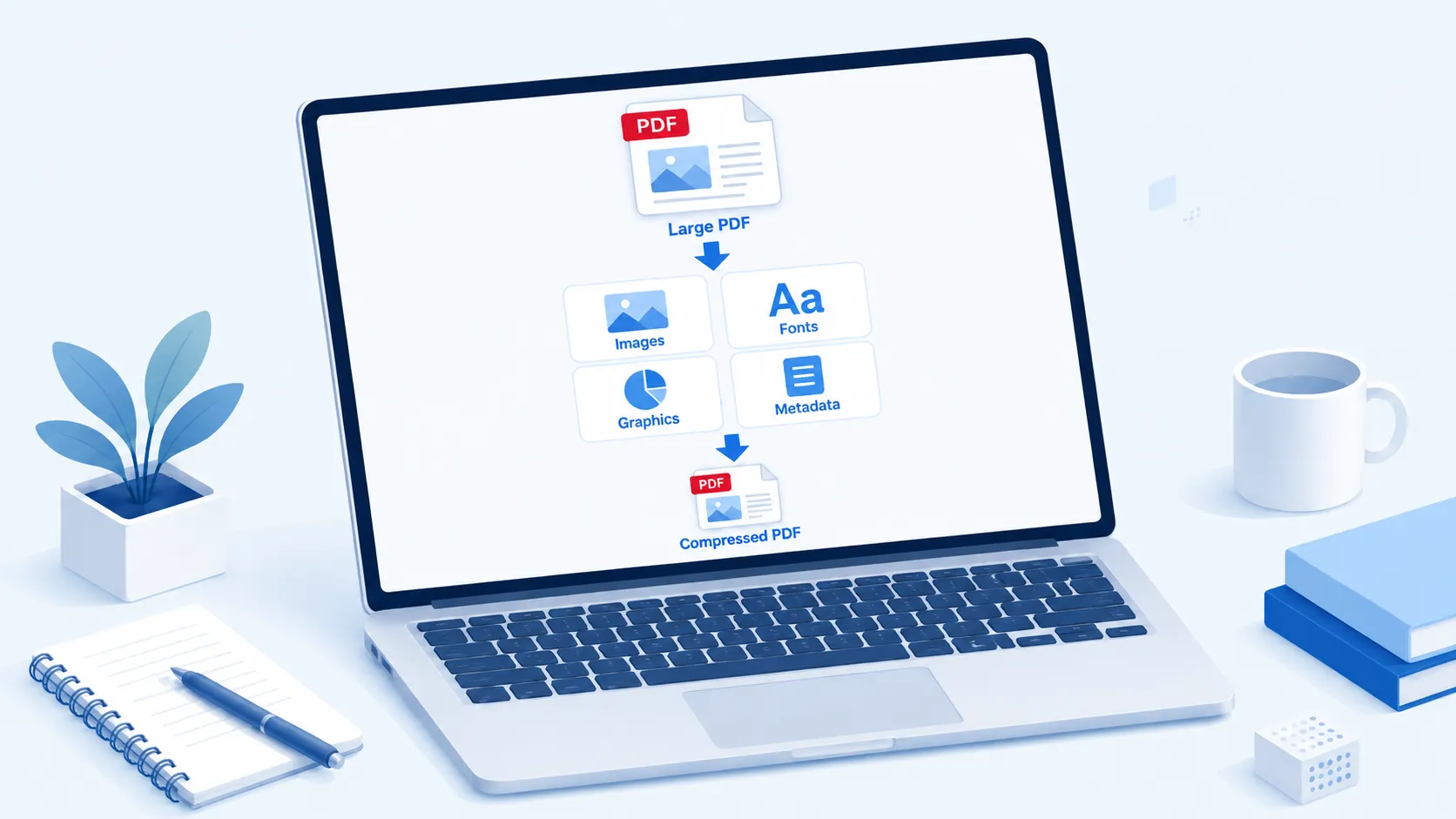
A PDF isn't simply a collection of pages—it can contain many different types of data, each contributing to the overall file size.
The most common contributors to a large PDF include:
- High-resolution images – The biggest factor behind oversized PDFs.
- Scanned pages – Each page is stored as an image, making scanned PDFs much larger than digitally created ones.
- Embedded fonts – Custom fonts increase the file size.
- Vector graphics and charts – Complex graphics require additional data.
- Interactive elements – Forms, annotations, and embedded objects add extra information.
- Metadata and document history – Hidden document data can increase file size without improving the reading experience.
For example, a simple invoice created in Word may only be 200 KB, while a scanned version of the same document could easily exceed 20 MB.
The biggest culprit is usually images.
Many PDFs contain photos exported directly from smartphones or digital cameras. These images often have resolutions far higher than necessary for viewing on a screen or sending via email.
Scanned documents present another challenge. Since each page is essentially stored as a large image, scanned PDFs tend to consume much more storage than digitally created documents.
Fortunately, most of this extra data can be optimized without noticeably affecting the appearance of the document.
Can You Compress a PDF Without Losing Quality?
The short answer is:
Yes—but it depends on how the PDF is compressed.
Many people assume that reducing file size automatically means sacrificing quality.
That isn't always true.
Modern PDF compression uses two different approaches:
| Compression Type | Best For | Quality |
|---|---|---|
| Lossless Compression | Contracts, resumes, reports | Keeps original quality |
| Lossy Compression | Image-heavy PDFs, presentations | Slight image reduction for much smaller files |
Lossless Compression
Lossless compression removes unnecessary information inside a PDF without changing the visible content.
For example, it can:
- Remove duplicate objects
- Optimize internal document structure
- Compress fonts
- Remove unused metadata
After compression, the document looks exactly the same to the human eye.
This method is ideal for:
- Legal documents
- Research papers
- Financial reports
- Business proposals
- Resumes
Lossy Compression
Lossy compression focuses primarily on reducing image size.
Instead of keeping every original pixel, it intelligently lowers image resolution or applies more efficient encoding.
The result?
A dramatically smaller PDF with almost no noticeable difference during normal viewing.
This approach works well for:
- Marketing brochures
- Photo portfolios
- Product catalogs
- Presentations
- Scanned documents
Which Compression Method Should You Choose?
Here's a quick guideline:
Choose Lossless Compression if you're working with:
- Contracts
- Resumes
- Financial reports
- Tax documents
Choose Medium or Smart Compression if you're compressing:
- School assignments
- Presentations
- Scanned PDFs
- Image-heavy catalogs
The goal isn't always to create the smallest possible PDF—it's to find the best balance between file size and readability.
A good PDF compressor should automatically optimize your document so it becomes significantly smaller while preserving readability, formatting, and image clarity.
That's exactly why online tools have become increasingly popular—they combine intelligent compression algorithms with a simple upload-and-download workflow, making it easy for anyone to reduce PDF file size without installing additional software.
Quick Tip
Compression results vary by file. Text-heavy PDFs usually have less removable data than scanned or image-heavy documents.
If it's a scanned document or contains many high-resolution photos, the reduction may vary depending on the desired image quality.
5 Proven Ways to Compress a PDF Without Losing Quality
Not every PDF needs the same compression method.
A scanned 50 MB contract requires a different approach than a two-page resume or a presentation filled with high-resolution images.
Below are five effective ways to reduce PDF file size while preserving document quality.
Method 1: Use an Online PDF Compressor (Recommended)
Best for: Everyday users, students, professionals, remote teams
If you need the fastest and easiest solution, an online PDF compressor is usually the best choice.
Instead of installing desktop software or learning complicated settings, you simply upload your PDF, let the compression engine optimize it, and download the smaller file—all within seconds.
A good online compressor should automatically balance:
- File size
- Image clarity
- Text readability
- Font rendering
- Overall document quality
Unlike older compression tools that aggressively reduced image quality, modern PDF compressors use intelligent optimization techniques to remove unnecessary data while keeping your document looking professional.
This makes online compression ideal for:
- Sending PDFs by email
- Uploading documents to online portals
- Sharing files with coworkers
- Reducing cloud storage usage
- Preparing resumes and reports
Method 2: Compress a PDF with Adobe Acrobat
Adobe Acrobat offers built-in PDF optimization features and gives users detailed control over compression settings.
You can:
- Open your PDF in Adobe Acrobat.
- Choose File > Save as Other > Reduced Size PDF.
- Select the compatibility level.
- Save the optimized file.
Adobe provides excellent results, especially for professional publishing workflows.
However, it may not be the most convenient option for occasional users because it requires software installation and, in many cases, a paid subscription.
If your goal is simply to reduce PDF size for sharing or uploading, an online PDF compressor is usually much faster.
Method 3: Compress a PDF on Mac Using Preview
Mac users already have a built-in option.
Simply:
- Open the PDF in Preview.
- Click File > Export.
- Select Reduce File Size from the Quartz Filter.
- Save the new document.
Preview works well for simple documents.
However, it provides very limited control over compression levels, and image-heavy PDFs may experience noticeable quality loss.
Method 4: Optimize Images Before Creating the PDF
Sometimes the PDF isn't the real problem.
The images inside it are.
If your document contains:
- Photos
- Product images
- Screenshots
- Scanned pages
consider reducing image resolution before exporting to PDF.
This approach can dramatically reduce file size while preserving visual quality.
Recommended image resolutions:
If you're creating a PDF from images, consider these guidelines:
- 150 DPI – Email attachments and everyday sharing
- 150–200 DPI – Online documents and cloud storage
- 200 DPI – Office reports and business documents
- 300 DPI – Professional printing
Method 5: Remove Unnecessary Elements
Many PDFs include hidden information that increases file size without improving the reading experience.
Examples include:
- Embedded thumbnails
- Unused fonts
- Metadata
- Hidden layers
- Comments
- Attachments
Cleaning up these elements can often reduce PDF size without changing how the document looks.
Many modern online PDF compressors automatically optimize these elements during compression, saving you from doing it manually.
Why Choose VideoCompress PDF Compressor?
When choosing a PDF compressor, it's worth looking beyond file size alone. Speed, quality, privacy, and ease of use all make a difference—especially if you're handling important business or personal documents.
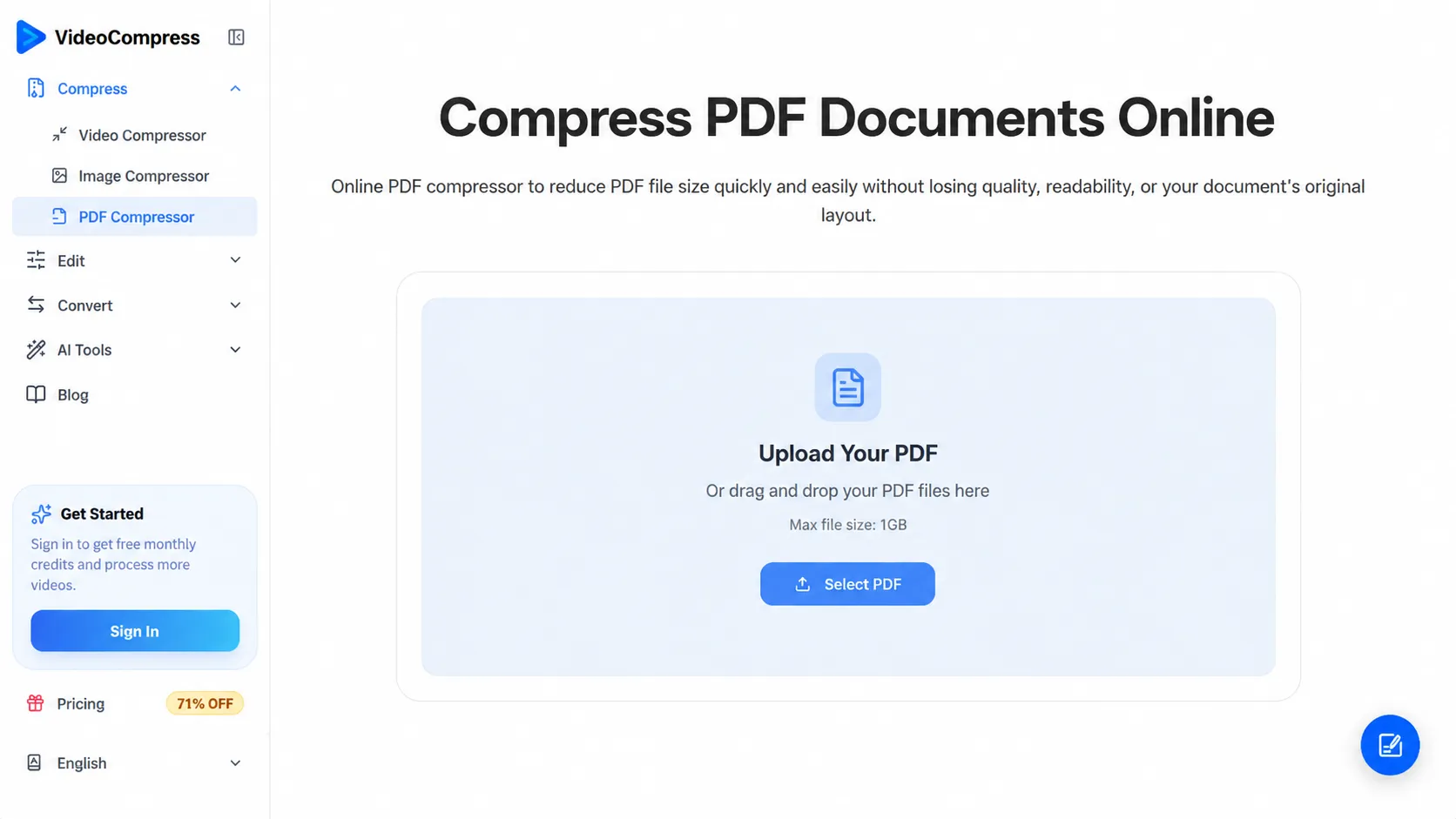
VideoCompress offers a free, browser-based PDF compressor for everyday documents. Its main features include:
High-Quality Compression
Reduce PDF size while keeping text crisp, images clear, and layouts intact.
Whether you're compressing a contract or a presentation, readability remains the priority.
No Software Installation
Everything runs directly in your browser.
No downloads.
No updates.
No complicated setup.
Just upload your PDF and start compressing.
Fast Processing
Large PDFs can be optimized in just a few seconds.
This is especially useful when you're preparing files for deadlines or last-minute submissions.
Secure File Handling
Your documents are processed securely, and uploaded files are automatically removed after processing.
You stay in control of your files without leaving unnecessary copies online.
Works Across Devices
Whether you're using:
- Windows
- macOS
- Linux
- iPhone
- Android
- Chromebook
you'll enjoy the same smooth experience.
Simple for Everyone
No technical knowledge required.
Upload → Compress → Download.
That's it.
Even first-time users can reduce PDF file size in less than a minute.
When Should You Compress a PDF?
Many people only think about compression after receiving an upload error.
In reality, compressing PDFs proactively can save time and improve collaboration.
You should consider reducing PDF file size when:
- Sending documents by email
- Uploading files to job application systems
- Submitting assignments through online learning platforms
- Sharing reports via cloud storage
- Preparing documents for government or visa applications
- Archiving large collections of PDFs
In most of these situations, a smaller file not only uploads faster but also makes it easier for others to download and view.
Best Compression Settings for Different Scenarios
Not every PDF requires the same level of compression.
Choosing the right compression level depends on how you plan to use the file. A resume, for example, should prioritize readability, while a photo catalog may benefit from stronger compression to reduce download time.
The table below can help you decide.
| Scenario | Recommended Compression | Priority |
|---|---|---|
| Resume | Lossless | Sharp text |
| Medium | Smaller file size | |
| Scanned PDF | Smart Compression | Smaller file size |
| Presentation | Medium | Image quality |
Quick Tips
✔ For text-heavy PDFs, use Lossless Compression whenever possible.
✔ For scanned PDFs, smart compression usually provides the best balance between quality and file size.
✔ For image-heavy documents, medium compression often reduces file size dramatically while keeping images visually clear.
Common Mistakes That Reduce PDF Quality
Many people believe PDF compression is the reason their documents become blurry.
In reality, poor quality is often caused by how the PDF is created or compressed, not by compression itself.
Here are the most common mistakes to avoid.
Compressing the Same PDF Multiple Times
Every time a lossy compression algorithm is applied, image quality may decrease slightly.
If you repeatedly compress the same file, the loss can become noticeable.
Best Practice
Always keep the original PDF and compress from the original version whenever possible.
Using Maximum Compression for Every Document
Choosing the highest compression level isn't always the best option.
For example:
- A resume only needs to be a few hundred KB.
- A legal contract should prioritize clarity over file size.
- A scanned document may require moderate compression to keep text readable.
Selecting the appropriate compression level produces much better results.
Exporting Images at Extremely Low Resolution
Some users reduce image resolution before creating the PDF.
While this creates smaller files, it permanently removes image detail.
Instead, keep reasonably sized images and let the PDF compressor optimize them intelligently.
Converting Between Multiple File Formats
A common workflow looks like this:
Word - PDF - Image - PDF - Compressed PDF
Each conversion introduces unnecessary quality loss.
Whenever possible, compress the original PDF directly instead of repeatedly converting file formats.
Ignoring Hidden File Data
Many PDFs contain hidden information such as:
- Metadata
- Embedded fonts
- Attachments
- Comments
- Previous revisions
Removing these elements can significantly reduce file size without affecting the visible document.
Modern PDF compressors often handle this automatically.
Final Thoughts
Large PDF files shouldn't slow down your workflow.
Whether you're sending documents to clients, submitting applications, sharing reports with teammates, or organizing cloud storage, reducing PDF file size makes everyday tasks faster and easier.
The good news is that you no longer have to choose between a smaller file and a professional-looking document.
By selecting the right compression method—and using a reliable PDF compressor—you can significantly reduce file size while keeping text, images, and formatting intact.
If you're looking for a simple solution, an online PDF compressor is often the fastest option.
It works directly in your browser, requires no installation, and helps you optimize PDFs in just a few clicks.